
How to Setup IPTV on Enigma2 Zgemma Devices Using PuTTY
Learn how to install IPTV on Enigma2, Zgemma and similar satellite receivers using PuTTY. This step-by-step guide shows you how to connect to your device, run your IPTV script, reboot the box, and improve your IPTV setup.

With PuTTY, a free SSH and Telnet client for Windows, configuring IPTV on your Enigma2 or Zgemma device is simple. You only need your box IP address and the IPTV installation script provided by your IPTV service.
Step 1: Install PuTTY
First, download and install PuTTY on your Windows computer.
- Go to the official PuTTY website.
- Download the installation file.
- Run the downloaded file.
- Follow the installation instructions until PuTTY is installed.
Step 2: Obtain Your Box IP Address
You need the IP address of your Enigma2 device. You can usually find it in the network settings of your receiver.
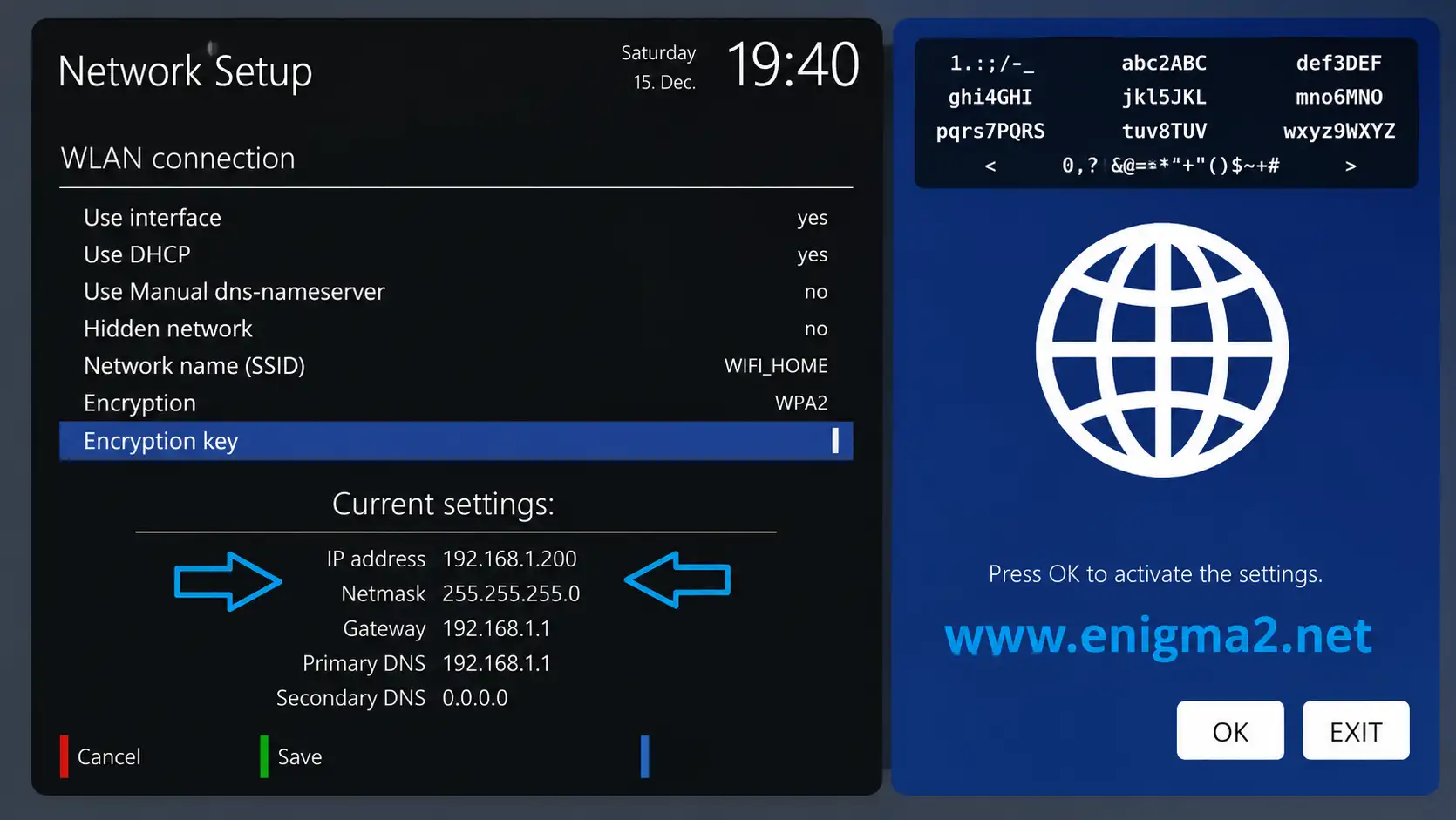
- Open your Enigma2 device menu.
- Go to Network Setup.
- Find the current IP address.
- Write it down because you will need it in PuTTY.
Example IP address: 192.168.1.200. Your IP address may be different.
Step 3: Configure PuTTY
Launch PuTTY on your computer and enter the IP address of your Enigma2 device.
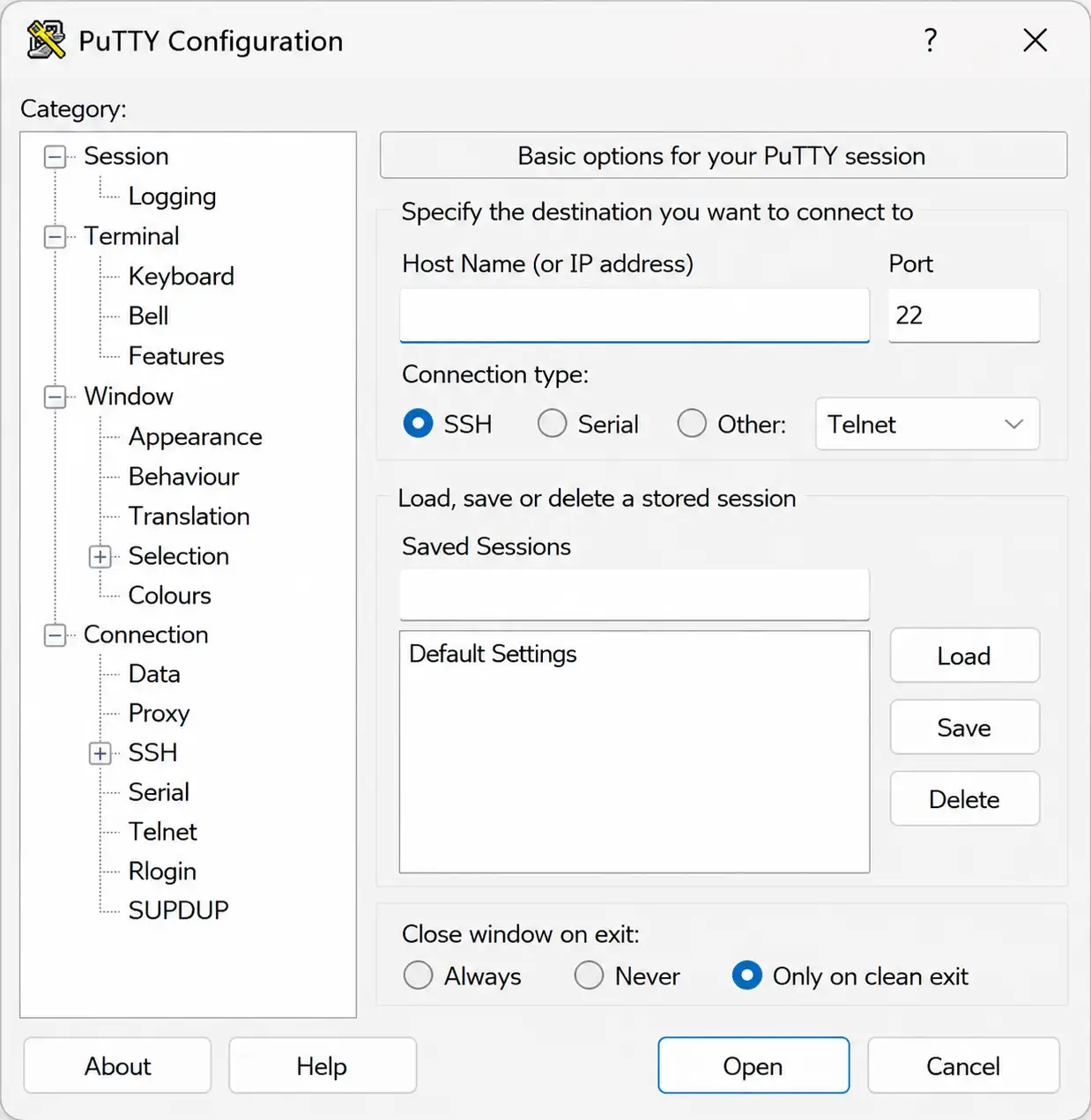
- Open PuTTY.
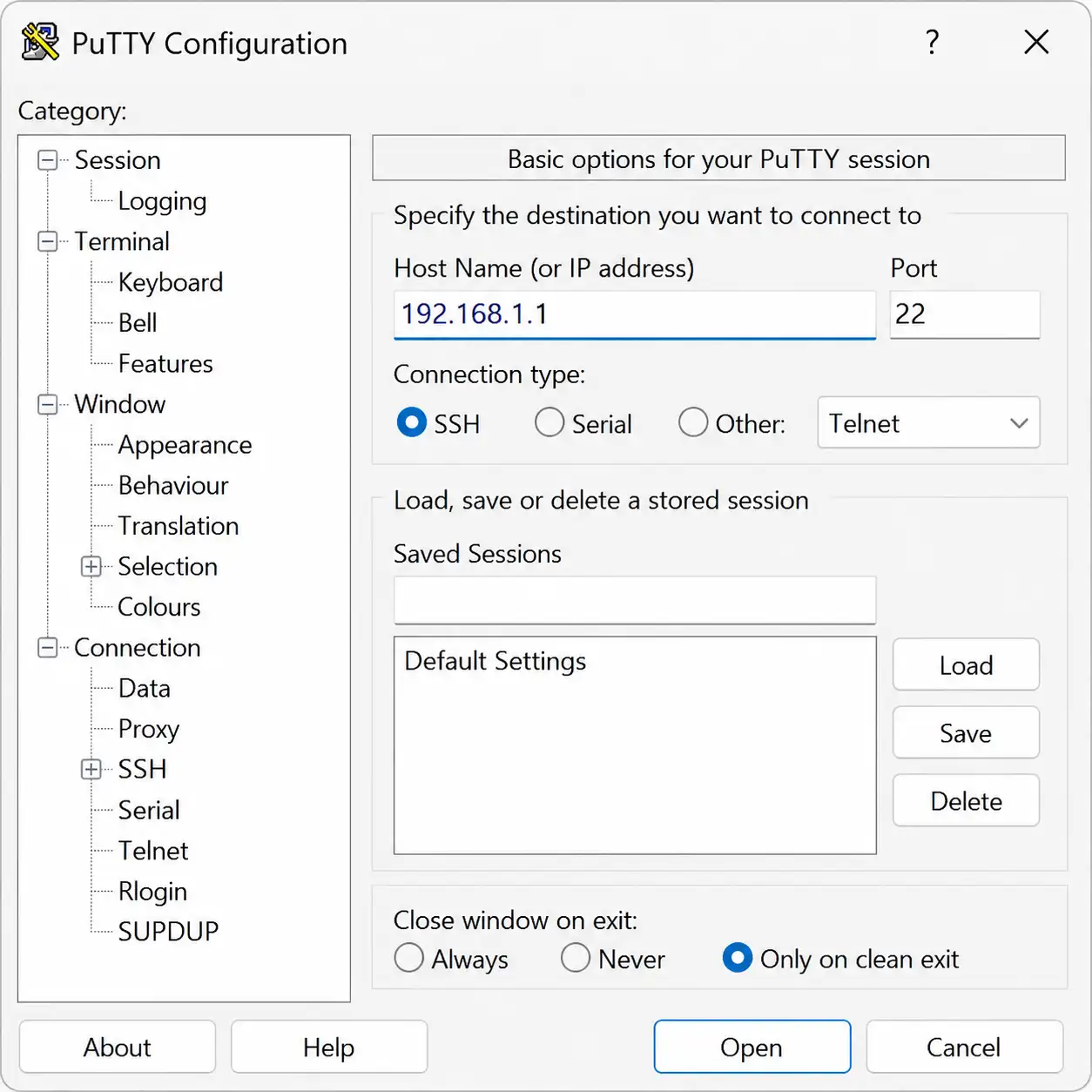
- In the Host Name field, enter your Enigma2 box IP address.
- In the Connection type section, select Telnet.
- Click Open to start the connection.
Step 4: Log In to Your Device
After PuTTY opens the terminal window, press Enter and log in to your device.
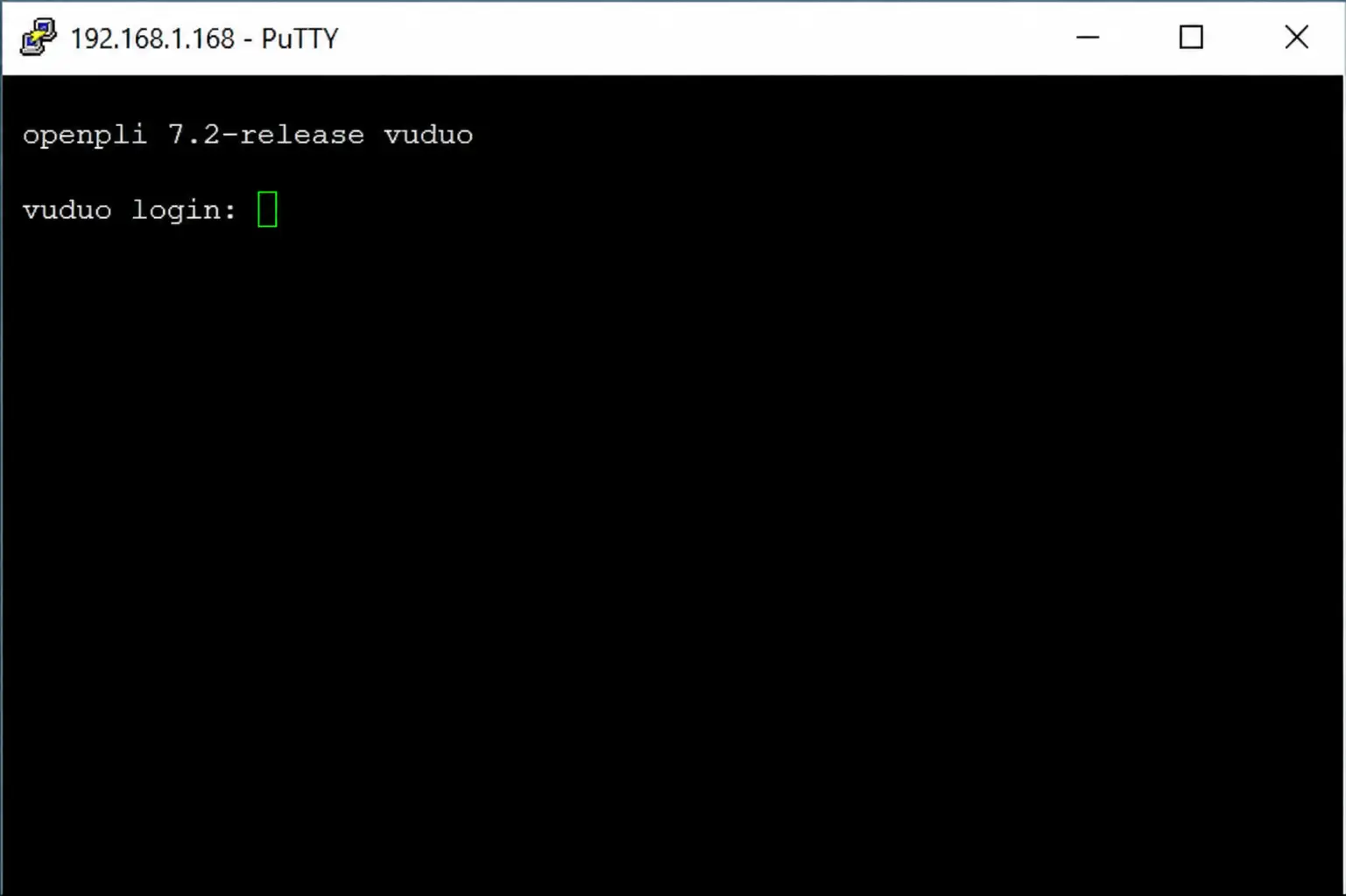
- Open the terminal window.
- Press Enter.
- Log in as the root user.
- Username: root
- Password: enter your device root password, then press Enter.
Step 5: Run the IPTV Auto-Installer Script
Once logged in, run the IPTV installation script provided by your IPTV service. The format below is only an example.
Replace the example URL with the real IPTV script or M3U URL provided by your IPTV service. Make sure your username, password and server URL are typed correctly.
Step 6: Reboot Your Device
After the script finishes, reboot your Enigma2 device by typing:
- Type reboot.
- Press Enter.
- Your device will restart.
- The IPTV setup should now be complete.
Adding an EPG to Your IPTV Channels
To improve your viewing experience, you can assign an Electronic Program Guide to your IPTV channels using E-Channelizer.
Step 1: Install E-Channelizer
- Download E-Channelizer from its official download page.
- Install the program on your Windows computer.
Step 2: Assign EPG References
- Launch E-Channelizer and connect it to your Enigma2 device.
- Drag the equivalent satellite channel over the IPTV channel while holding the Ctrl key.
- This assigns the correct EPG reference.
- Write the changes back to your device.
- The GUI will restart and your EPG should now be properly set up.
Final Tips
- Make sure your Enigma2 receiver and computer are connected to the same network.
- Use the correct box IP address in PuTTY.
- Check your IPTV username, password and server URL before running the script.
- If the channels do not appear, reboot your device again.
- If your IPTV list still does not load, contact support to verify your subscription details.
Need Help Setting Up IPTV?
Contact BangosPlay support and we will help you configure IPTV on Enigma2, Zgemma, MAG, Smart TV, Firestick, Android, Windows, iPhone and more.
Contact Support