
How to Watch IPTV on Any Device:
The Complete 2026 Setup Guide
The landscape of home entertainment has shifted permanently. We have moved from analog signals to the era of data packets and IP addresses. IPTV gives you flexibility that traditional cable cannot match.
Unlike Netflix or YouTube, setting up IPTV is not always a one-click experience. It requires understanding apps, protocols, devices, and network settings.
In this complete guide, you will learn how to set up IPTV on Firestick, Smart TV, PC, Mac, Android, and iPhone with the best performance.
Table of Contents
- 1. Understanding the Core Tech
- 2. Hardware Performance Analysis
- 3. Firestick Setup
- 4. Smart TV Setup
- 5. VLC & Desktop Setup
- 6. Mobile Streaming
- 7. Network Optimization
- 8. Why Bitrate Matters
- 9. FAQ & Troubleshooting
1. Understanding the Core Tech: Protocols and Codecs
Before installing IPTV apps, it is important to understand how IPTV works. When you buy a subscription, you are buying access to a server.
M3U vs Xtream Codes
1. M3U Playlist
An M3U URL is a text file containing thousands of streaming links.
The Problem: Every time you open the app, it loads a huge playlist which can make the app slow and laggy.
2. Xtream Codes API
This is the modern method. You enter Server URL, Username, and Password.
The Advantage: Faster loading, better categories, smoother EPG, and cleaner performance.
Video Compression: H.264 vs H.265
- H.264: Works on most devices.
- H.265 / HEVC: Better for 4K, but needs stronger hardware.
2. Choosing Your Weapon: Hardware Performance Analysis
Different devices give different IPTV experiences. A strong device can reduce lag, buffering, and app crashes.
| Device Type | Examples | Pros | Cons | Verdict |
|---|---|---|---|---|
| Dedicated Streamer | Firestick 4K Max, NVIDIA Shield | Fast CPU, HEVC support, smooth apps | Requires HDMI port | Best Choice |
| Smart TV | Samsung, LG | No extra device | Weak processor, limited apps | Basic Use |
| PC / Mac | Windows, macOS | Powerful and stable | Not ideal for living room | Great Testing |
| Mobile | iPhone, Android | Watch anywhere | Small screen, battery drain | Travel Use |
3. The Firestick Masterclass: Sideloading & Configuration
The Amazon Firestick is one of the best IPTV devices because it is fast, affordable, and supports many IPTV apps.
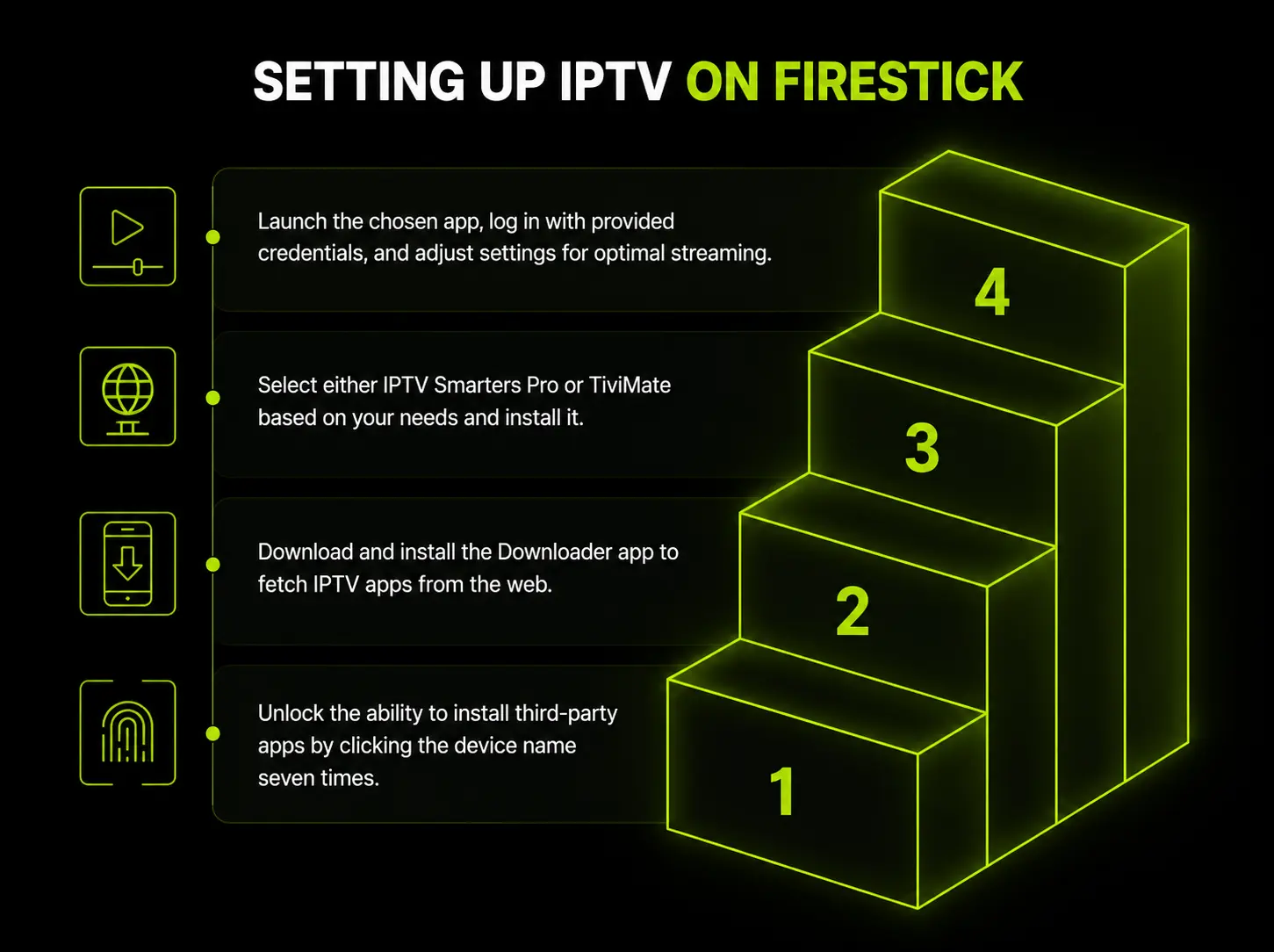
Step 1: Enable Developer Options
- Open Settings.
- Go to My Fire TV.
- Click About.
- Click your device name 7 times.
- Enable Apps from Unknown Sources.
Step 2: Install Downloader
- Go to Search.
- Type Downloader.
- Install the orange Downloader app.
- Allow file permission.
Step 3: Install IPTV Player
You can use IPTV Smarters Pro or TiviMate depending on your needs.
Step 4: Configuration
Open your IPTV app, choose Login with Xtream Codes, and enter the credentials from your provider.
4. Smart TV Setup
Samsung and LG TVs use their own operating systems, so you cannot install APK files like Android devices.
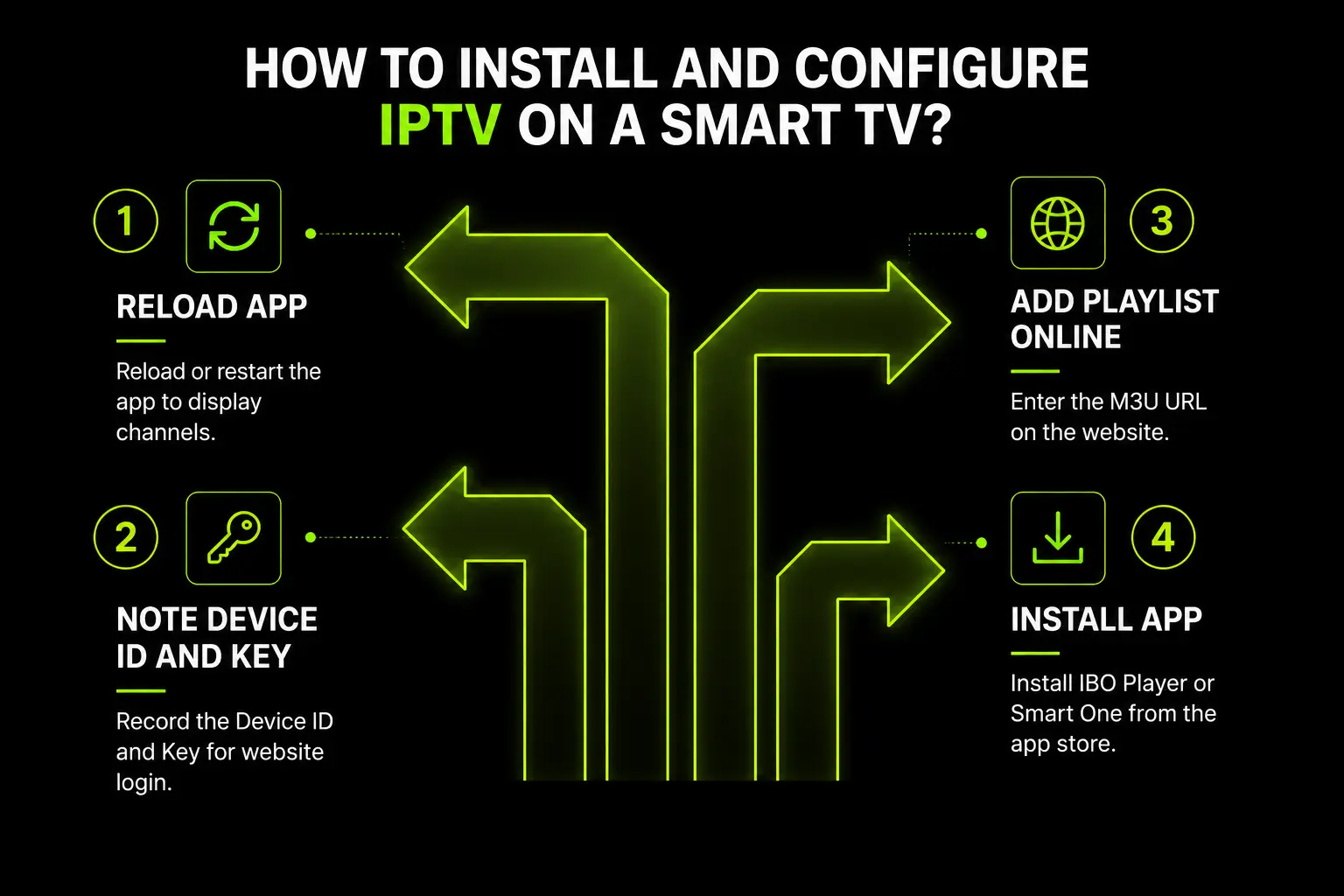
Step-by-Step Smart TV Setup
- Open Samsung or LG App Store.
- Install IBO Player or Smart One.
- Open the app.
- Write down Device ID and Device Key.
- Add your playlist online.
- Reload the app.
5. Desktop Configurations: VLC & Windows/Mac Setup
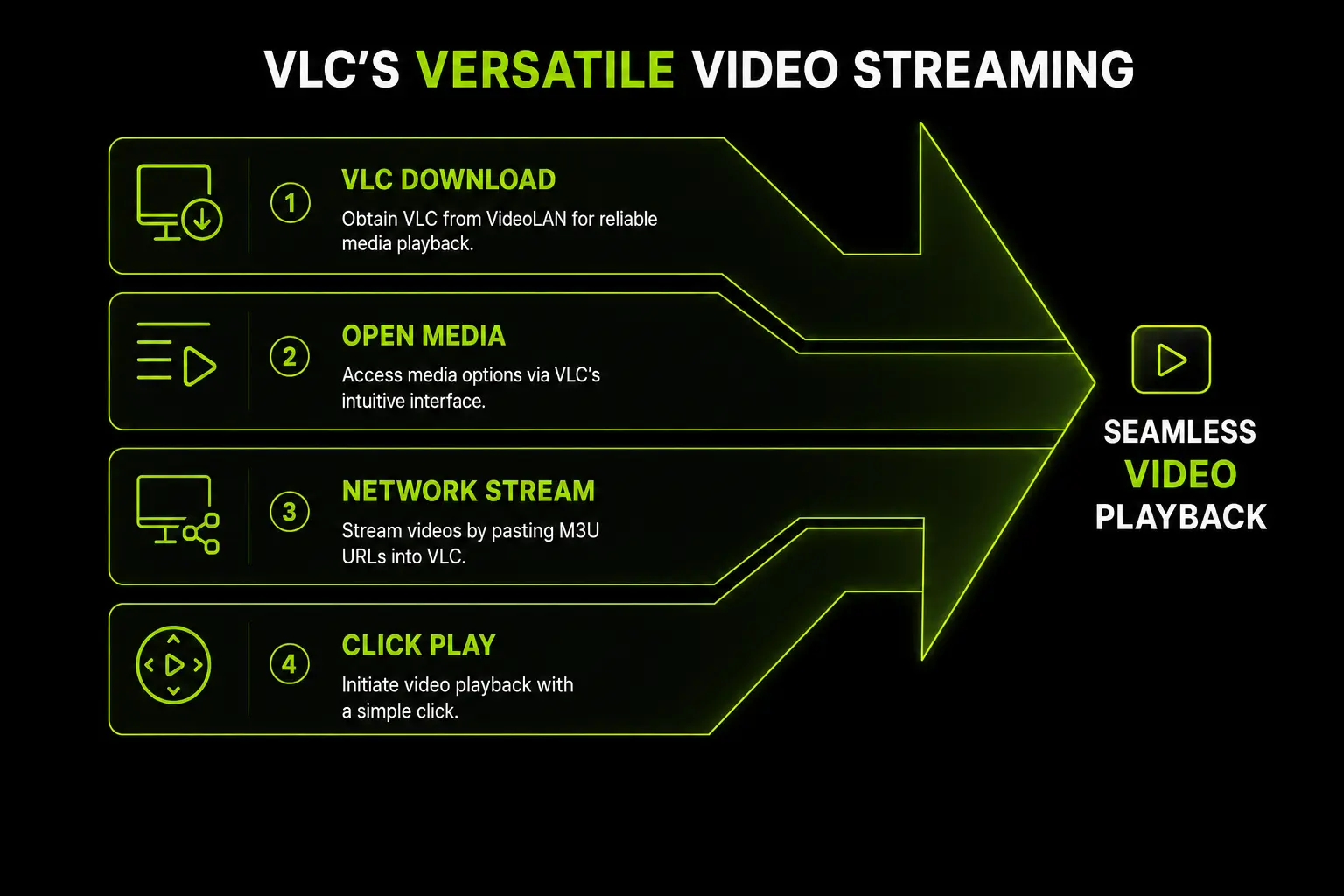
VLC is one of the most reliable IPTV players for PC and Mac.
- Download VLC.
- Open Media > Open Network Stream.
- Paste your M3U URL.
- Click Play.
Expert VLC Tweaks
- Enable Deinterlacing for sports and fast movement.
- Adjust H.264 loop filter settings if your PC is weak.
6. Mobile Streaming: iOS and Android
Android
Download IPTV Smarters Pro or XCIPTV from the Play Store.
iOS
Use Smarters Player Lite or GSE Smart IPTV from the App Store.
7. Network Optimization: Eliminating Buffering
Wi-Fi Frequencies: 2.4GHz vs 5GHz
- 2.4GHz: Long range but slower.
- 5GHz: Faster and better for HD and 4K streaming.
DNS Settings
Cloudflare DNS: 1.1.1.1 and 1.0.0.1
Google DNS: 8.8.8.8 and 8.8.4.4
VPNs
If your IPTV buffers even with good internet speed, a VPN may help reduce ISP throttling.
8. The Role of the Provider: Why Bitrate Matters
Cheap IPTV providers often overload their servers. This causes buffering during sports events and peak hours.
A good Full HD stream needs around 8–10 Mbps.
A 4K stream may need 25–40 Mbps.
9. Advanced FAQ & Troubleshooting
Q: Parser Exception Error?
This usually means your M3U link is wrong or badly formatted. Try Xtream Codes login.
Q: No Information on Channels?
Your EPG failed to sync. Refresh EPG or clear the app cache.
Q: Video loops every 10 seconds?
This is usually caused by packet loss or unstable internet. Restart your router.
Q: Is IPTV safe?
Use secure HTTPS websites and trusted payment gateways.
Final Thoughts
Mastering IPTV requires the right device, app, provider, and network setup. With a strong device and stable internet connection, IPTV can deliver a premium streaming experience on almost any device.