
How to Setup IPTV on Windows
Learn how to watch IPTV on your Windows PC using TiviMate IPTV Player or IPTV Smarters Pro with Xtream Codes API.
If you want to watch IPTV on your Windows PC, you have two great options: TiviMate IPTV Player and IPTV Smarters Pro. Both apps give a stable streaming experience and let you access live channels, sports, and VOD directly on your computer.
Option 1: TiviMate IPTV Player for Windows
TiviMate is a popular IPTV player known for a clean interface and reliable playback. You can install a Windows-compatible version from the Microsoft Store or from a trusted download link provided by your IPTV provider.
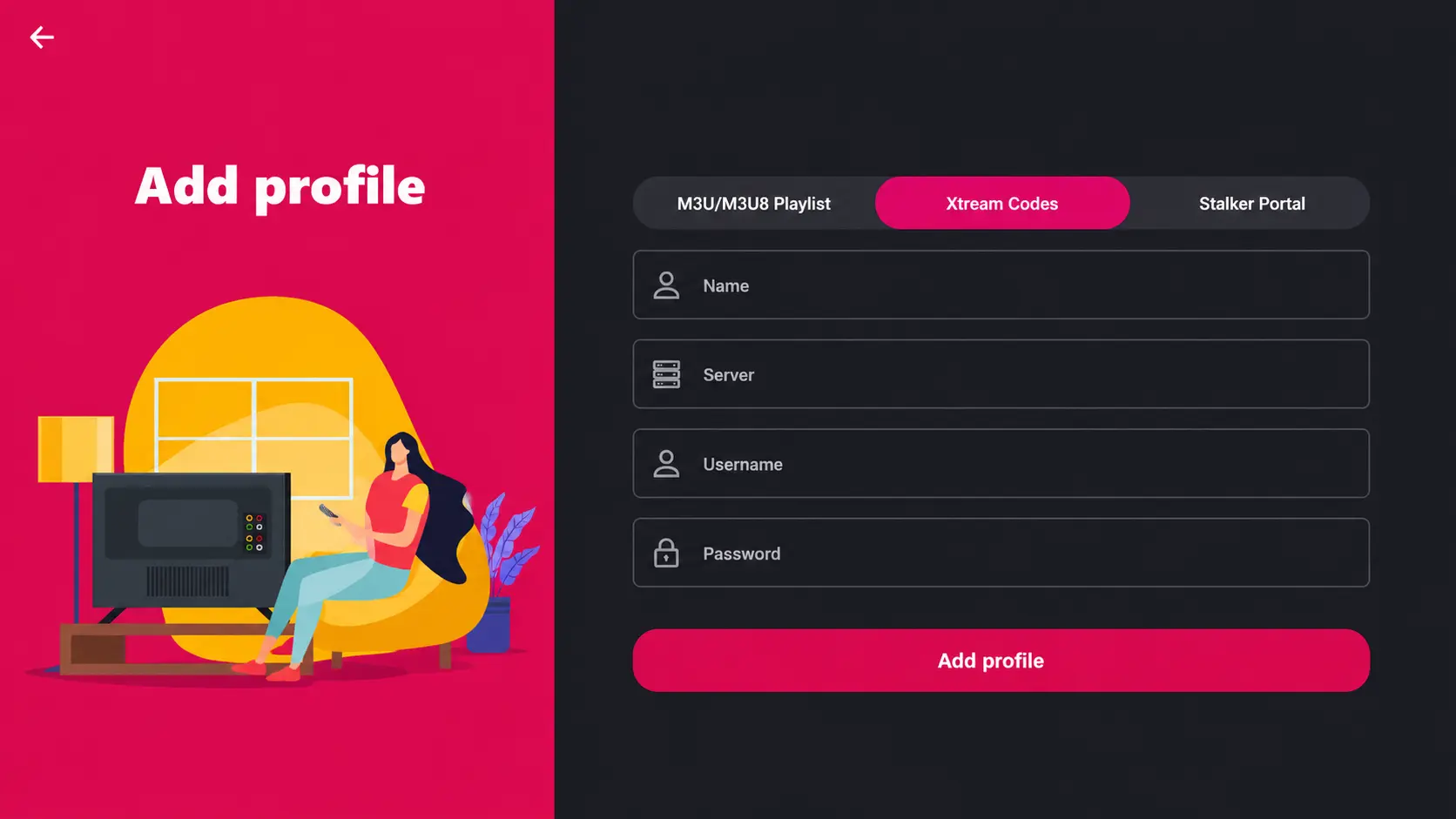
How to set up TiviMate
- Open the Microsoft Store or your provider download link.
- Search for TiviMate.
- Click Get or Install.
- Launch TiviMate after installation.
- Choose Xtream Codes API or M3U playlist.
- Enter your IPTV login details.
- The channels and EPG will load automatically.
Tip: TiviMate works best with a stable internet connection and a modern PC. For 4K streams, a wired Ethernet connection is recommended.
Option 2: IPTV Smarters Pro for Windows
IPTV Smarters Pro is another excellent choice and is widely used for both live TV and VOD. Follow these steps to download, install, and log in.
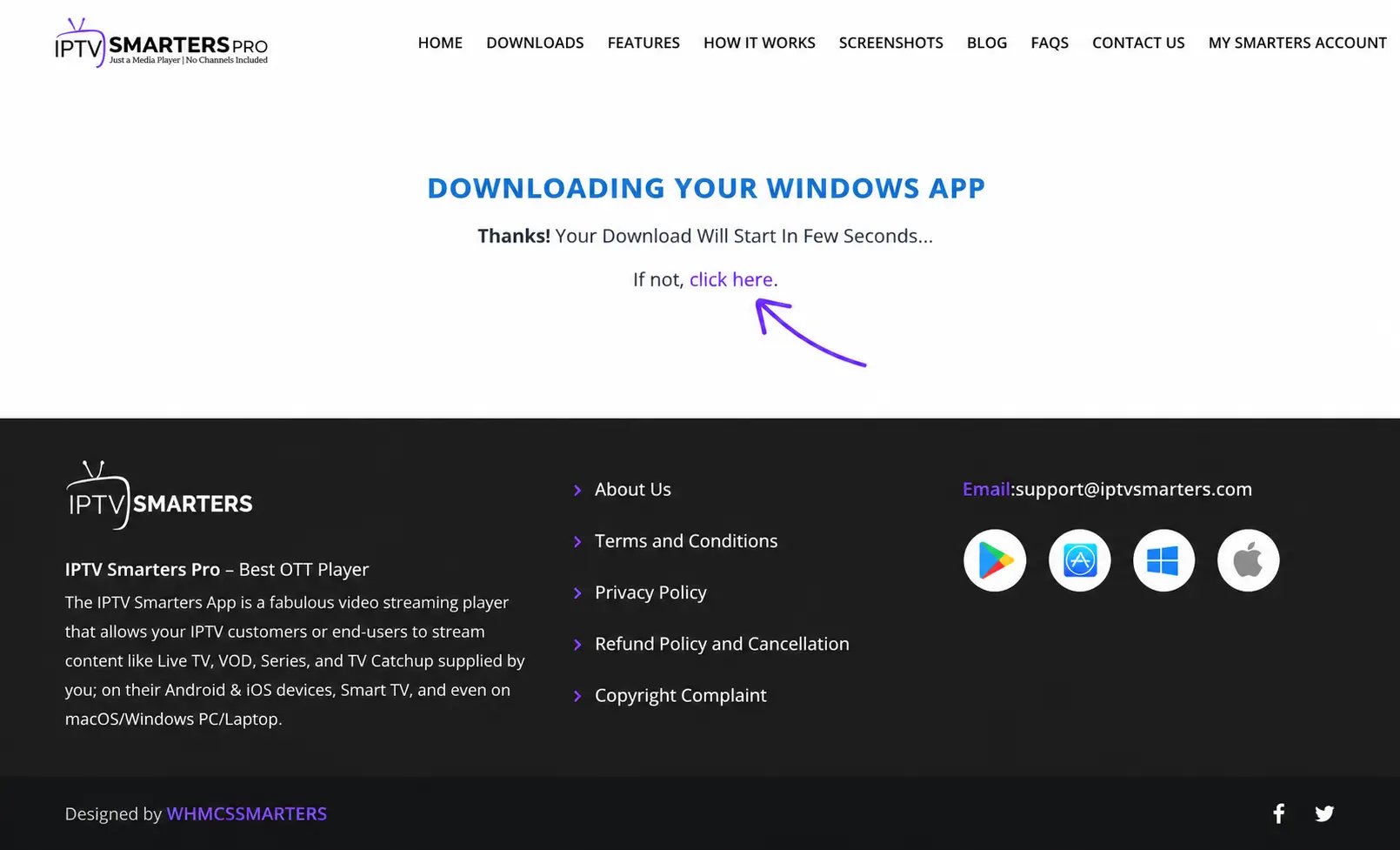
Step 1: Download IPTV Smarters Pro
- Open your web browser on Windows.
- Go to the official IPTV Smarters Pro download page or the link provided by your IPTV provider.
- Download the Windows installer.
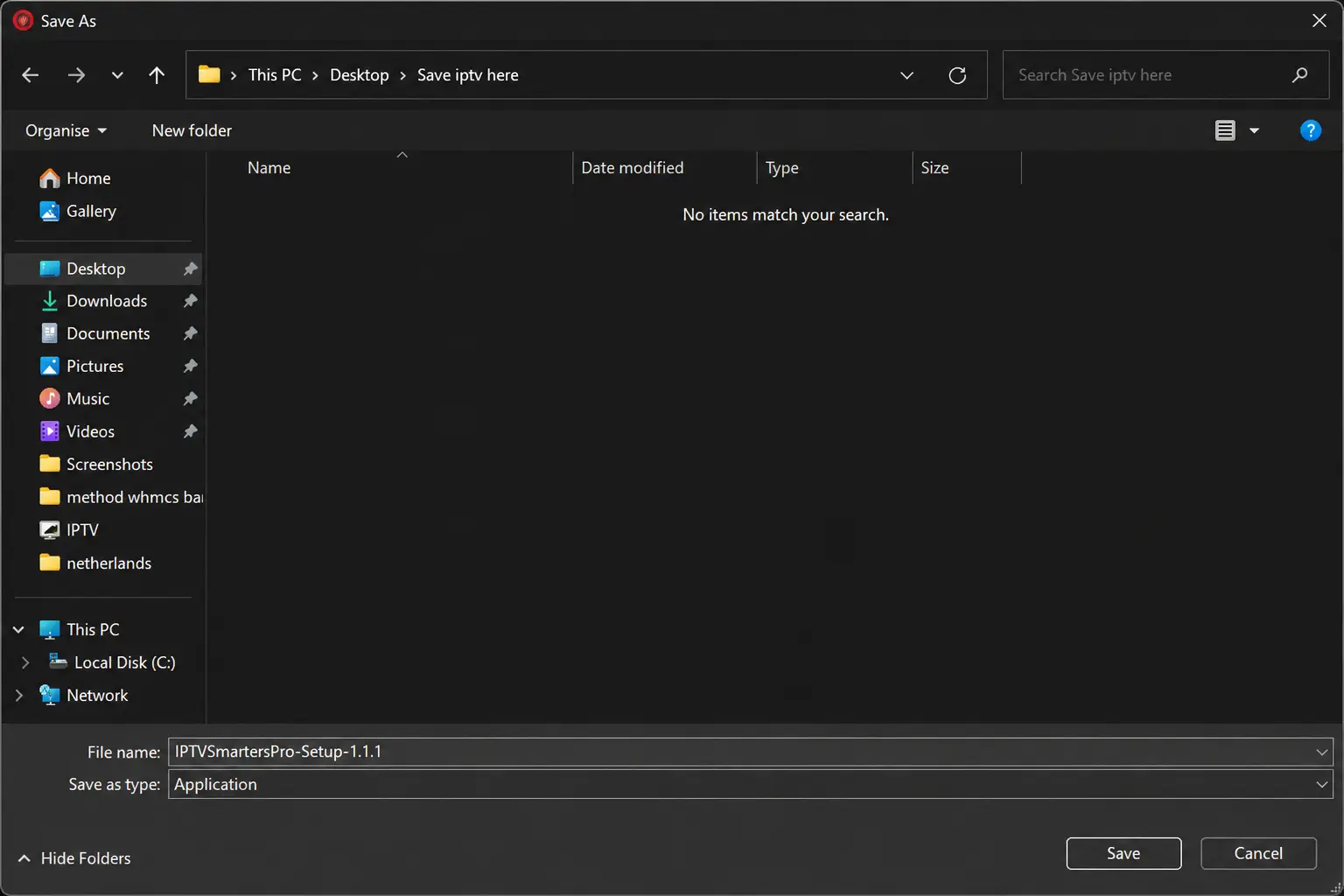
Step 2: Save the File
Choose a download location that is easy to access, for example the Downloads folder or a dedicated folder for IPTV apps.
Step 3: Install IPTV Smarters Pro
- Open the folder where you saved the installer.
- Double-click the setup file to start the installation.
- Follow the on-screen instructions.
- Accept the license and complete the installation steps.
Step 4: Launch IPTV Smarters Pro
- After installation, find the IPTV Smarters Pro icon on your desktop or in the Start menu.
- Double-click to open the app.
Step 5: Enter Your IPTV Login Details
Once the app opens, choose Login with Xtream Codes API and enter your subscription credentials exactly as provided by your IPTV service.
Login fields explained
- First box: Profile name. You can enter any name you like.
- Second box: Username sent to you by Email or WhatsApp.
- Third box: Password from your provider.
- Fourth box: Server URL. It usually starts with
http://orhttps://.
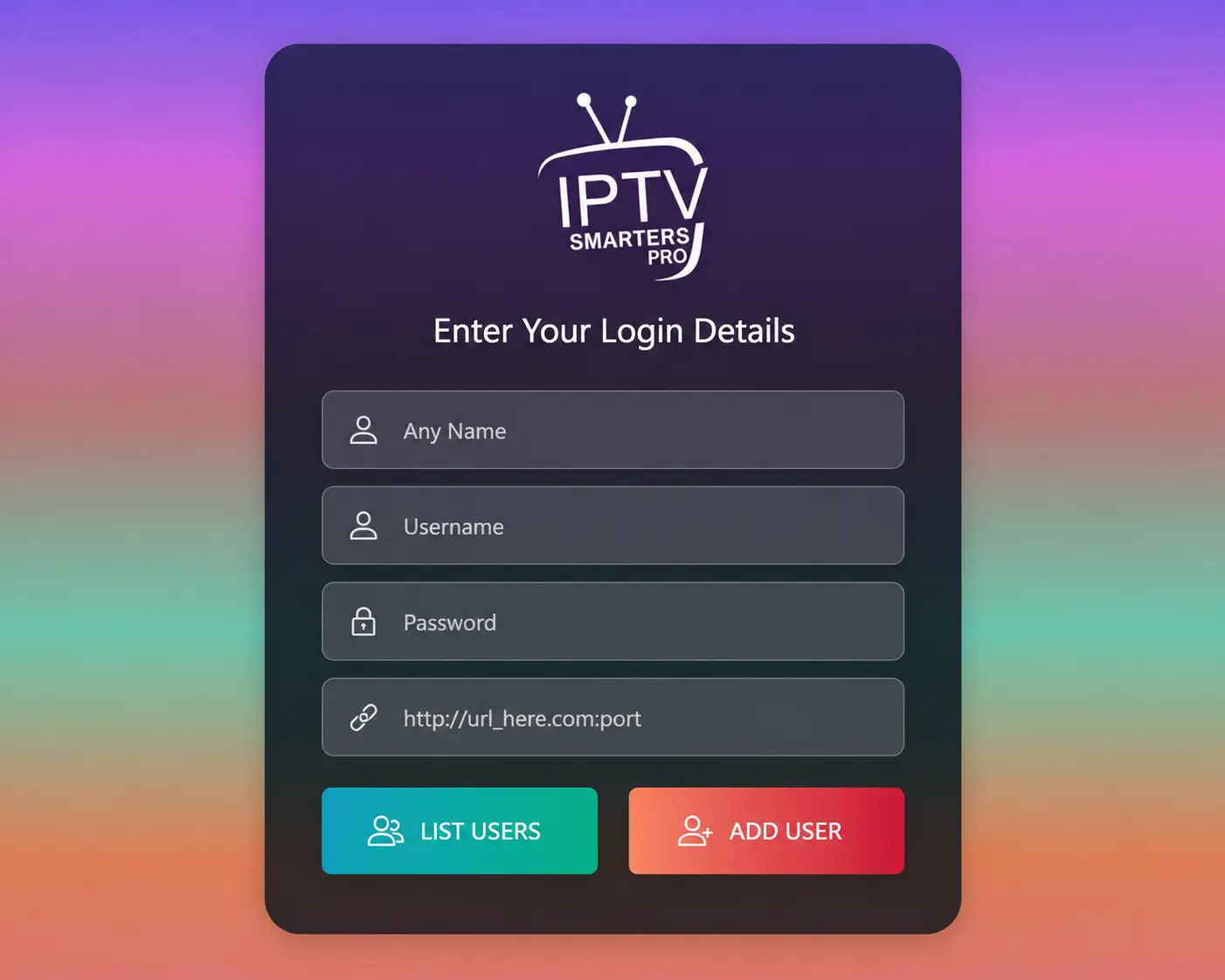
After entering the details, click Add User or Login. The app will load channels, movies, series, and EPG.
Troubleshooting
Authorization Failed
If you see an “Authorization Failed” message, check the following:
- Make sure username and password are typed exactly.
- Confirm the server URL is correct and complete.
- Disable any VPN temporarily.
- Contact your IPTV provider if the issue continues.
Account Expired
If you get an “Account Expired” message, confirm your subscription status with your provider. Sometimes a short sync time is needed after renewal, so wait a few minutes and try again.
Final Notes
Both TiviMate and IPTV Smarters Pro offer excellent performance on Windows. Choose the player you prefer, follow the setup steps, and log in with Xtream Codes API or M3U.
Need Help Setting Up IPTV on Windows?
Contact BangosPlay support and we will help you install IPTV on Windows PC, configure IPTV Smarters Pro or TiviMate, add your Xtream Codes login details, and fix any streaming or login issues quickly.
Contact Support