
How to Easily Set Up IPTV on FireStick Step by Step Guide
Learn how to install IPTV Smarters Pro on your Firestick and start streaming live TV, sports, movies and series in just a few minutes.
Introduction
Installing IPTV on your Firestick is much easier than most people think. All you need is an app and your IPTV login details. In this guide, we'll walk you through the entire process using IPTV Smarters Pro, one of the most popular IPTV players for Firestick.
Don't worry every step is explained clearly so you can start watching your favorite channels within minutes.
Choosing the Right IPTV App
There are many IPTV apps you can use on Firestick. The most popular and beginner-friendly one is IPTV Smarters Pro, which is free and reliable for most users.
Some good recommended ones:
1. IPTV Smarters Pro (Downloader code: 78522)
2. XCIPTV (Downloader Code: 114407) – Google Play
3. TiviMate (Paid) (Downloader Code: 185194) — Google Play
4. HOT IPTV (Paid) (Downloader Code: 395800)
5. IBO Player Pro (Paid) — Official Site
What You Need to Know
Before we begin, here's a quick summary:
- We will use IPTV Smarters Pro, but you can choose any app you prefer.
- After installing the app, you will need your IPTV username, password, and server URL.
Note: If you watch this video, when you get to downloader part — use downloader codes found below.
1. From the home screen, hover over Find.
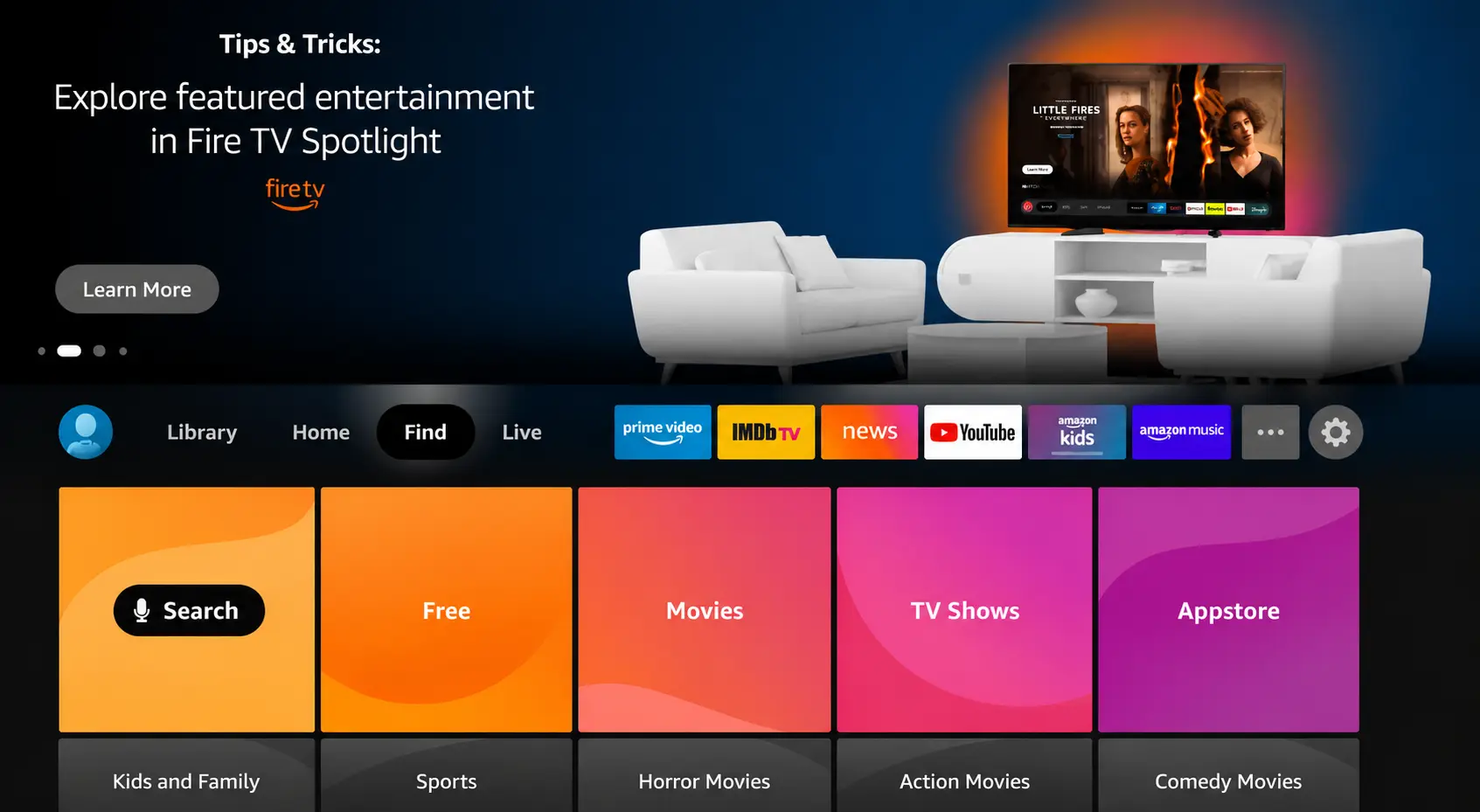
2. Click Search.
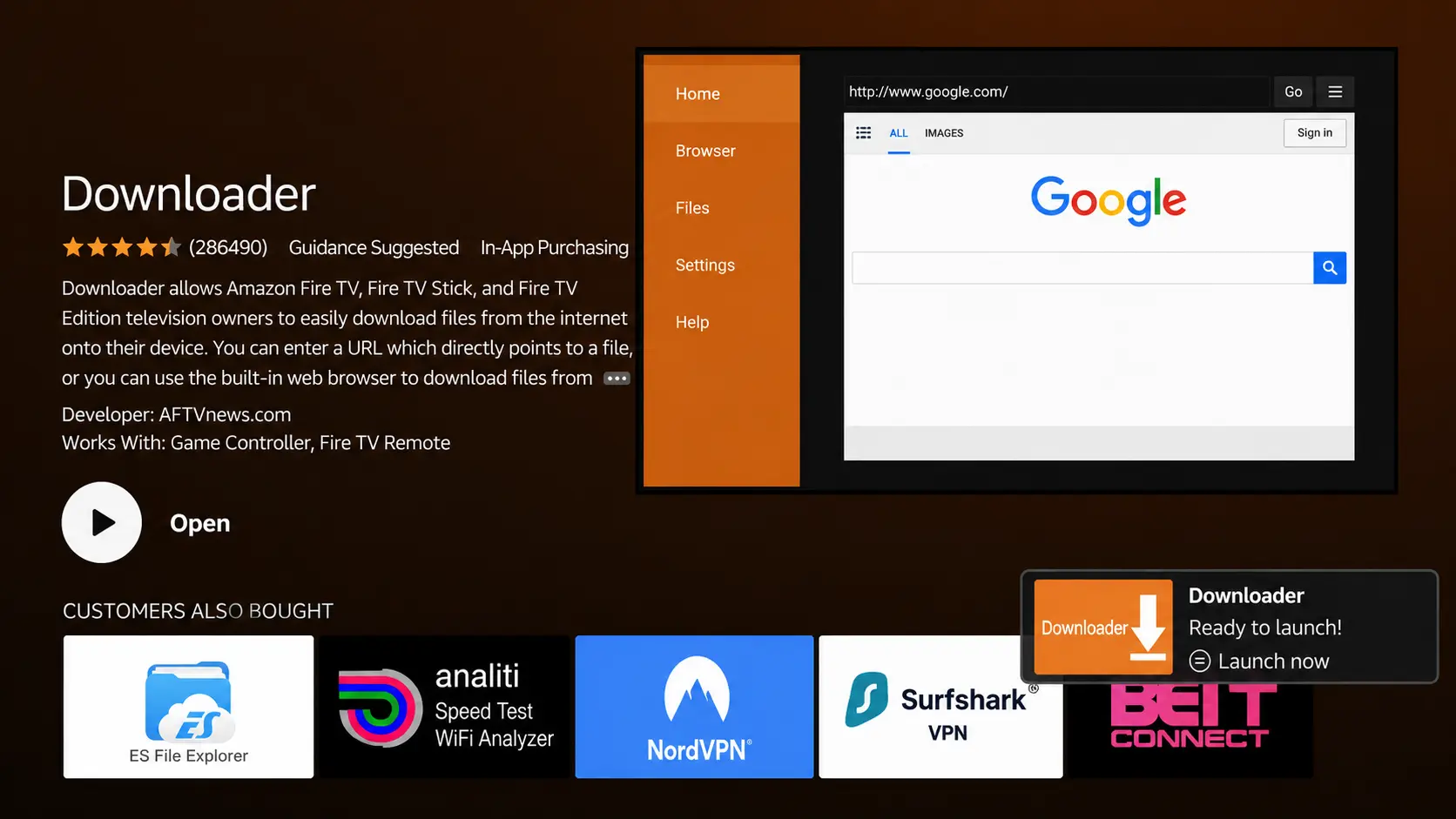
3. Search for and select Downloader.
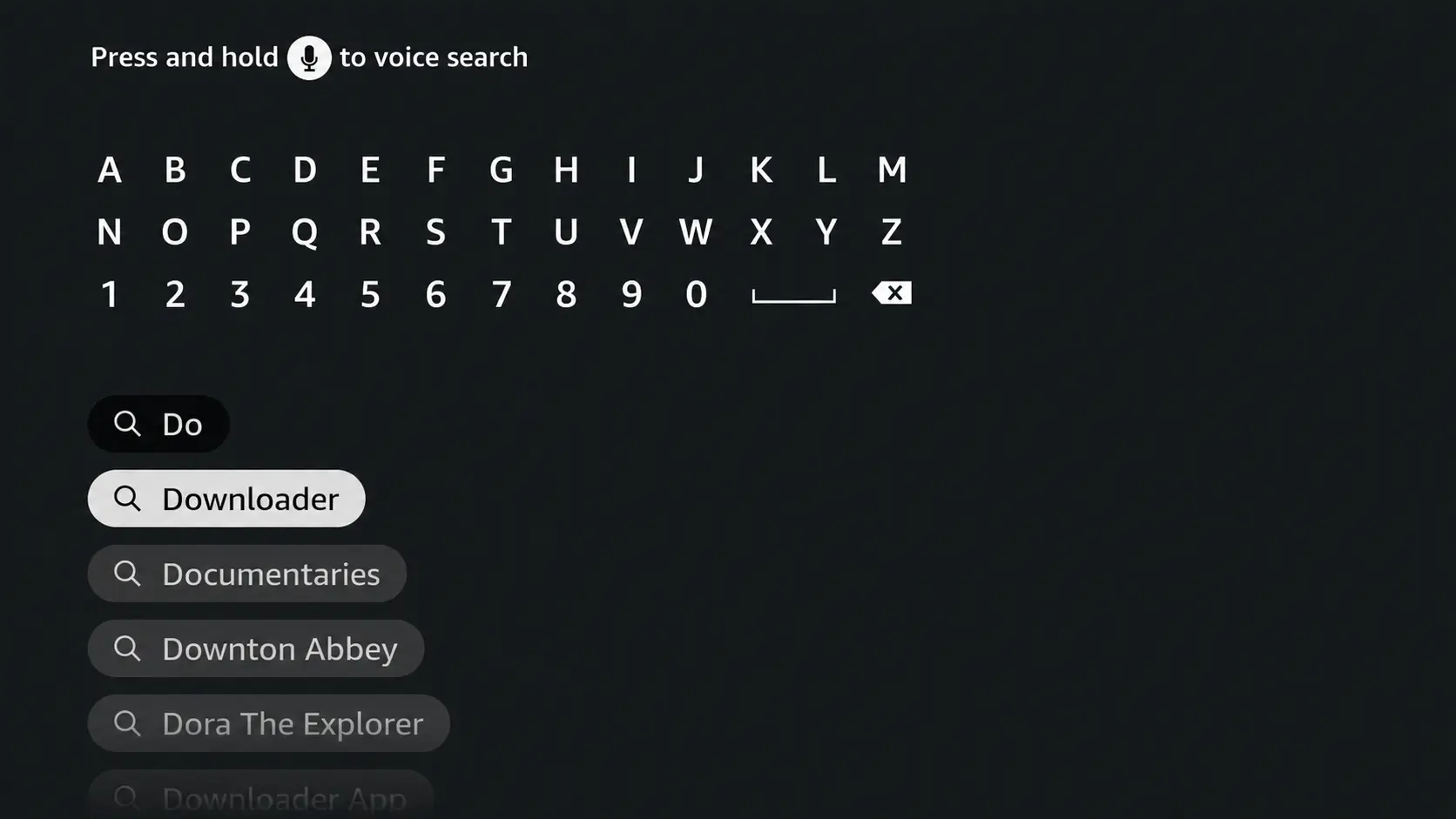
4. Choose the Downloader App.
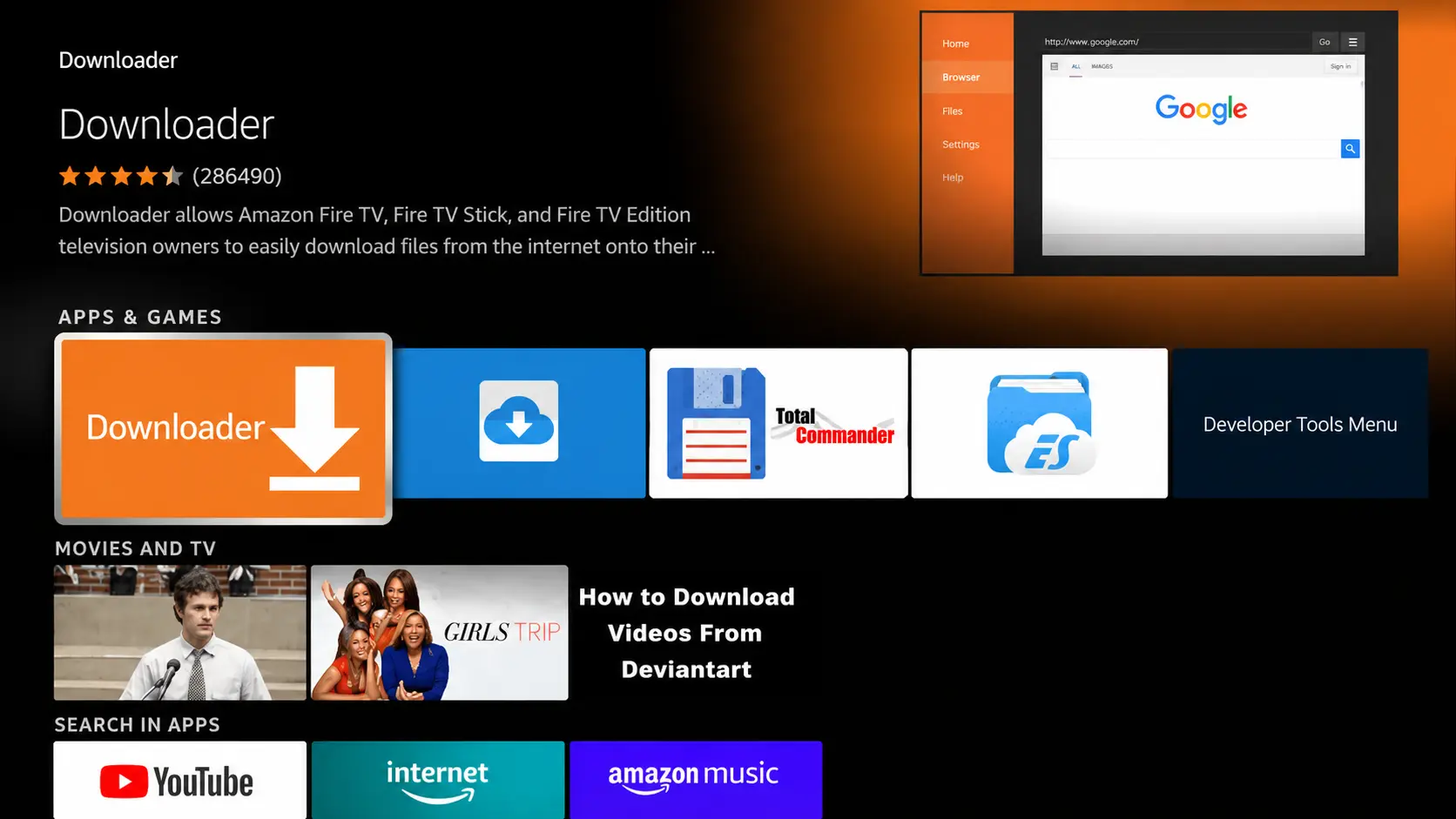
5. Click Download.
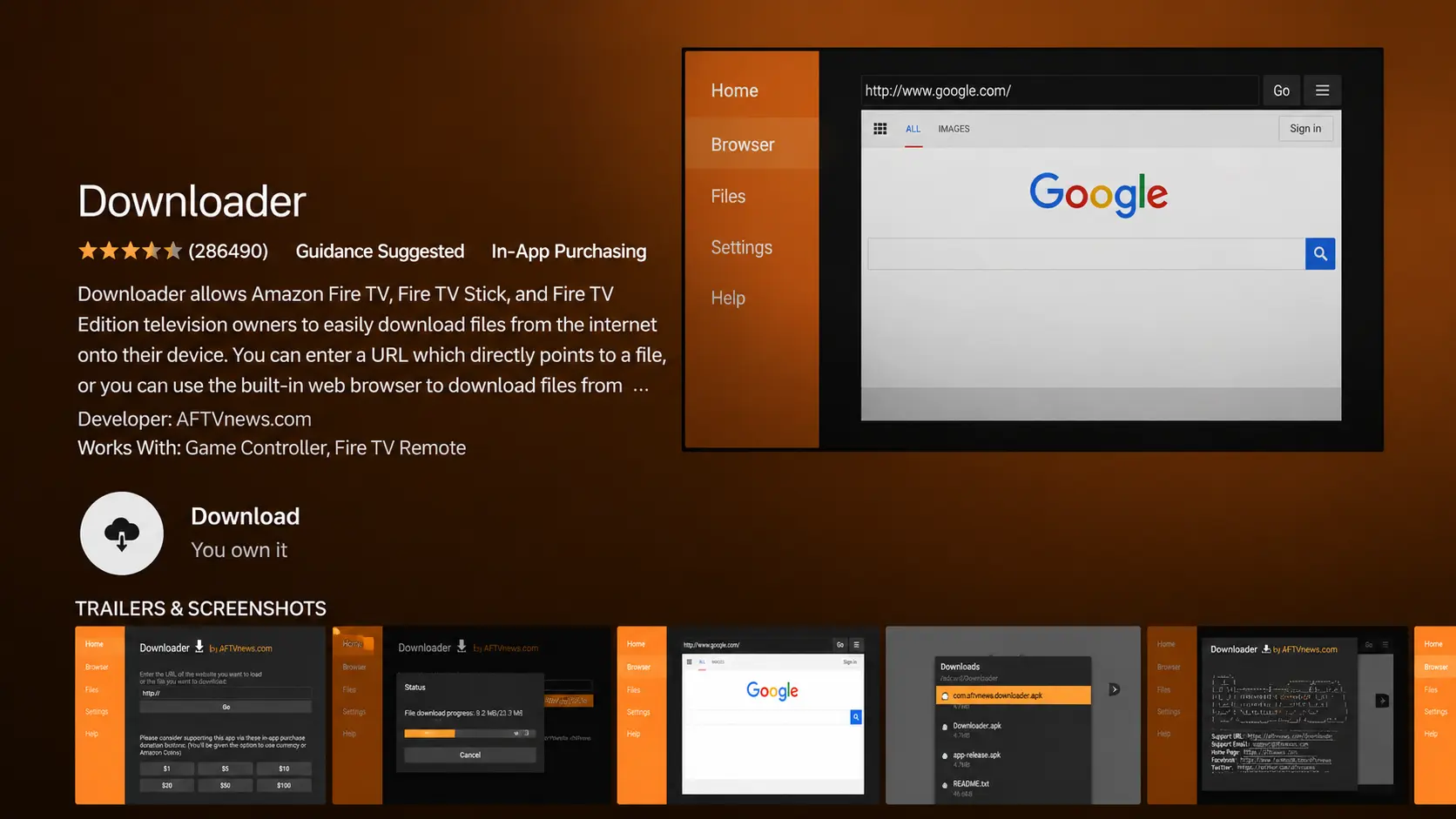
6. Once installed, click Open.
7. Return to the home screen and open Settings.
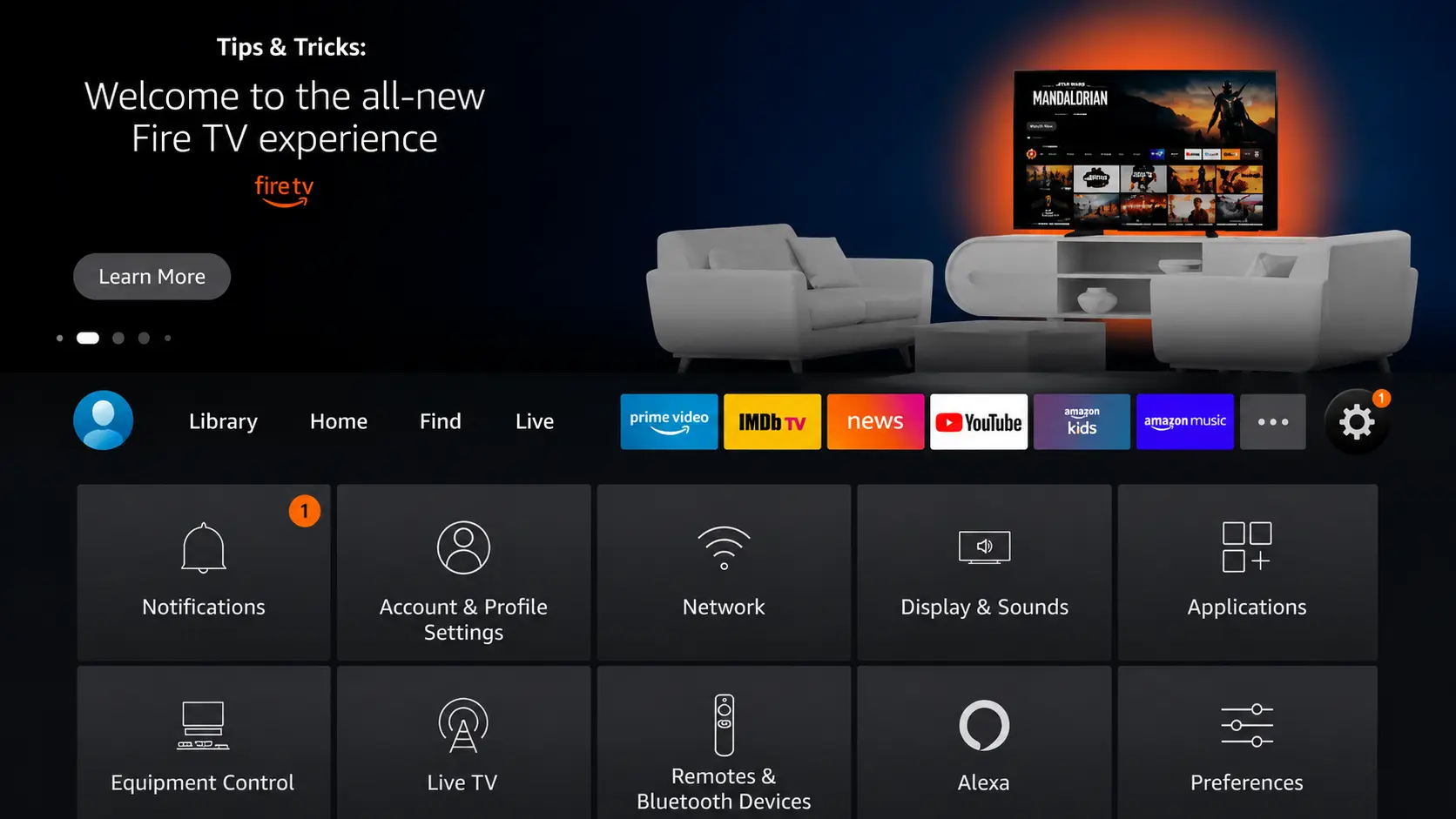
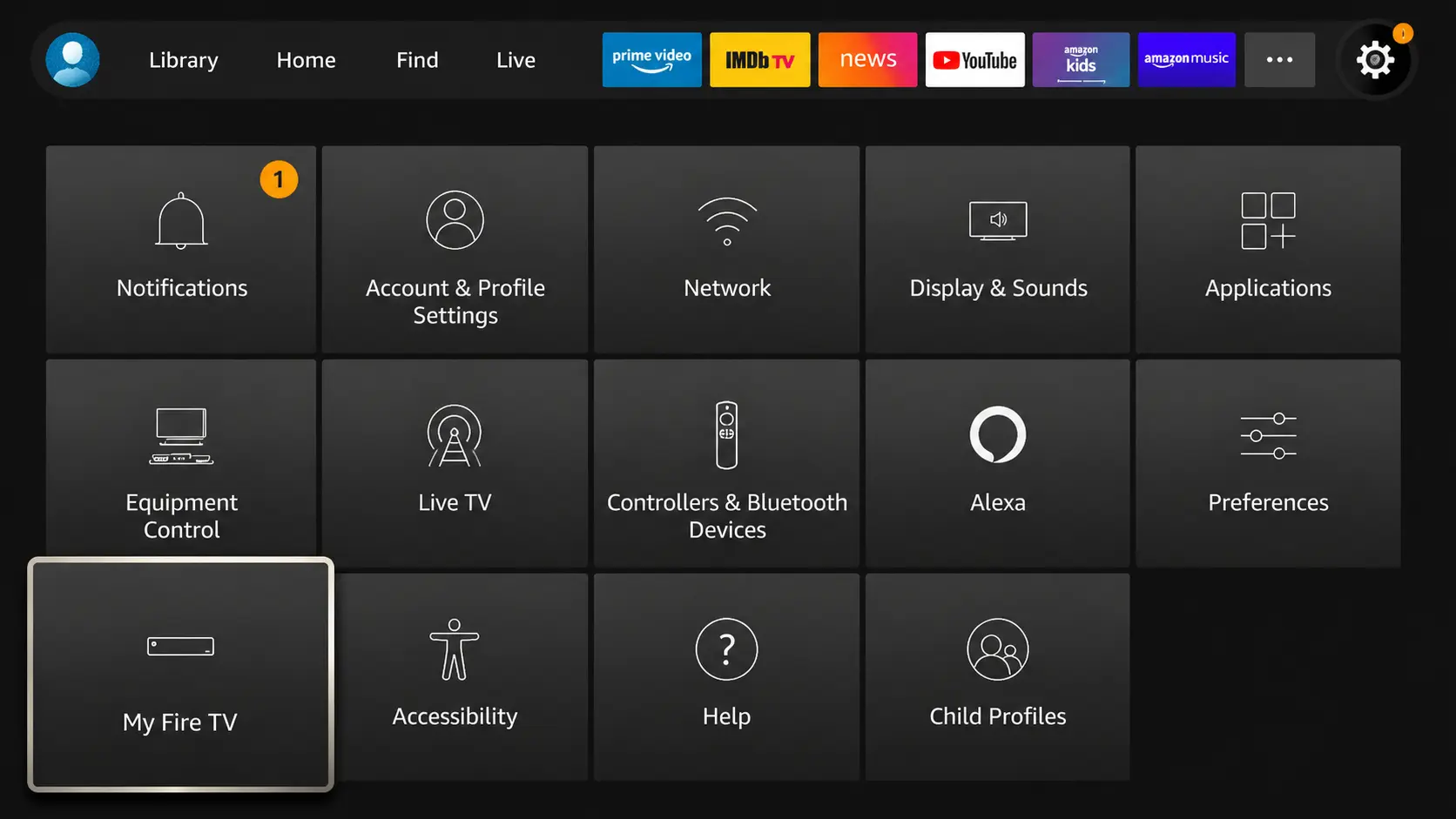
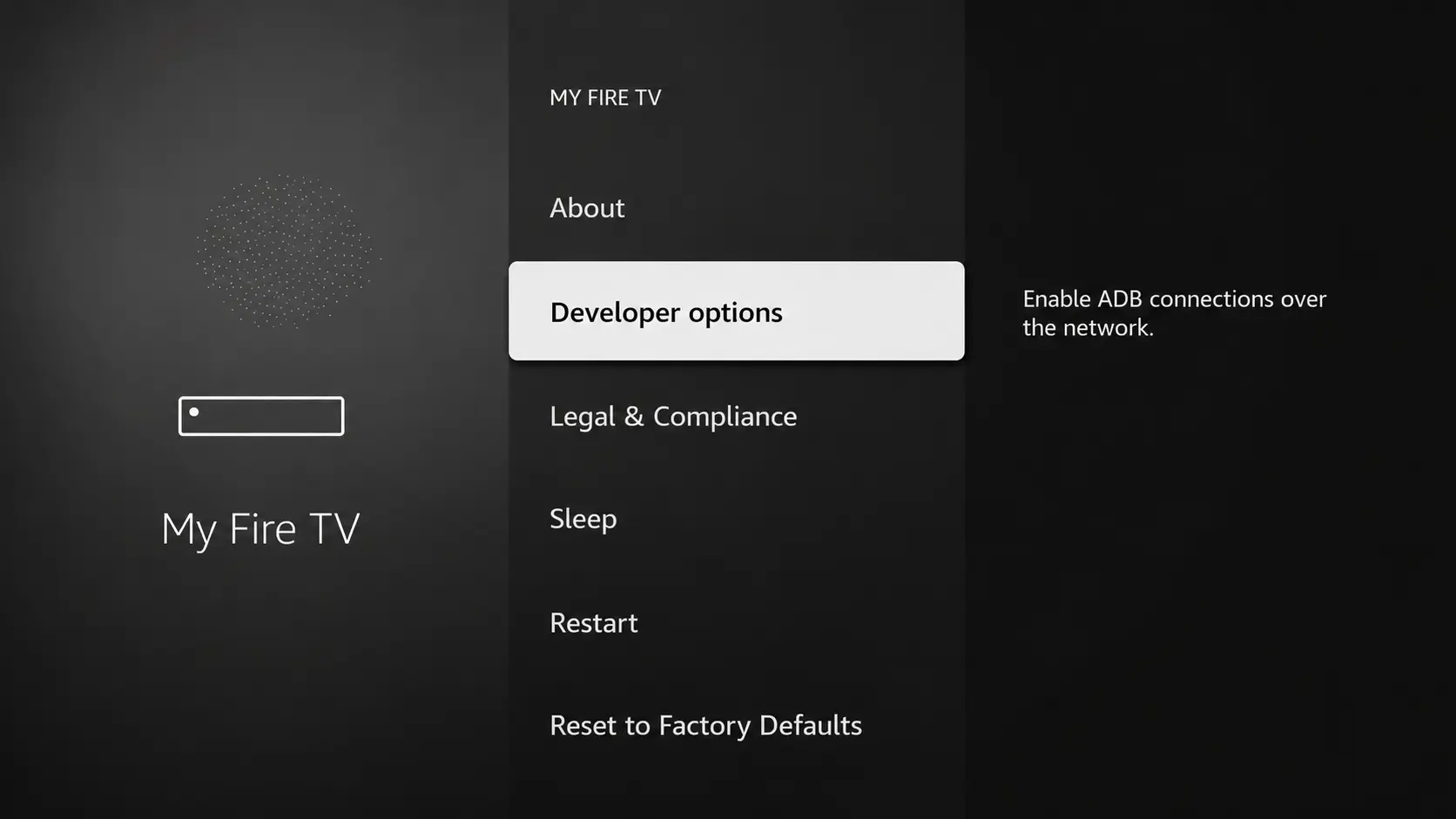
8. Click My Fire TV.
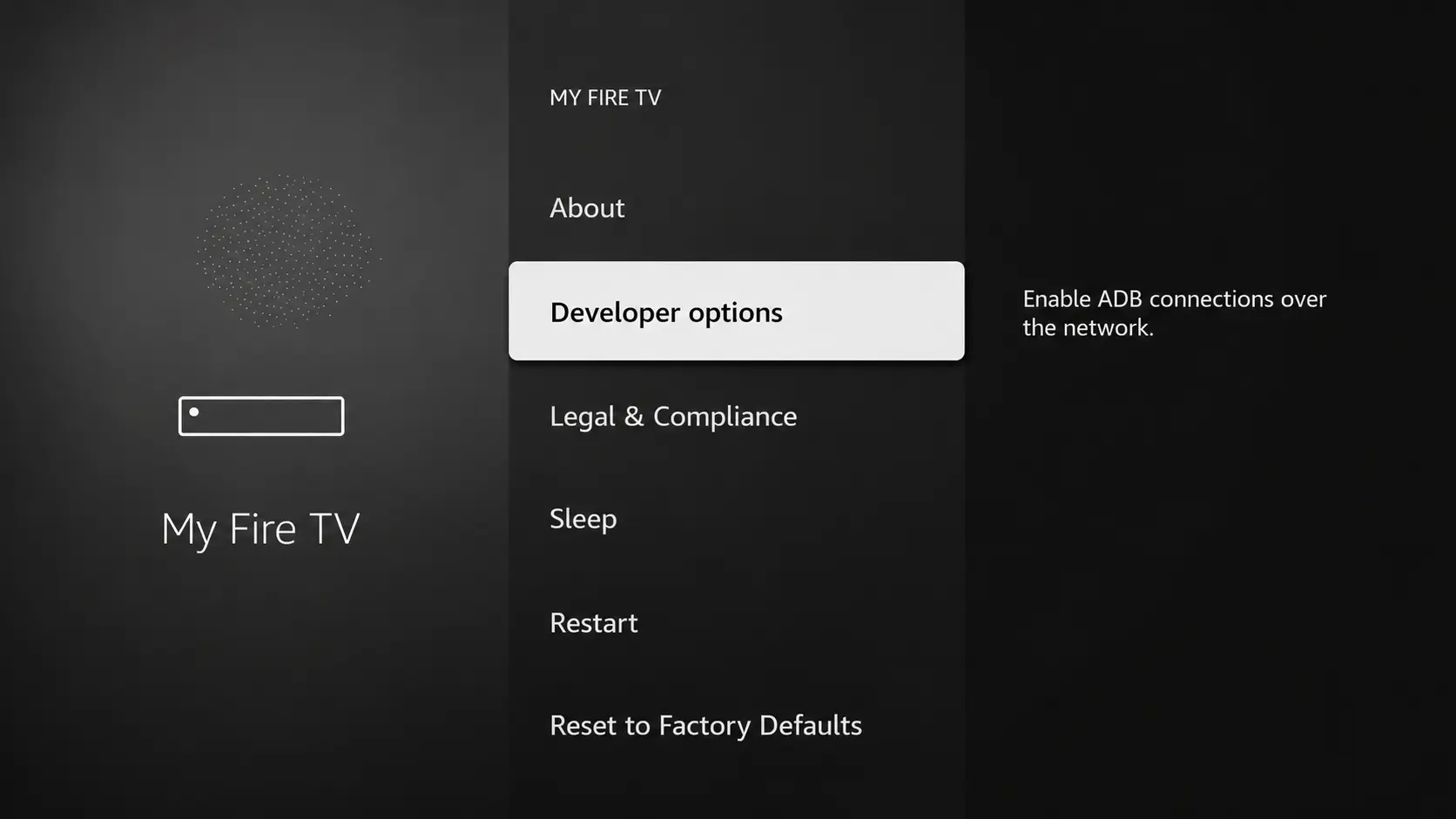
9. Choose Developer options.
If Developer Options are hidden, follow the video below.
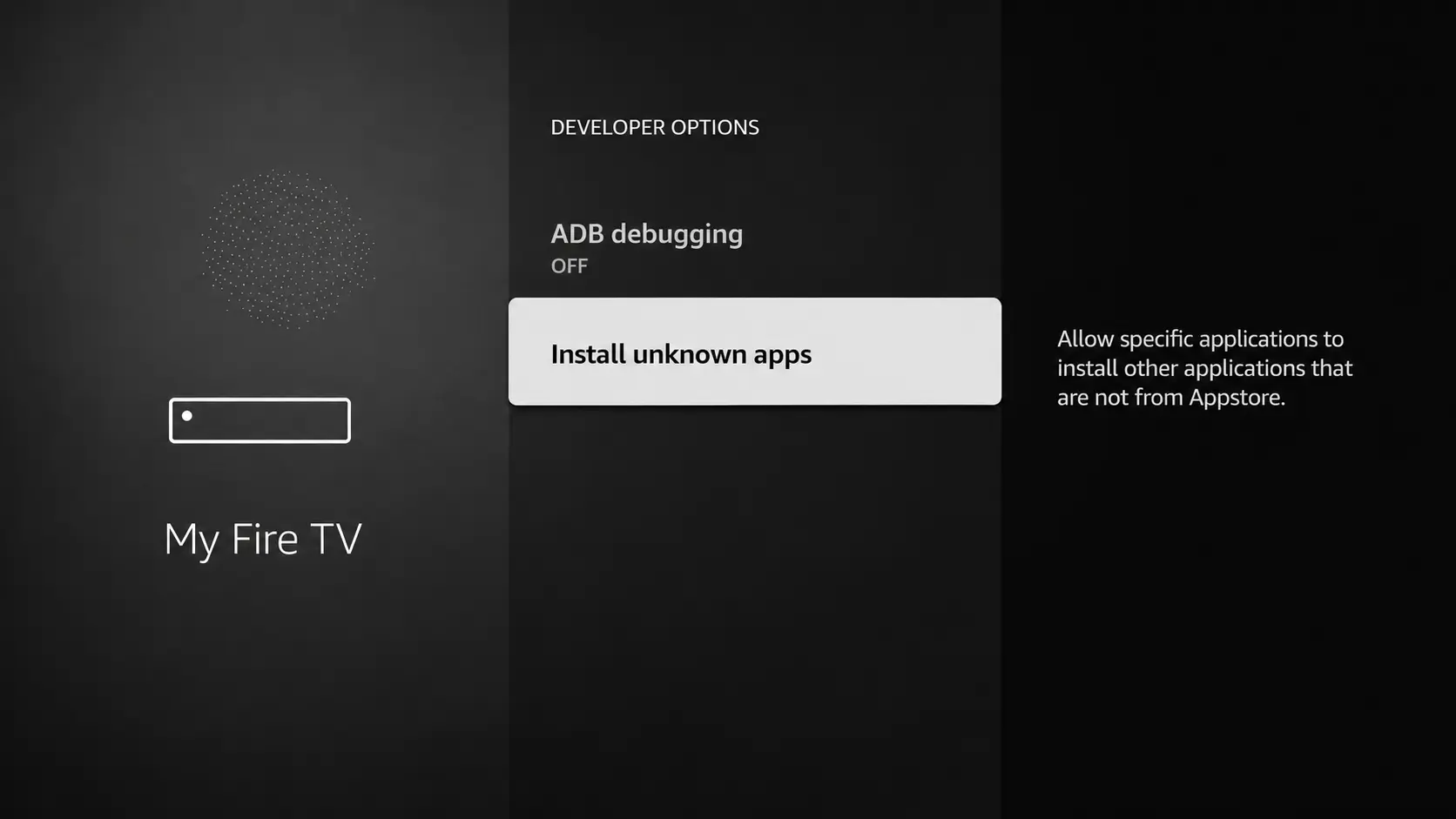
10. Click Install unknown apps.
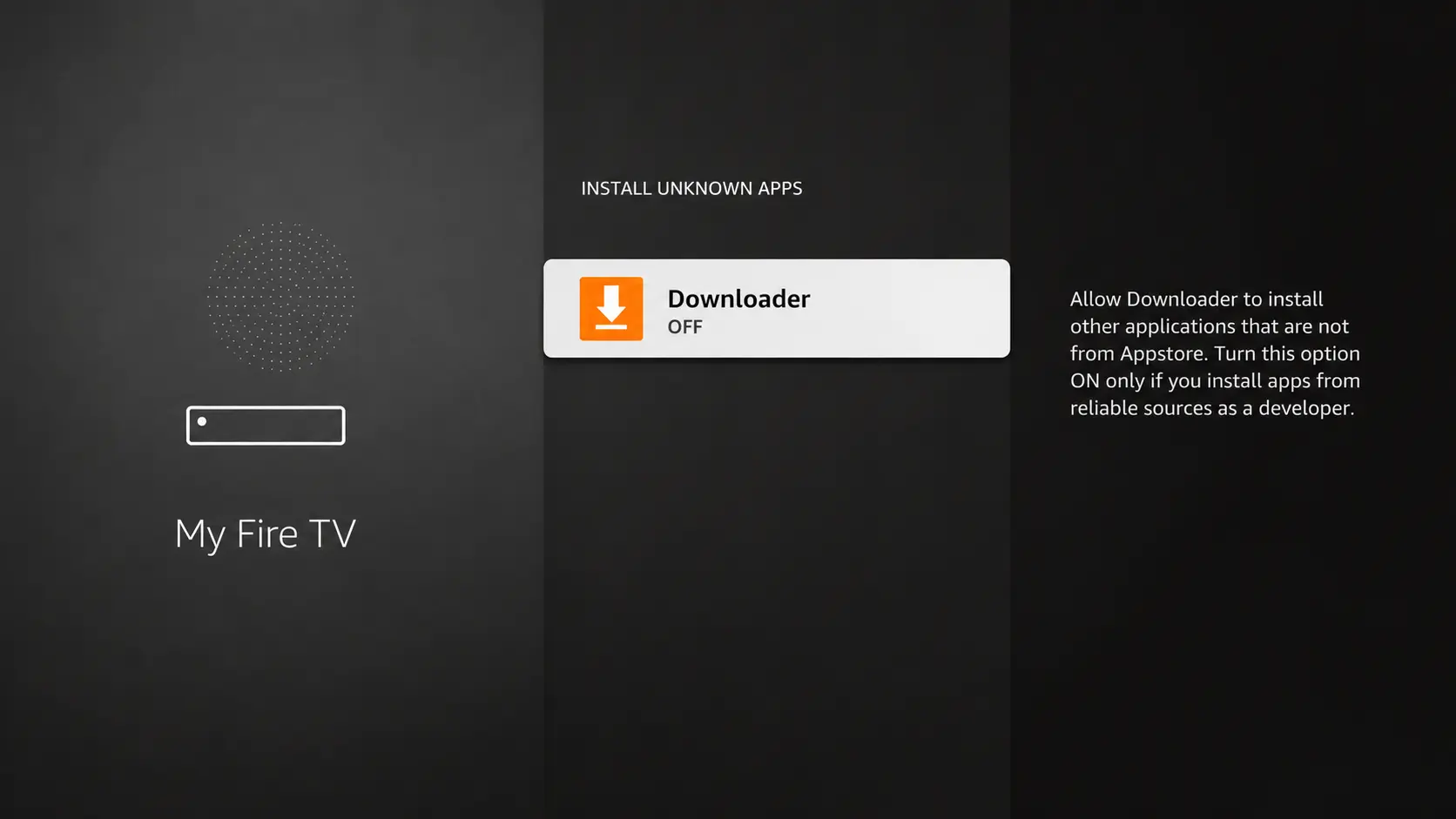
11. Find the Downloader app and click it.
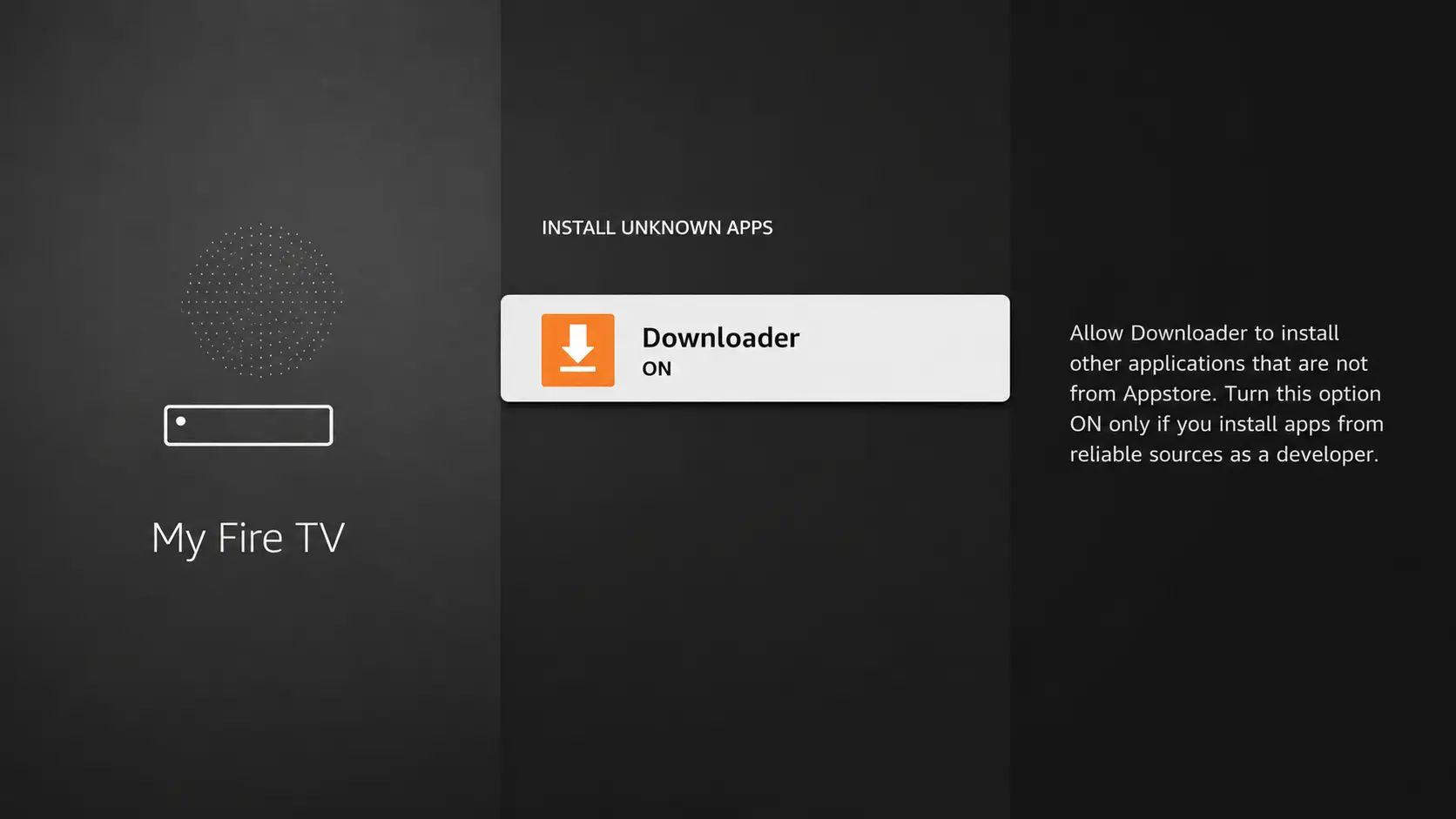
12. Turn Downloader ON.
This enables side-loading on your device.
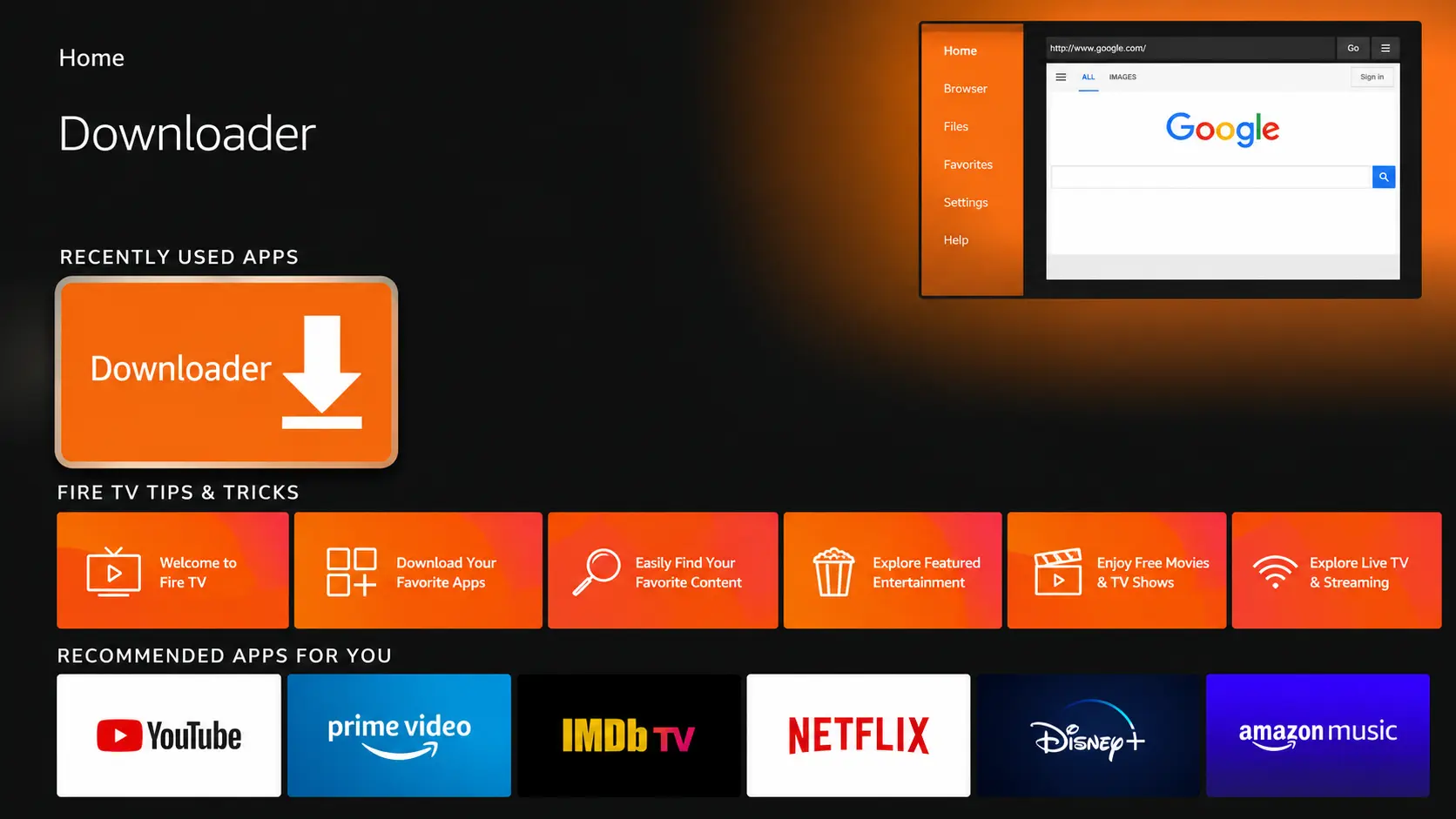
13. Launch Downloader.
14. Click Allow.
15. Click OK.
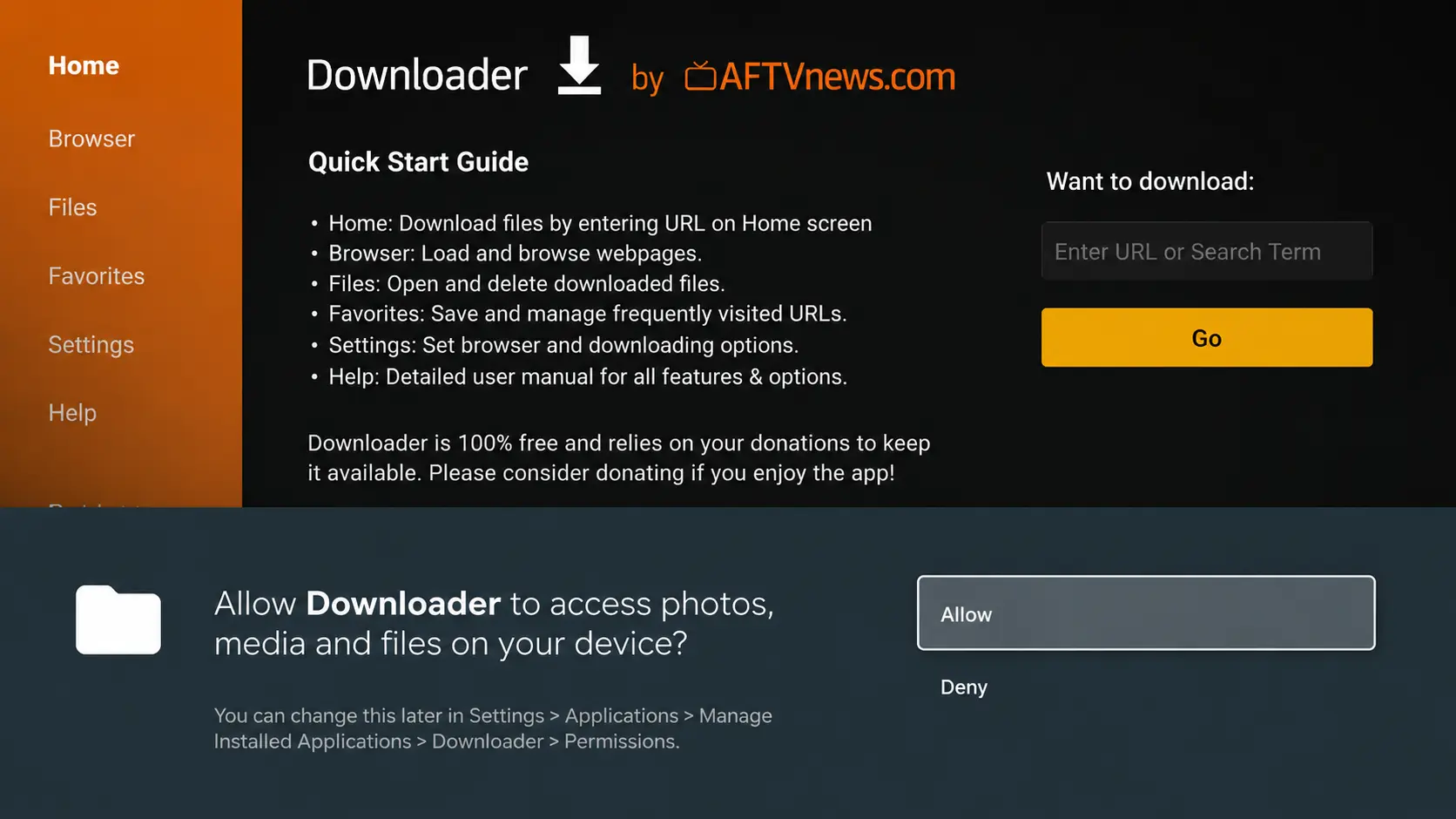
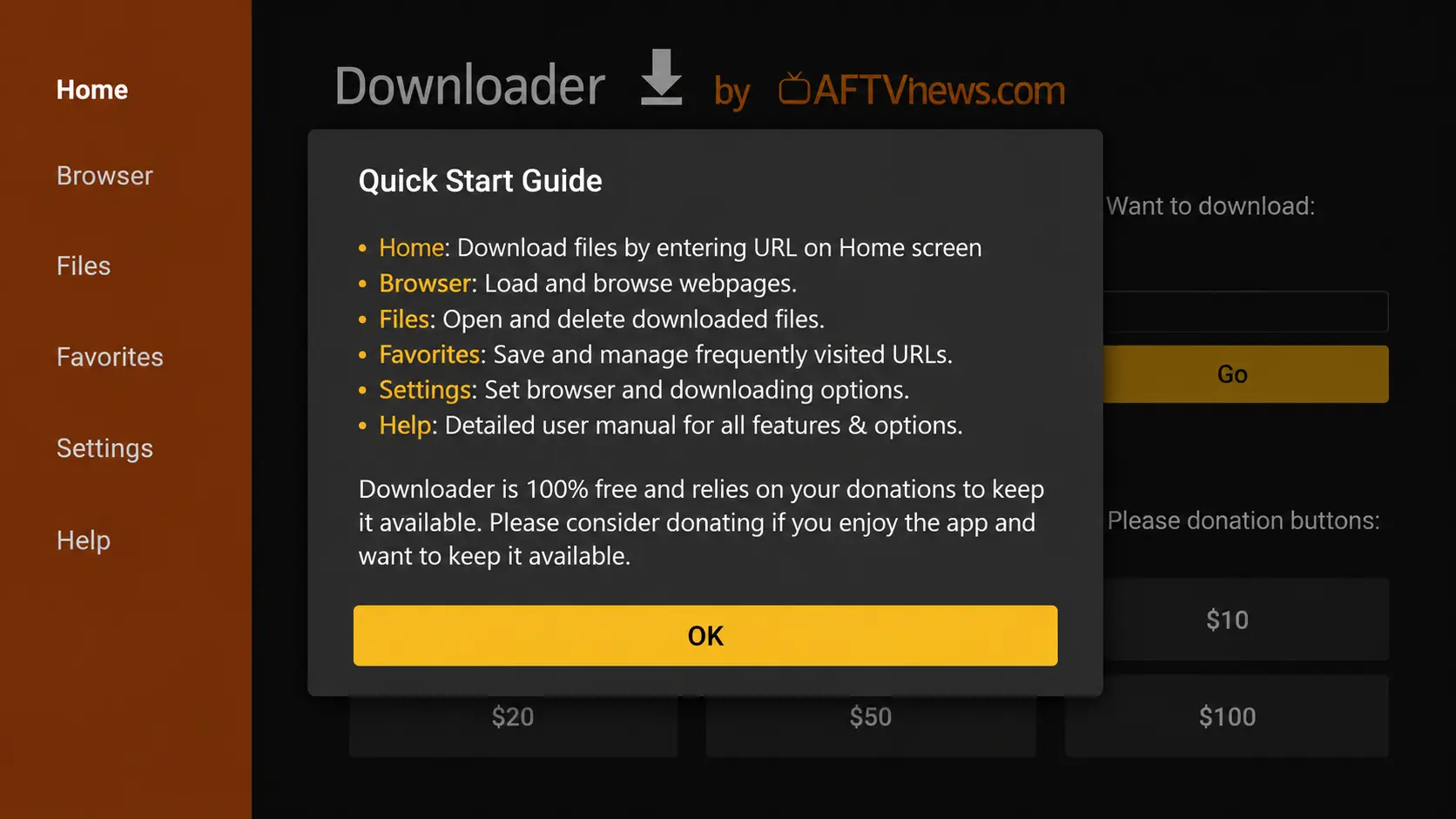
16. Type the Downloader code.
IPTV Smarters Pro Downloader Code:
Premium Unlocked Code:
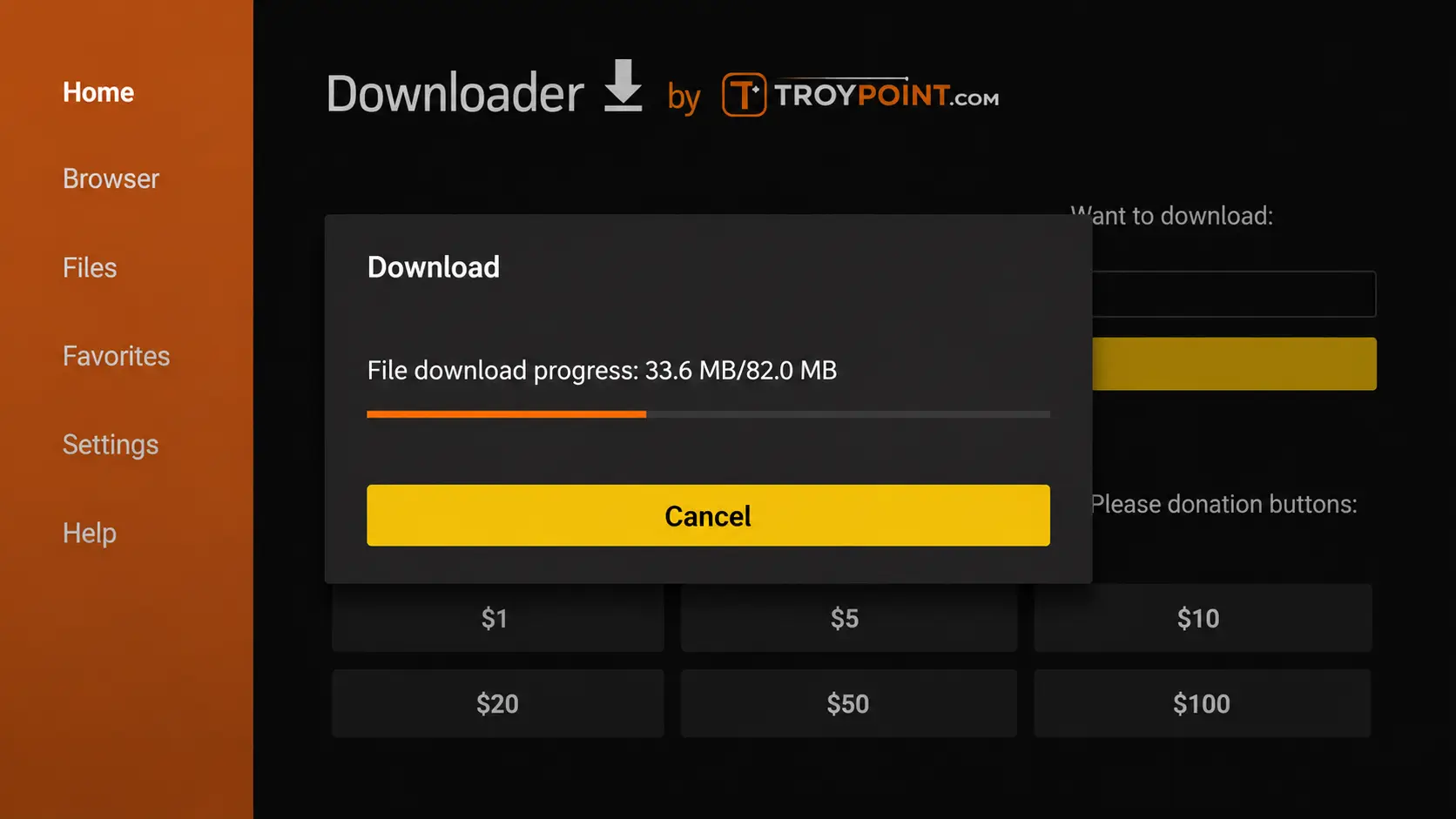
17. Wait for file to download.
18. Click Install.
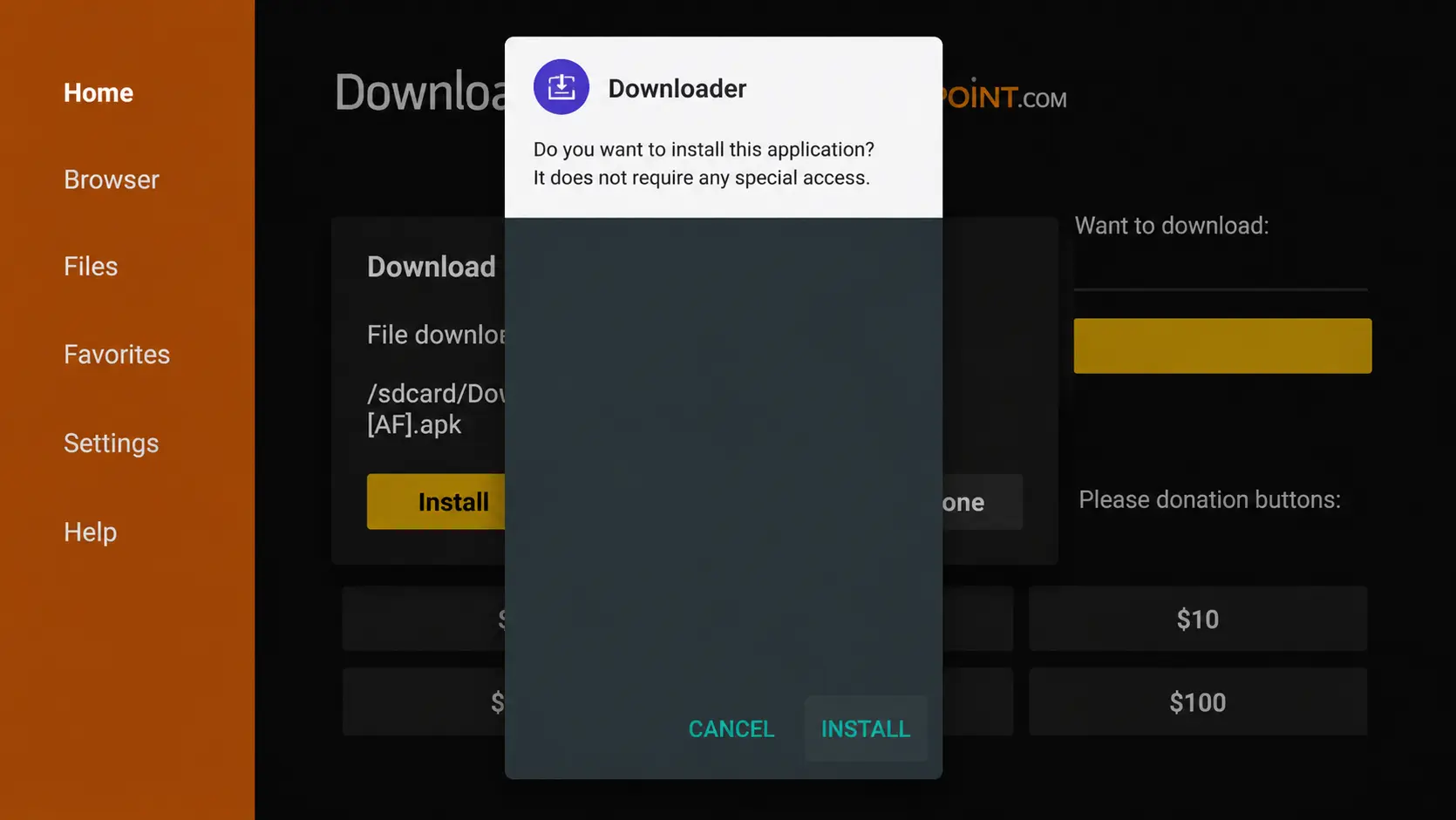
19. Click Done.
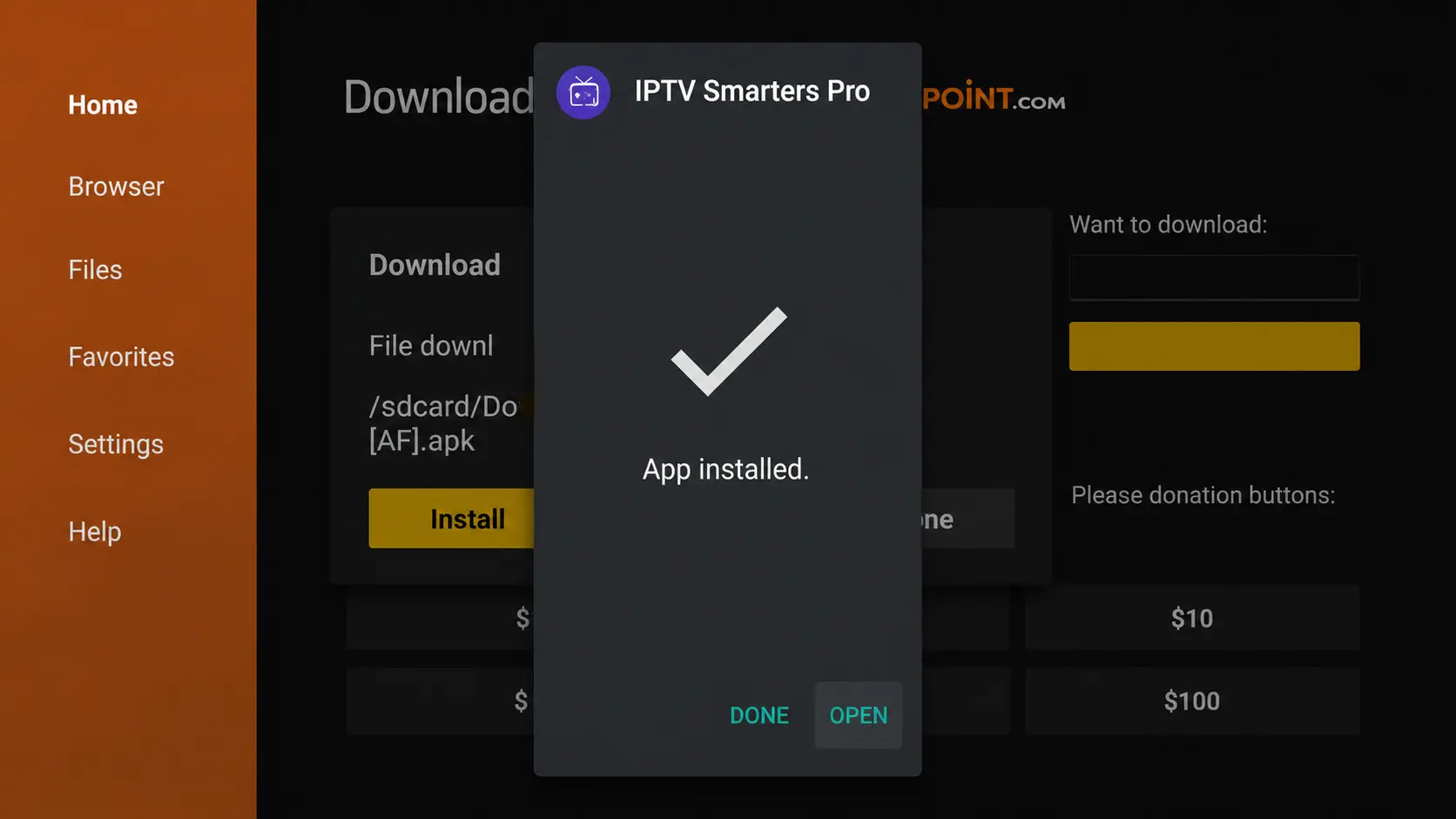
20. Open IPTV Smarters Pro and choose Login With Xtream API.
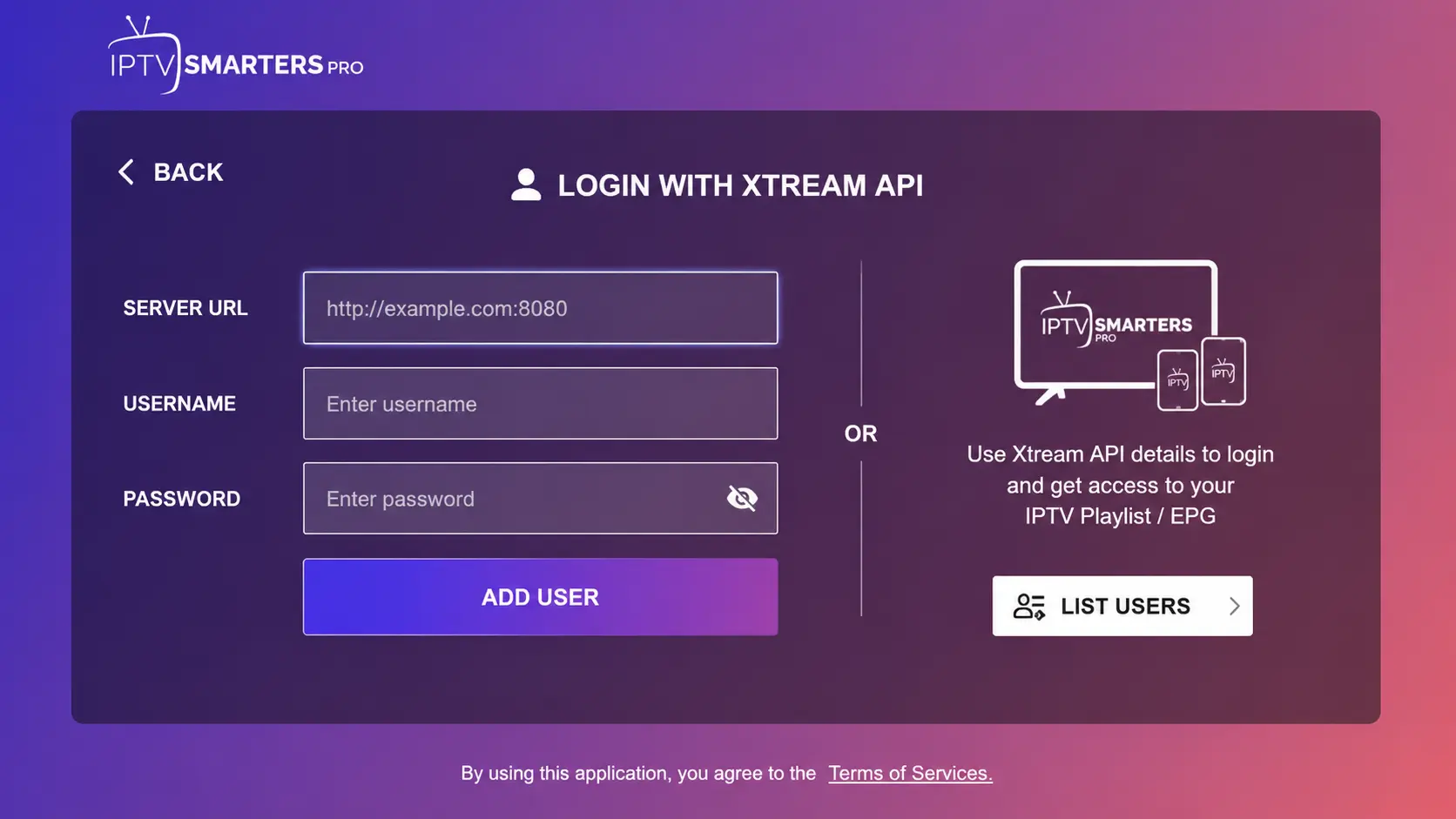
21. Enter IPTV Details
IPTV Login Information
- First Box: You can put ANYTHING
- Second Box: Your Username
- Third Box: Your Password
- Fourth Box: Server URL, always starts with HTTP://
22. Authorization Failed Fix
If you see "Authorization Failed", double-check your username, password and server URL. If everything is correct, turn off your VPN and try again.
Need Help Setting Up IPTV on Firestick?
Contact BangosPlay support and we will help you install IPTV on Firestick, Fire TV, configure Downloader, add your Xtream Codes login details, and fix any streaming or login issues quickly.
Contact Support