
How to Set Up IPTV on Enigma2 & Zgemma Using PuTTY
Install IPTV on Enigma2, Zgemma and similar satellite receivers with PuTTY: connect to your device, run your IPTV script, reboot the box and add a TV guide.

With PuTTY, a free SSH and Telnet client for Windows, configuring IPTV on your Enigma2 or Zgemma is simple. You only need your box's IP address and the IPTV installation script provided with your subscription.
Step 1: Install PuTTY
- Go to the official PuTTY website.
- Download the installation file.
- Run the downloaded file.
- Follow the instructions until PuTTY is installed.
Step 2: Find Your Box's IP Address
You can find the IP address of your Enigma2 device in its network settings.
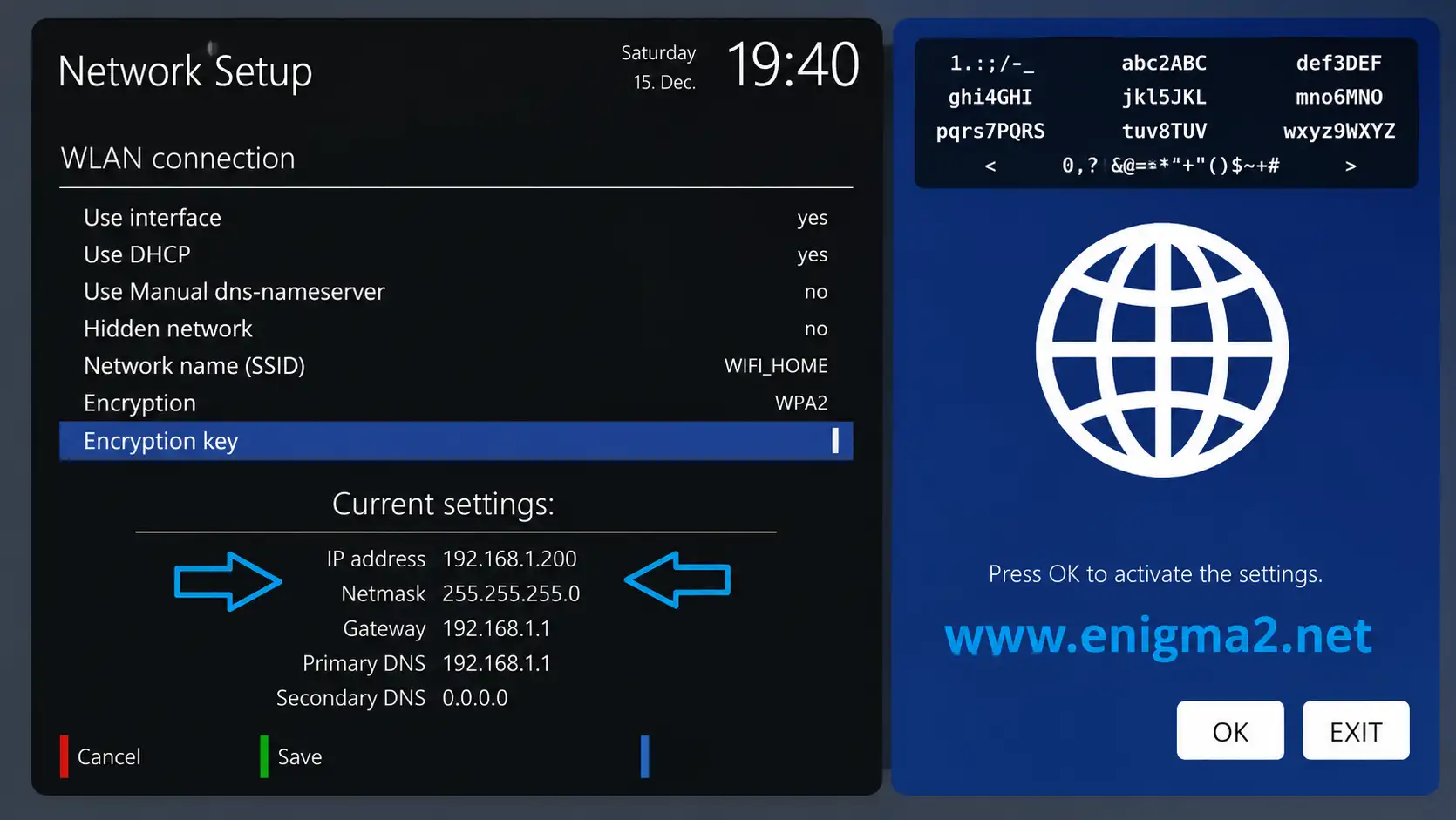
- Open your Enigma2 menu.
- Go to Network Setup.
- Find the current IP address.
- Write it down — you need it in PuTTY.
Example IP address: 192.168.1.200. Yours may be different.
Step 3: Configure PuTTY
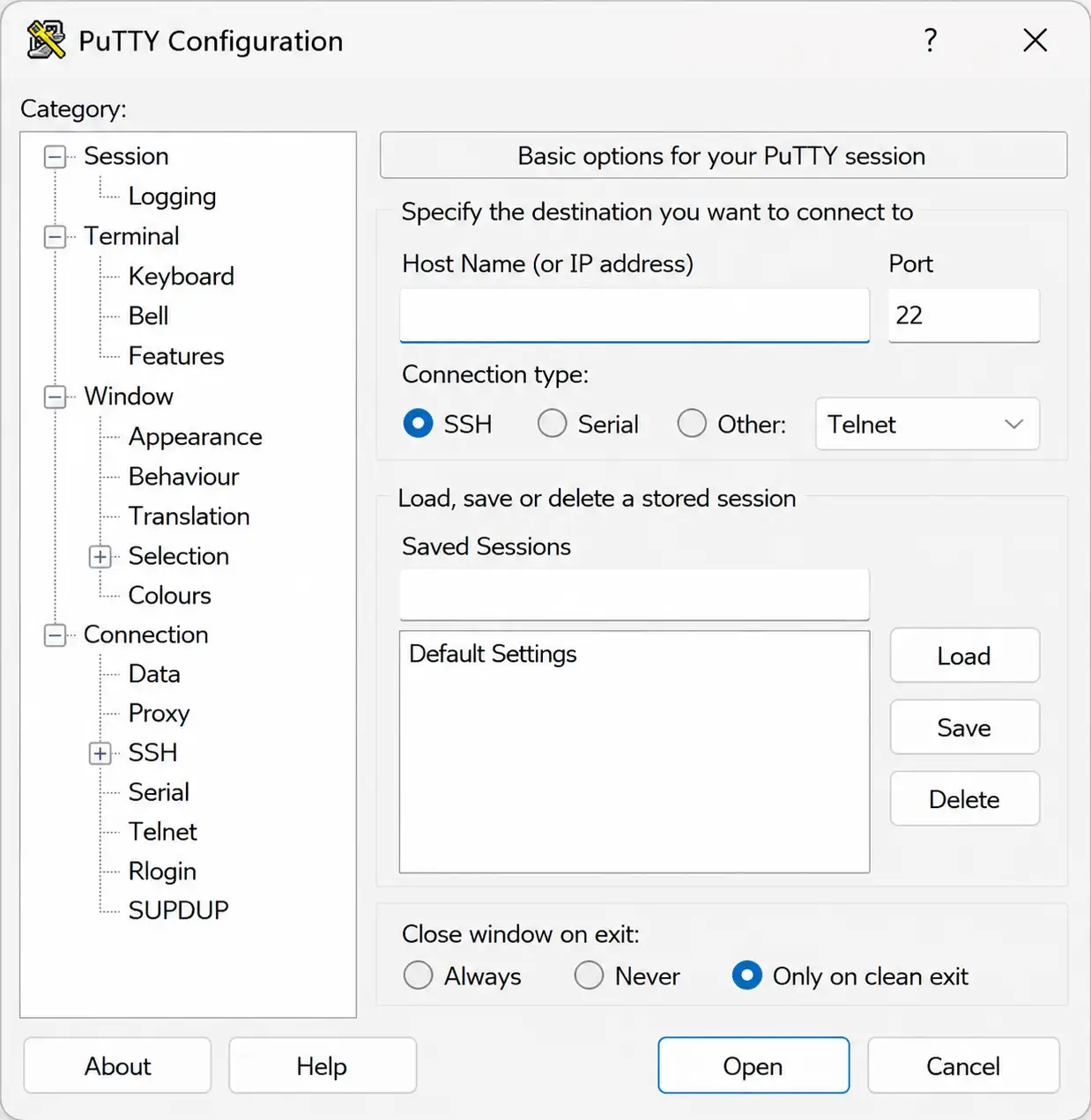
- Open PuTTY.
- In Host Name, enter your Enigma2 box IP address.
- Under Connection type, select Telnet.
- Click Open to connect.
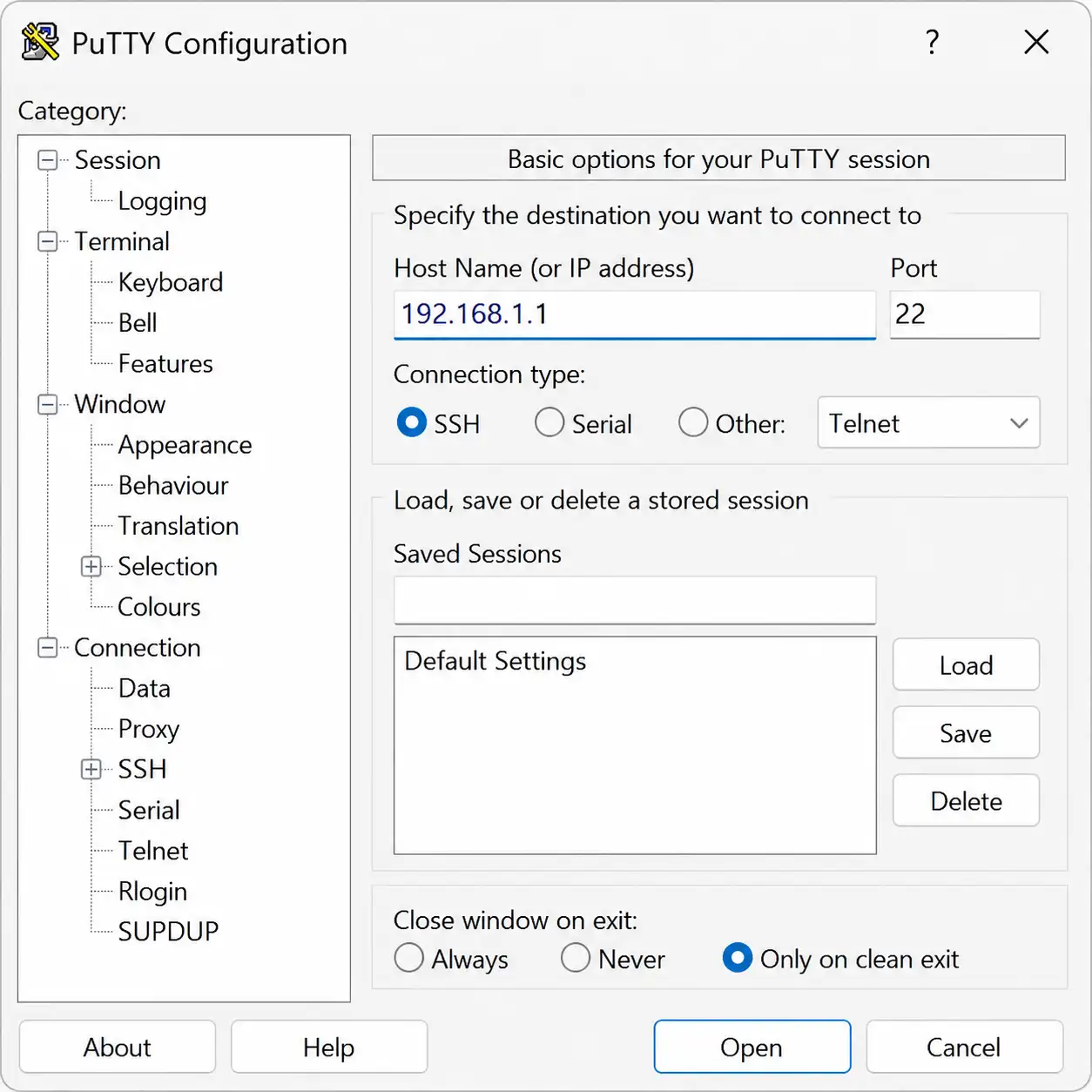
Step 4: Log In to Your Device
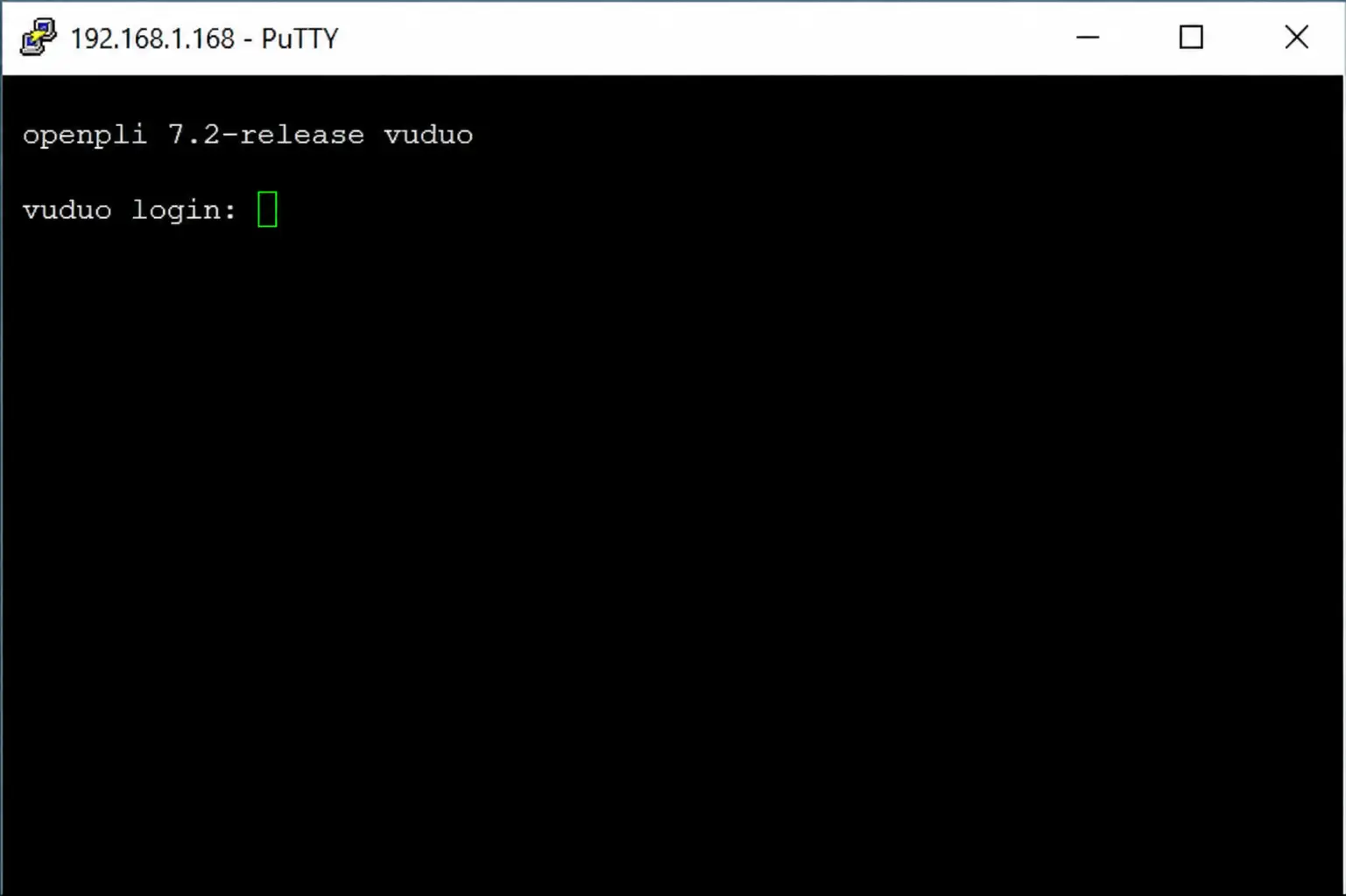
- In the terminal window, press Enter.
- Log in as root.
- Enter your device's root password and press Enter.
Step 5: Run the IPTV Auto-Installer Script
Run the IPTV installation script sent with your subscription. The line below only shows the format:
Replace the example with the real script from your IPTV service, and check the username, password and server URL.
Step 6: Reboot Your Device
When the script finishes, type:
Press Enter. The device restarts and your IPTV bouquets appear.
Add a TV Guide (EPG) to Your IPTV Channels
Improve your viewing experience by assigning EPG to your IPTV channels with E-Channelizer.
Install E-Channelizer
- Download E-Channelizer from its official page.
- Install it on your Windows computer.
Assign EPG references
- Launch E-Channelizer and connect it to your Enigma2 device.
- Hold Ctrl and drag the matching satellite channel over the IPTV channel.
- Write the changes back to your device.
- The GUI restarts and your EPG is set up.
Final Tips
- Your receiver and computer must be on the same network.
- Use the correct box IP address in PuTTY.
- Check your IPTV username, password and server URL before running the script.
- If the channels do not appear, reboot the device again.
- If the list still does not load, contact support to verify your subscription.
Have a MAG or Formuler box as well? See the MAG setup guide.
Need Help Setting Up IPTV?
Contact BangosPlay support and we will help you configure IPTV on Enigma2, Zgemma, MAG and more.
Don't have a subscription yet? View our IPTV packages.
Contact Support