
How to Set Up IPTV on Firestick Step by Step
Install IPTV Smarters Pro on your Amazon Firestick or Fire TV and start streaming live TV, sports, movies and series in just a few minutes.
Introduction
Installing IPTV on your Firestick is much easier than most people think. All you need is an app and your IPTV login details. In this guide we walk you through the whole process with IPTV Smarters Pro, one of the most popular IPTV players for Firestick. Every step has a screenshot, so you can be watching within minutes.
Choosing the Right IPTV App
Many IPTV apps run on Firestick. The most popular and beginner-friendly one is IPTV Smarters Pro, which is free and reliable for most users. Other good options, with their Downloader codes:
- IPTV Smarters Pro — Downloader code 78522
- XCIPTV — Downloader code 114407
- TiviMate (paid) — Downloader code 185194
- HOT IPTV (paid) — Downloader code 395800
- IBO Player Pro (paid) — from the official site
What You Need to Know
- We use IPTV Smarters Pro, but you can choose any app you prefer.
- After installing the app you need your IPTV username, password and server URL — they are sent to you by email or WhatsApp when you order a plan.
- Not sure whether to use Xtream Codes or an M3U link? See M3U vs Xtream Codes.
Note: if you follow the video, use the Downloader codes on this page when you reach the Downloader part.
Install IPTV Smarters Pro on Firestick: 22 Steps
1. From the home screen, hover over Find.
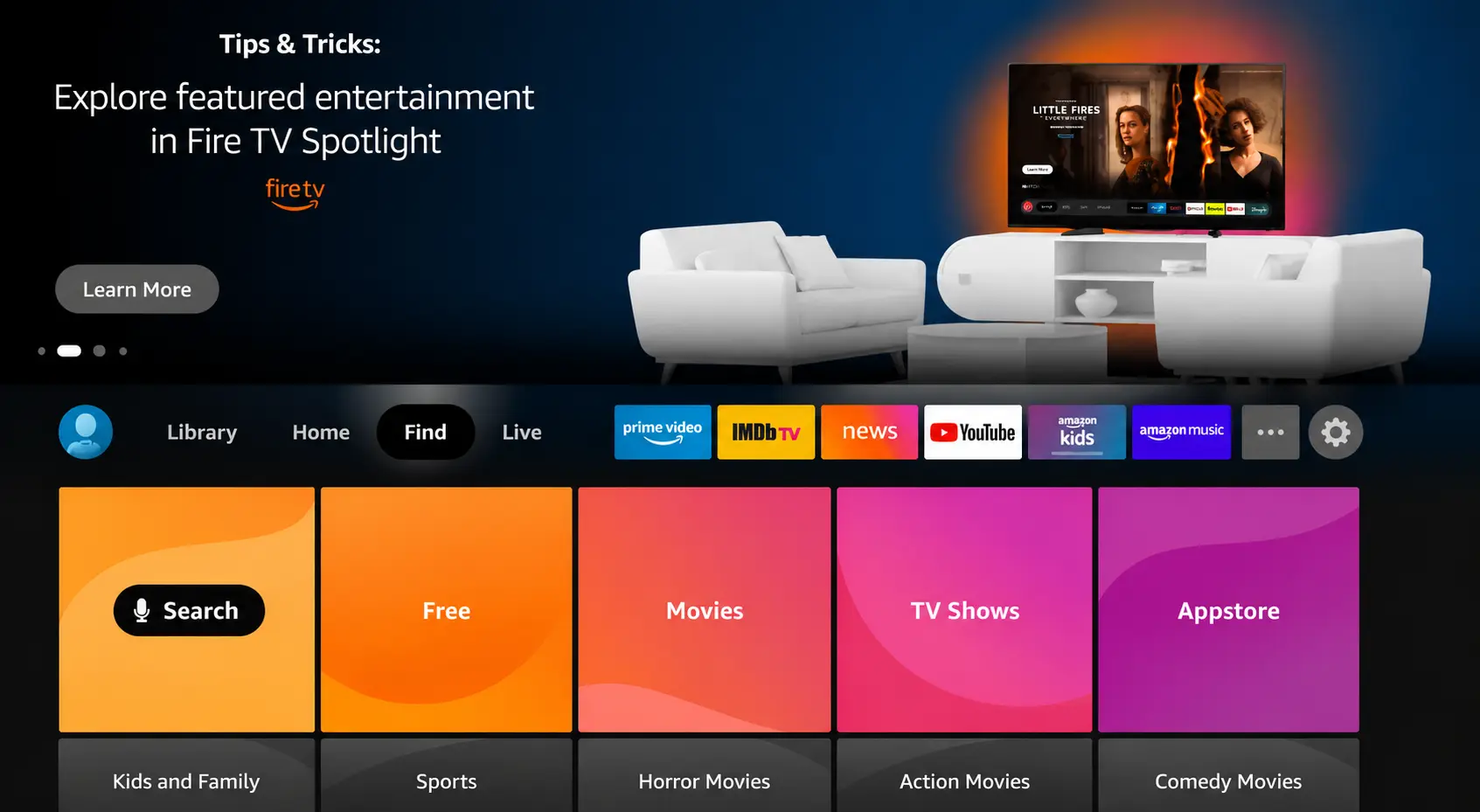
2. Click Search.
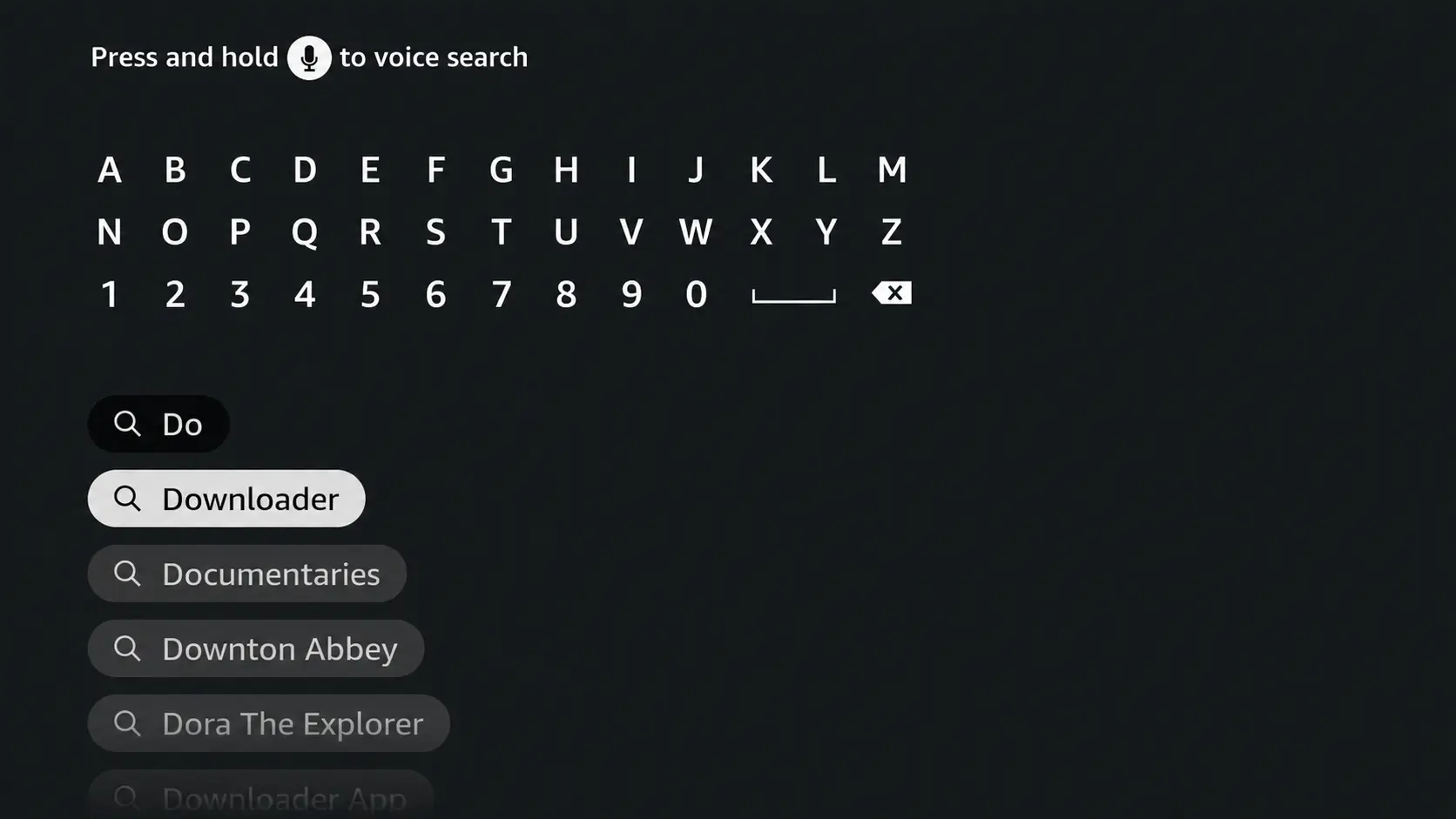
3. Search for and select Downloader.
4. Choose the Downloader app.
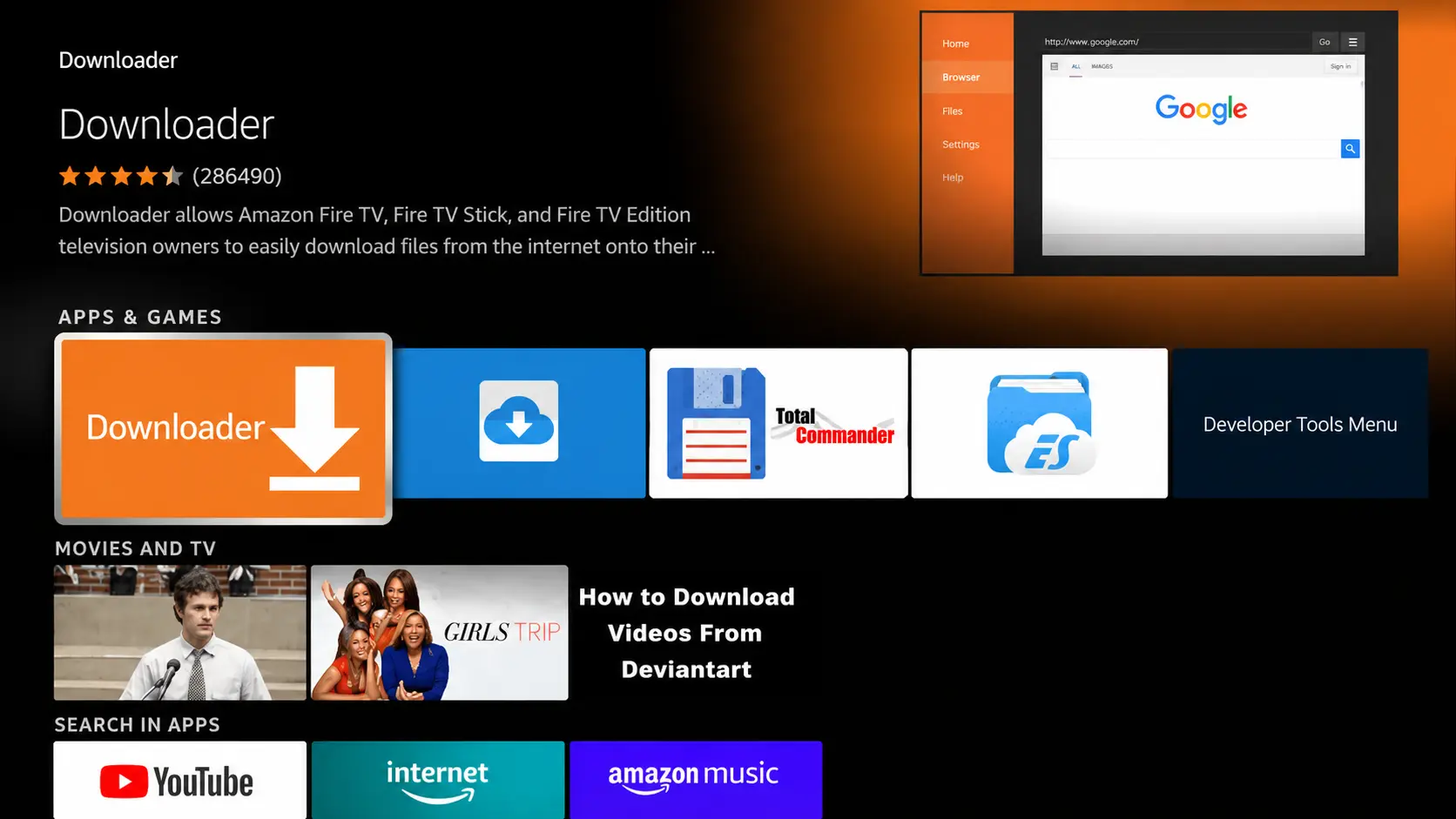
5. Click Download.
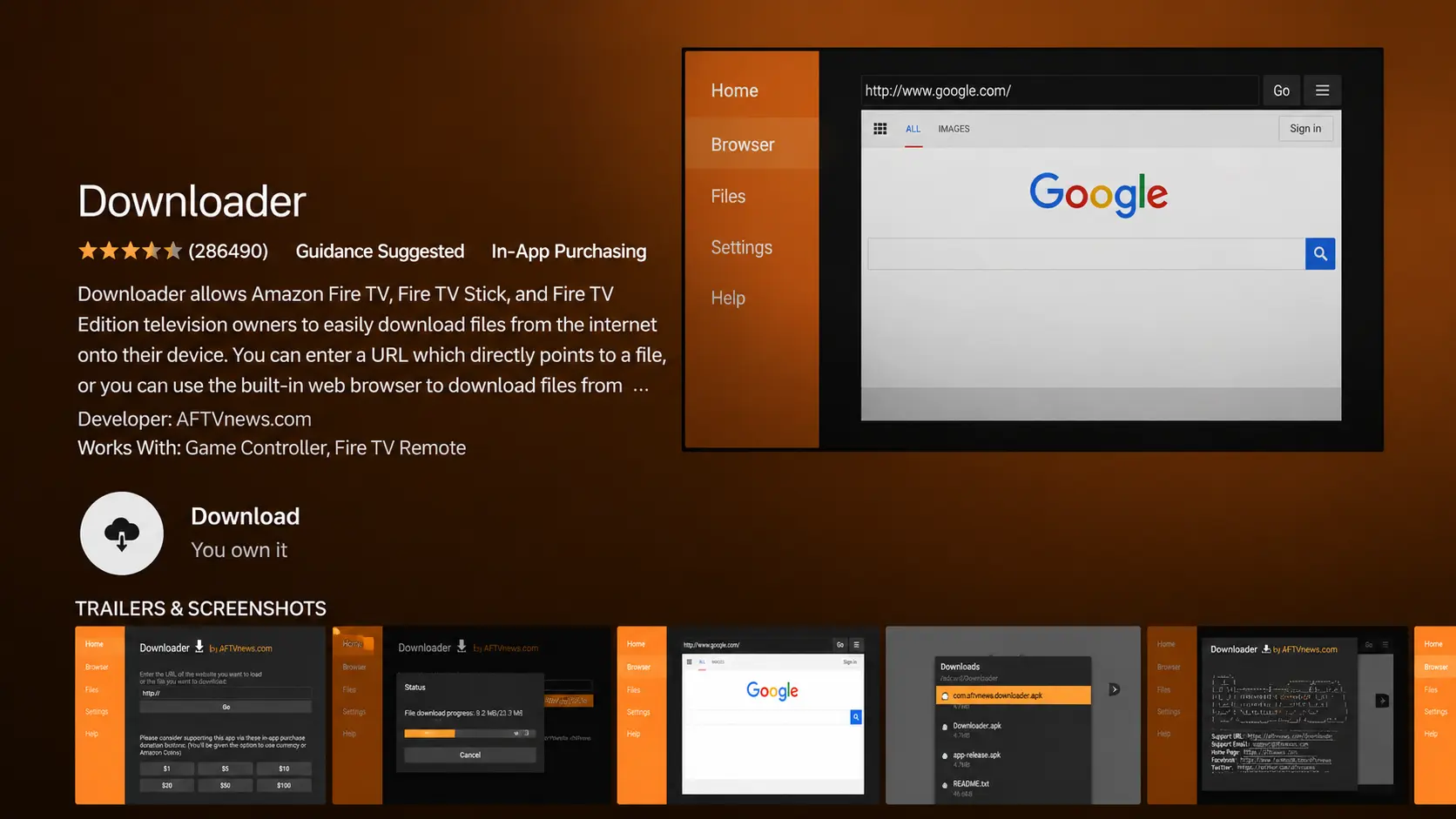
6. Once installed, click Open.
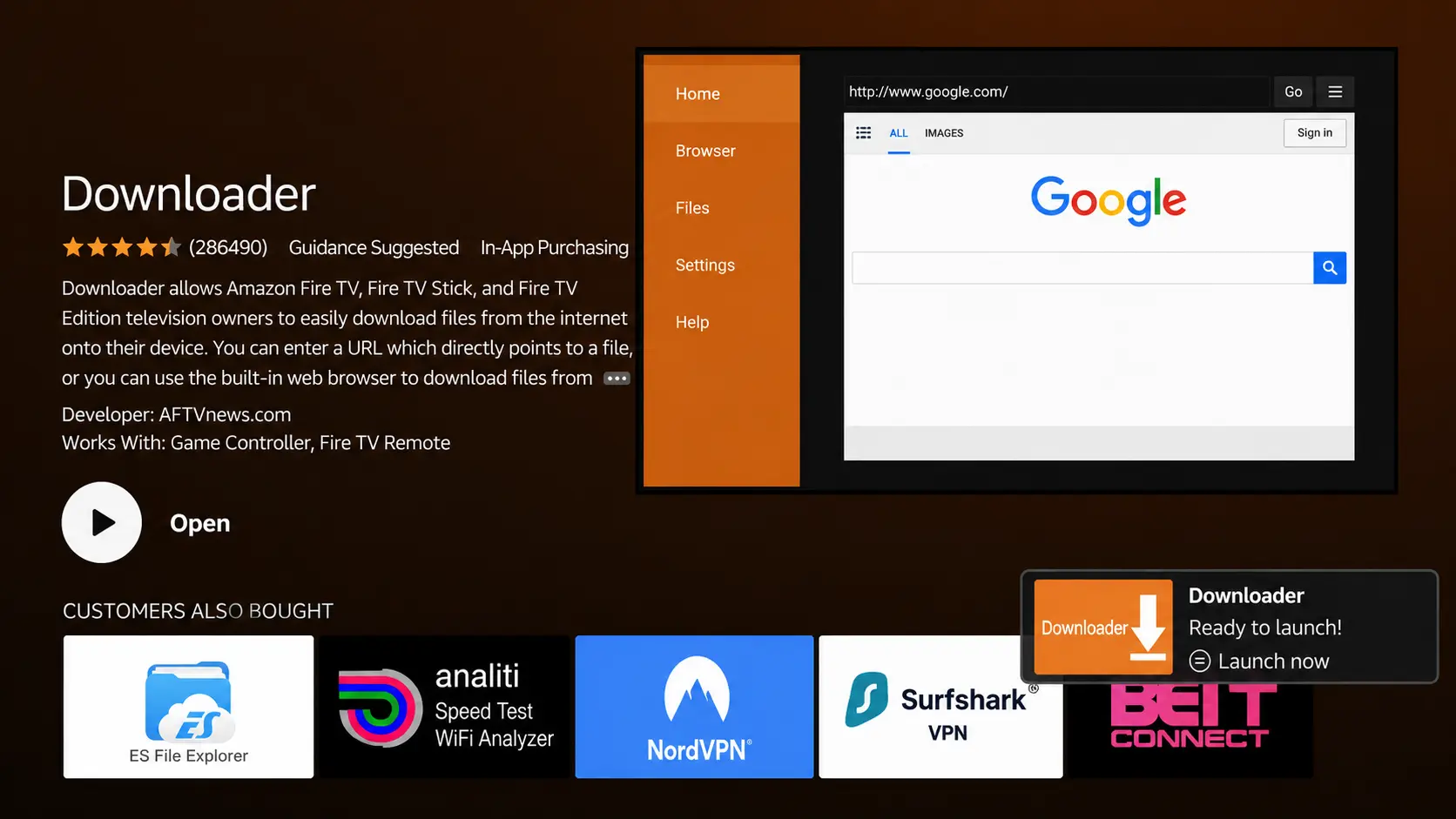
7. Return to the home screen and open Settings.
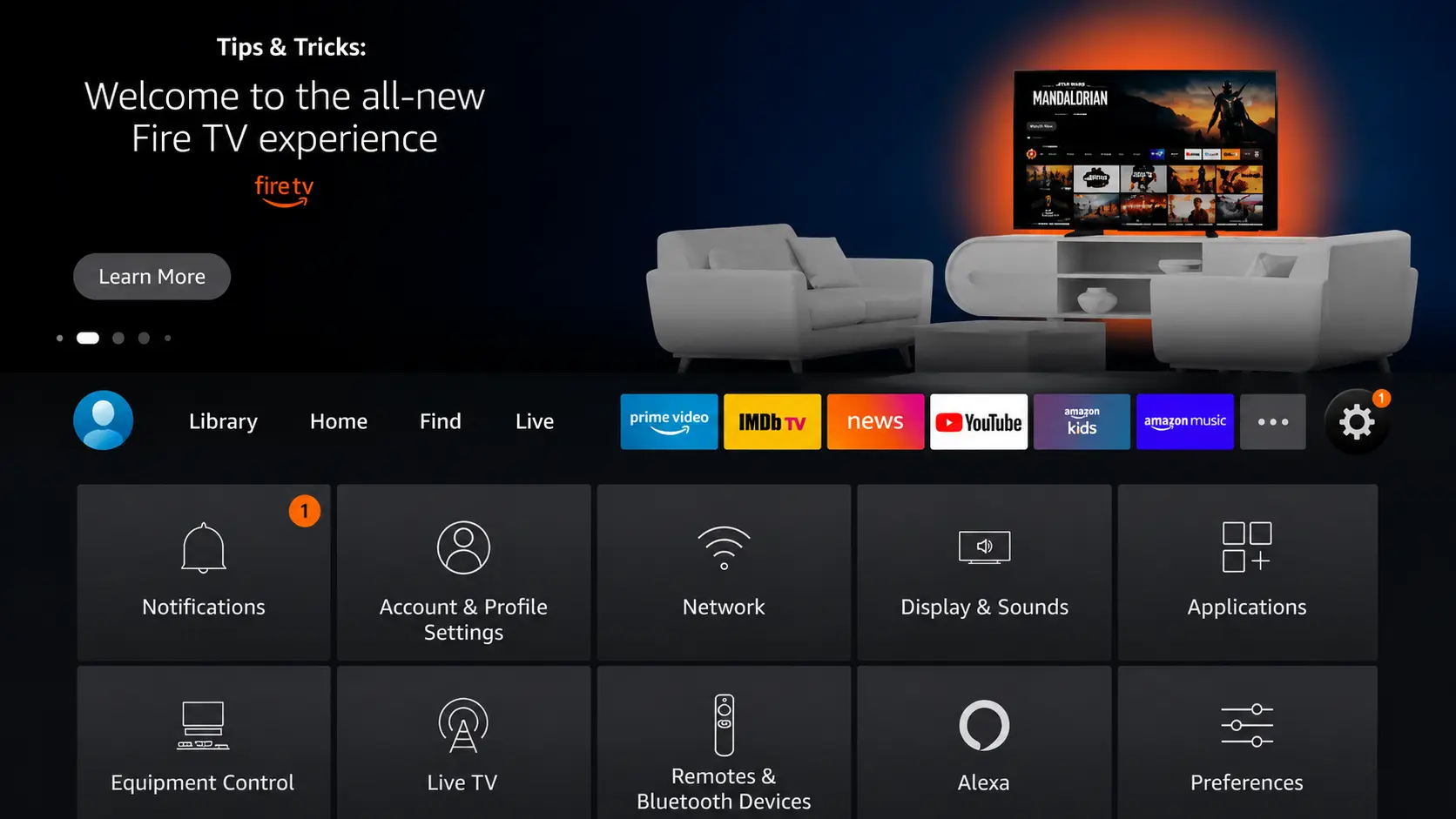
8. Click My Fire TV.
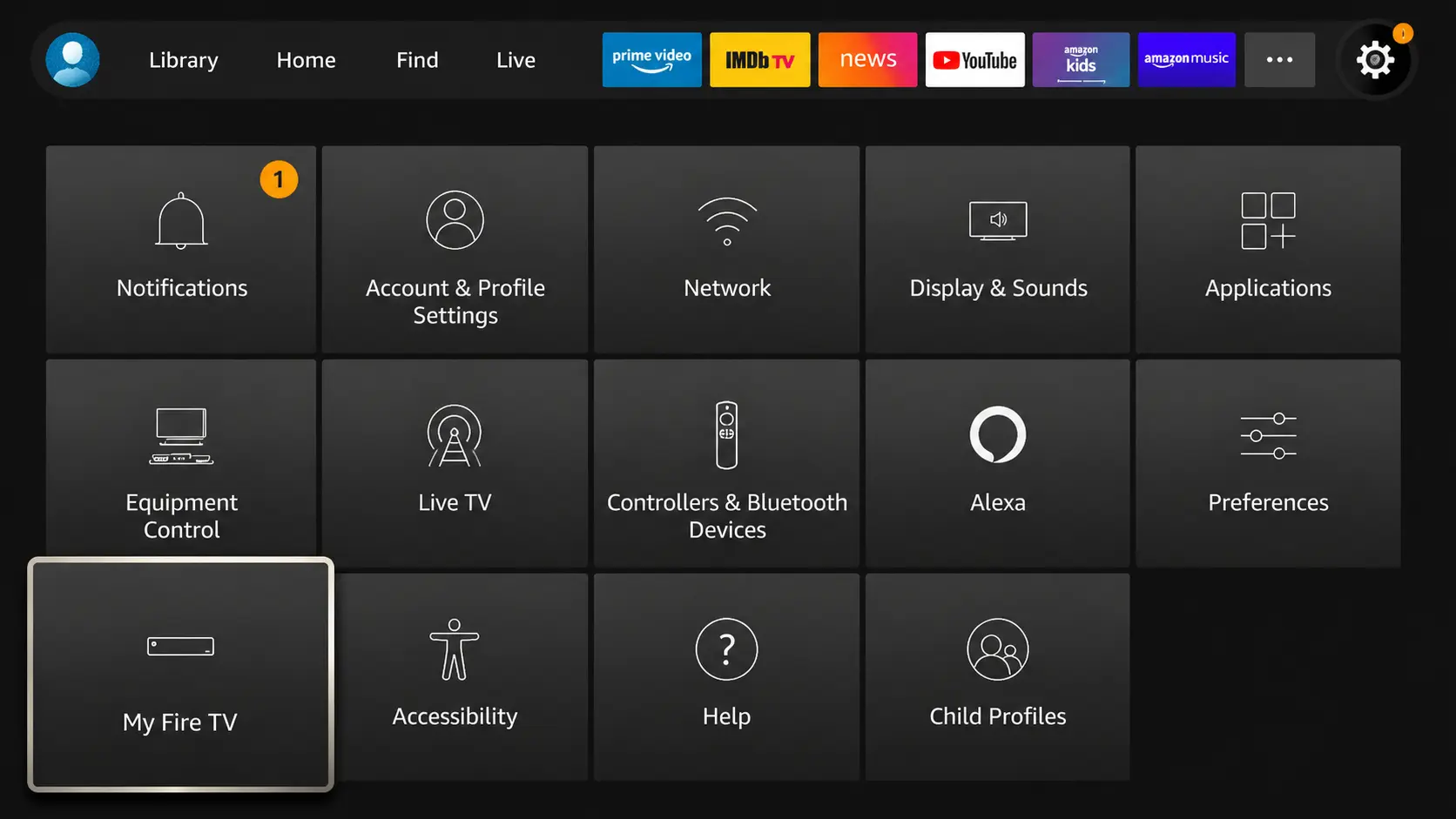
9. Choose Developer Options.
If Developer Options are hidden, go to My Fire TV > About and click your device name 7 times, or follow the video below.
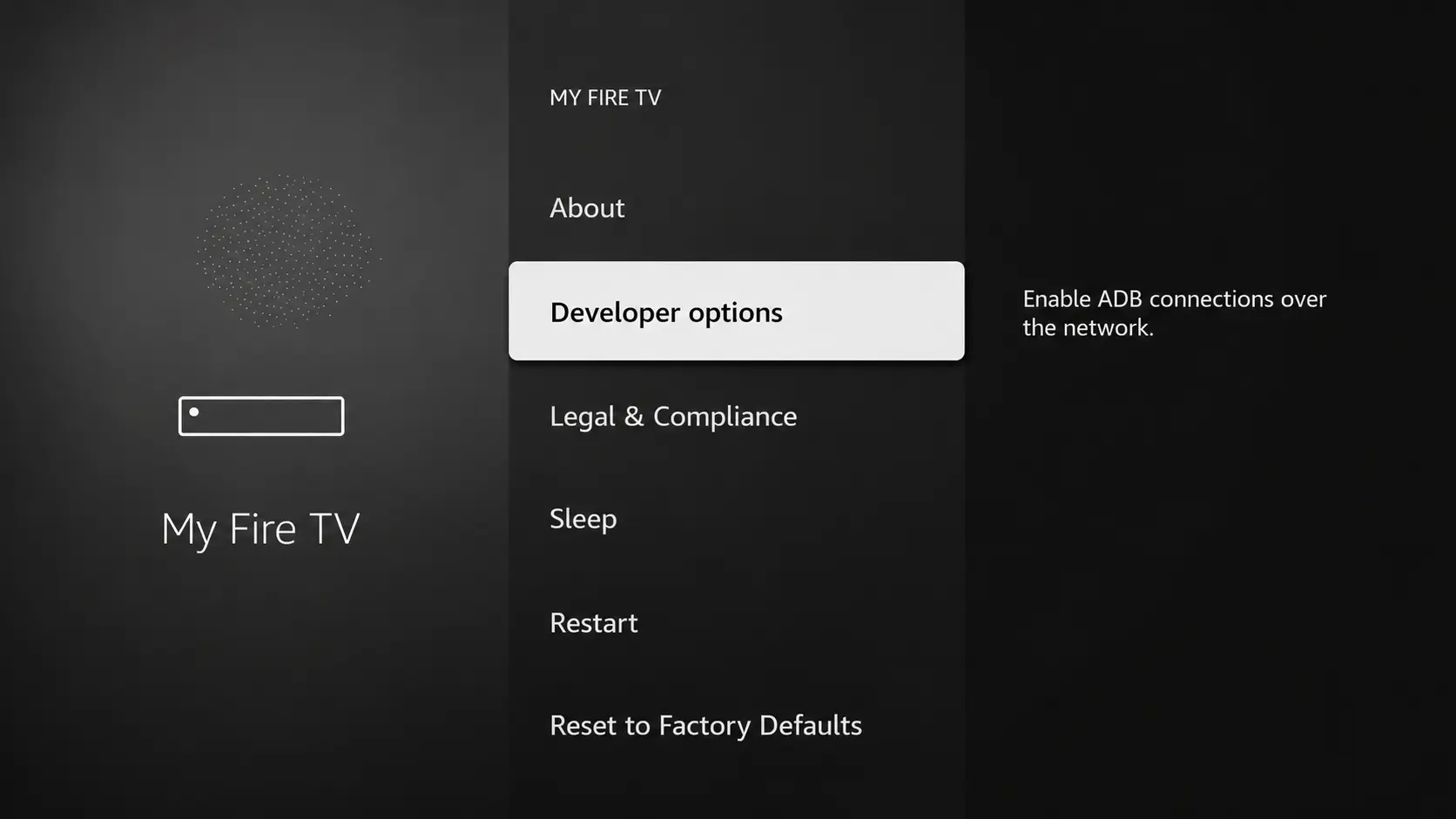
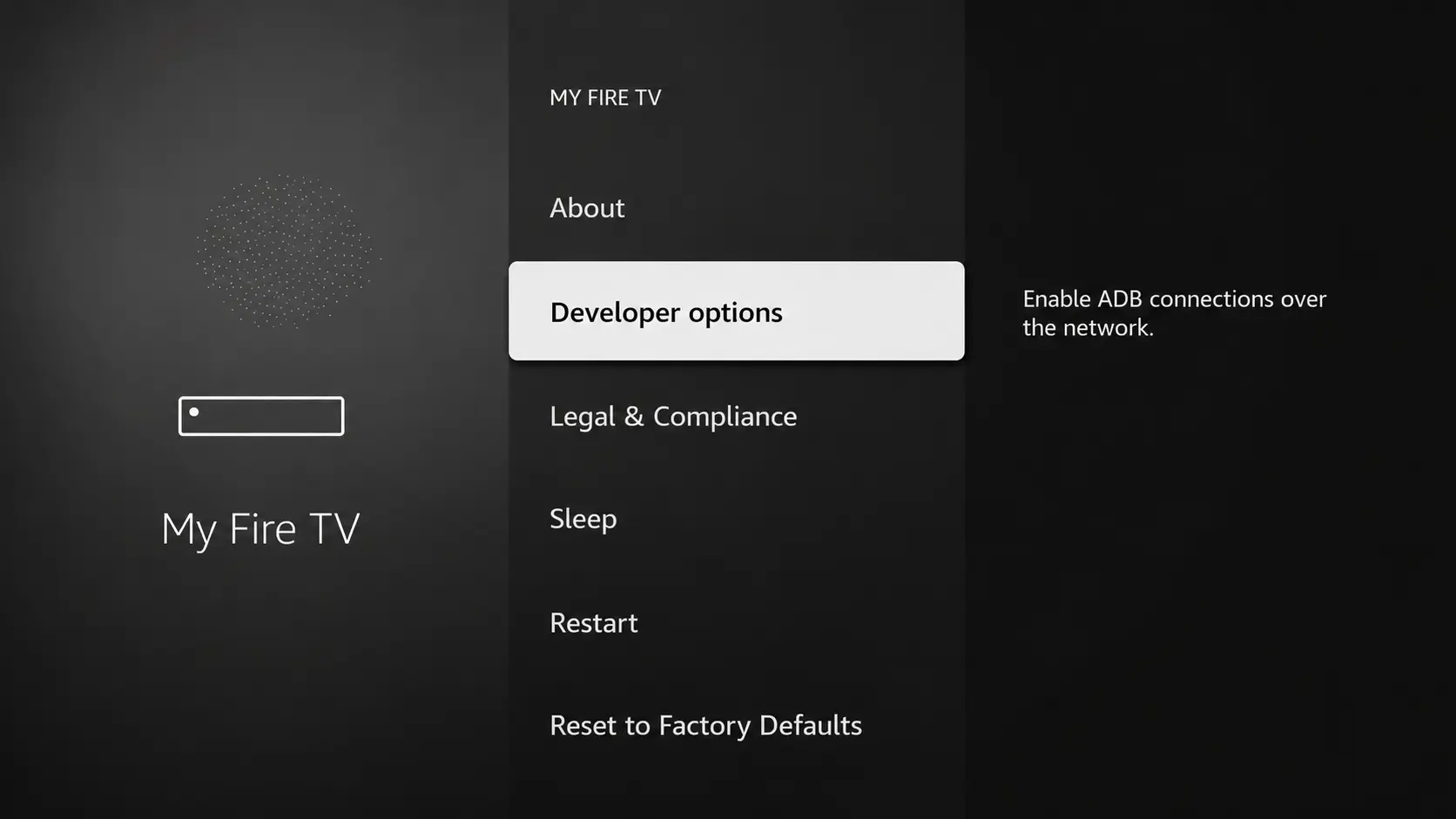
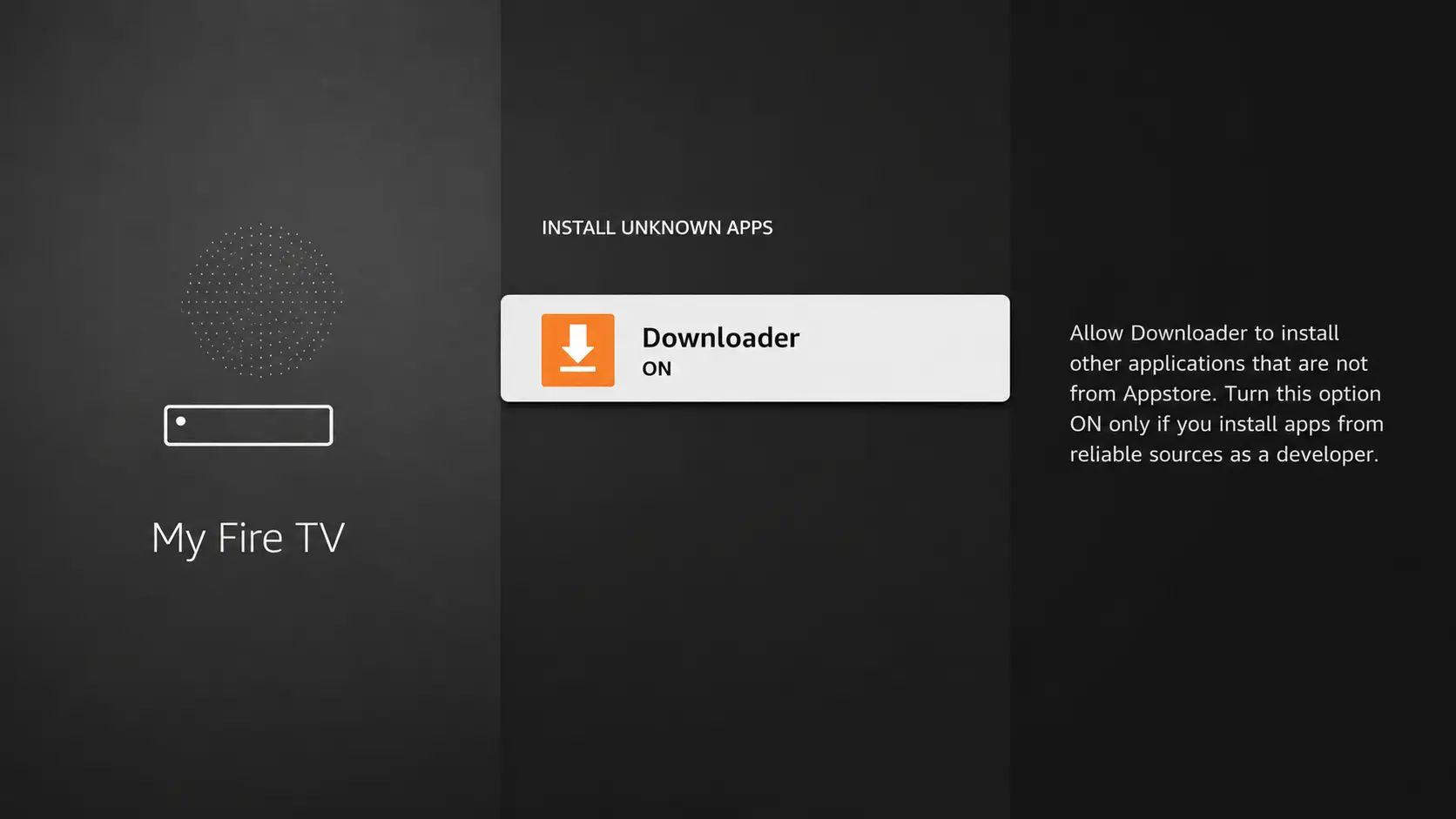
10. Click Install Unknown Apps.
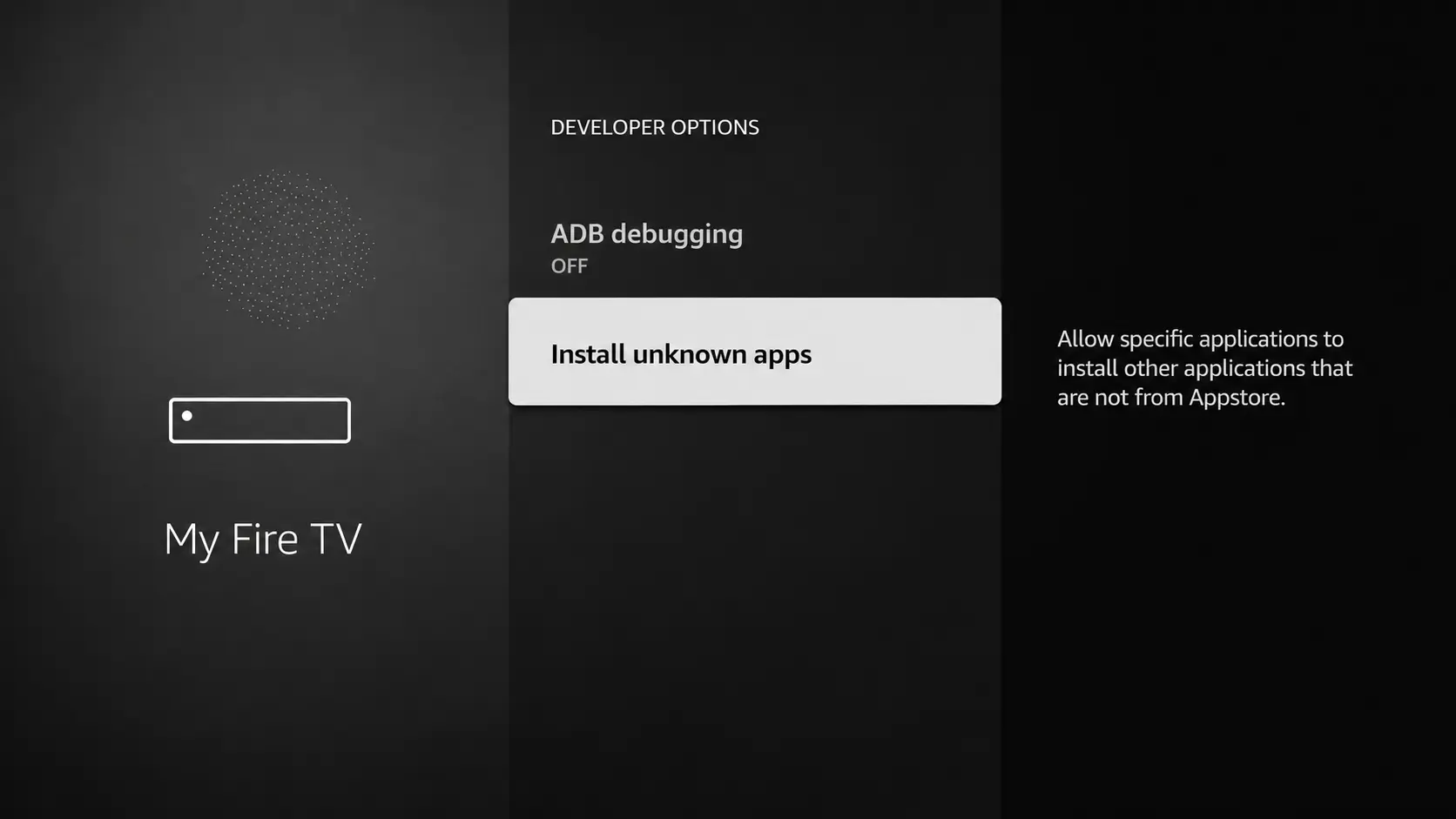
11. Find the Downloader app and click it.
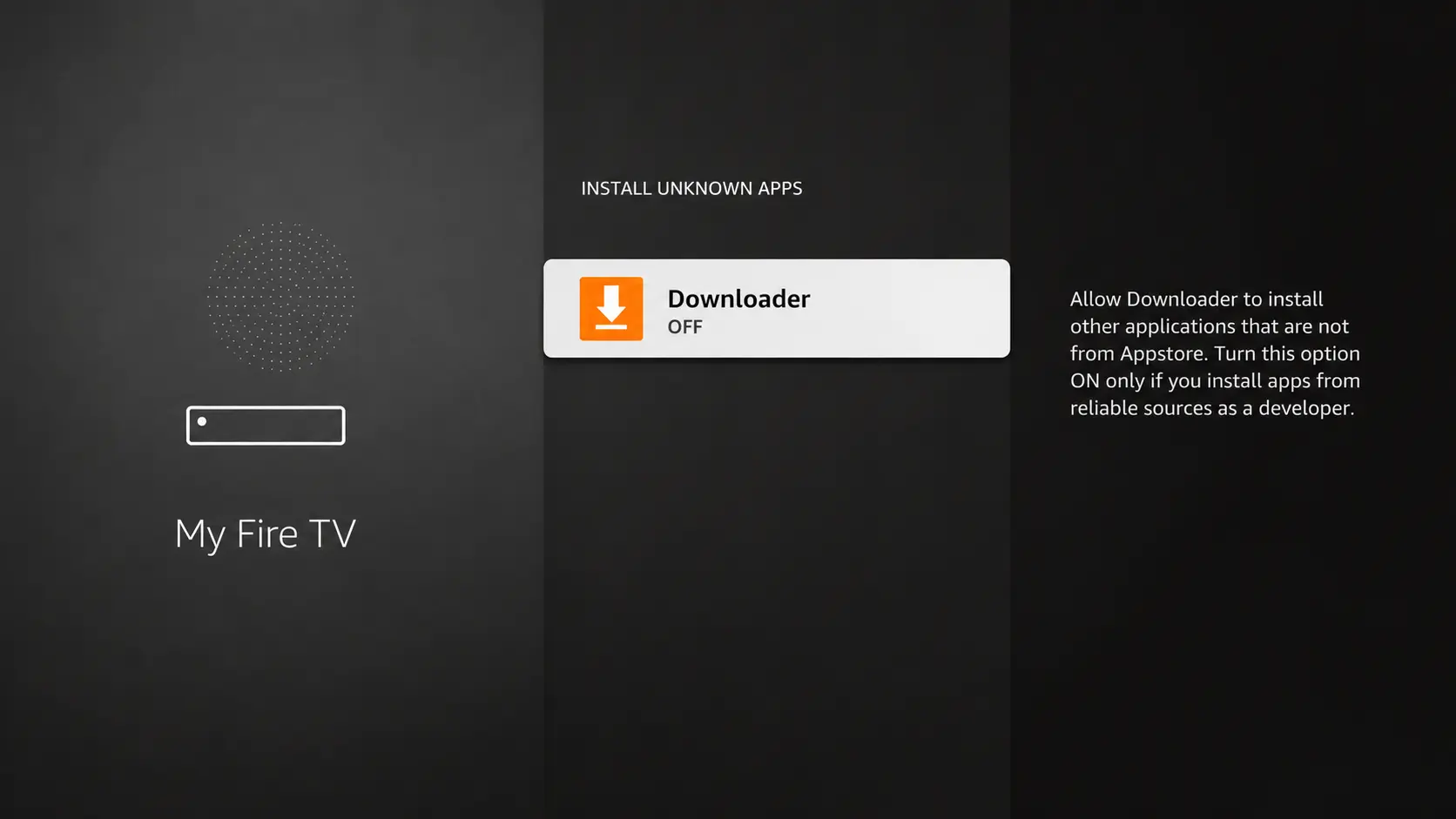
12. Turn Downloader ON.
This allows Downloader to install apps (side-loading) on your device.
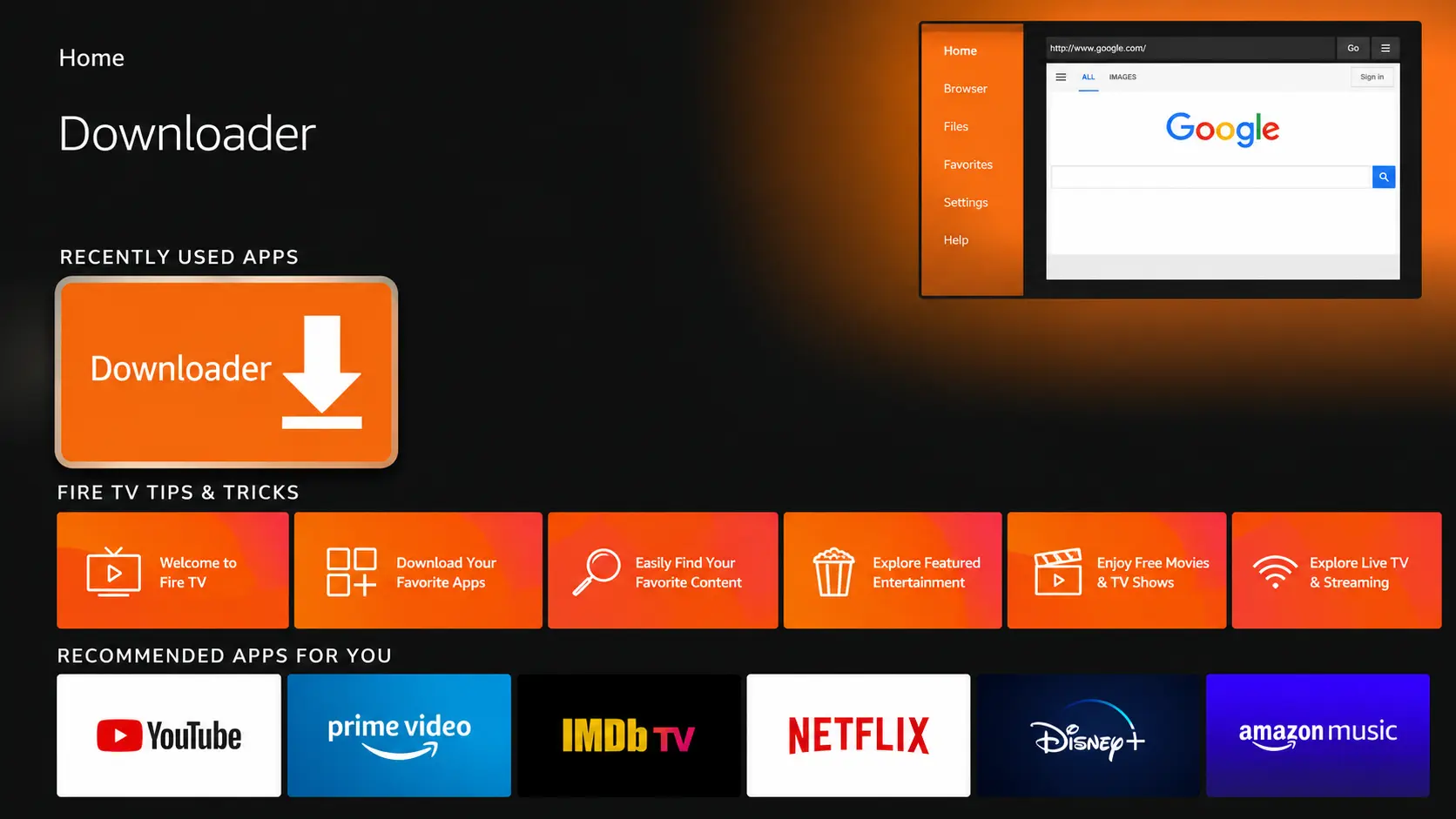
13. Launch Downloader.
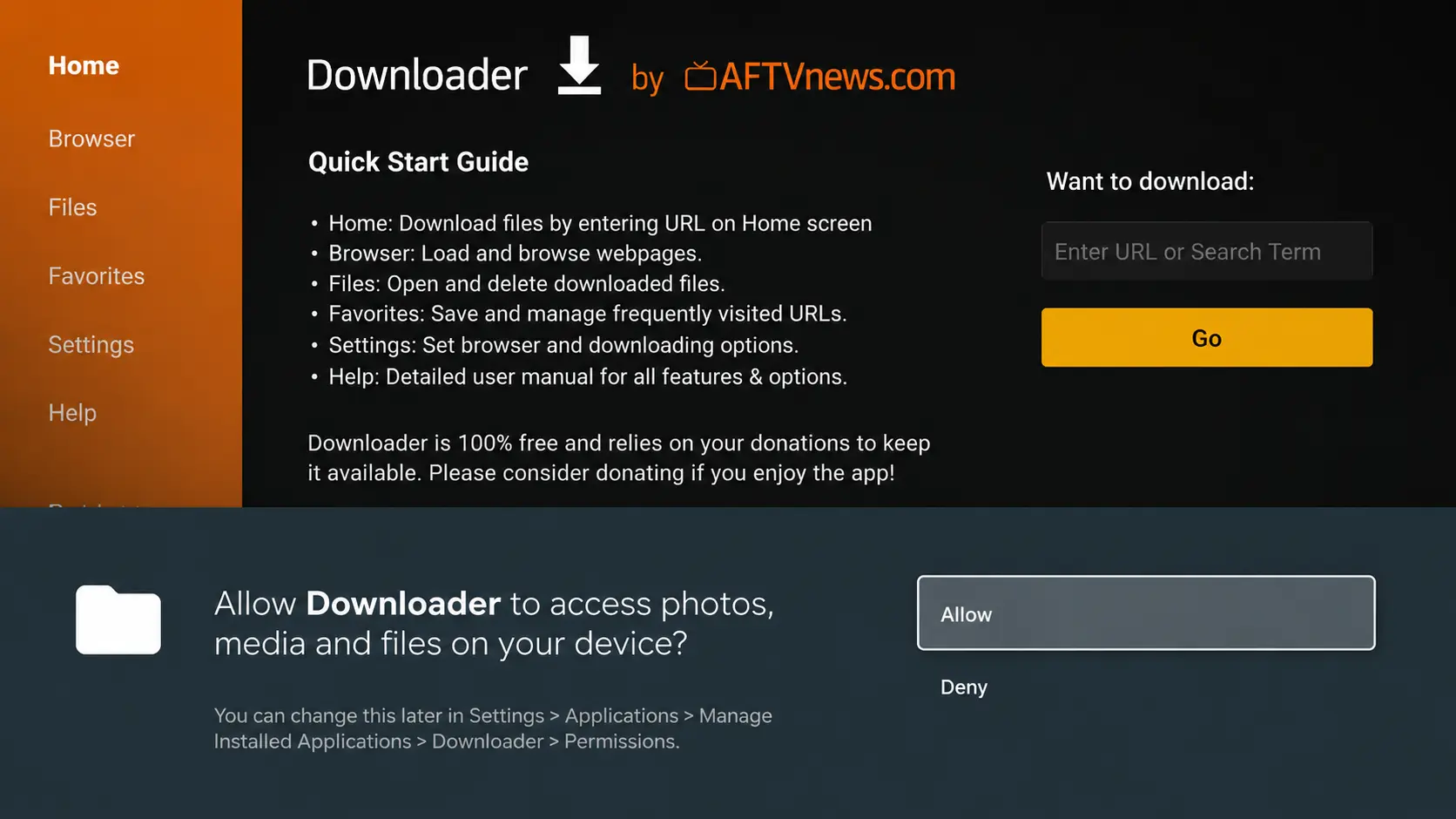
14. Click Allow.
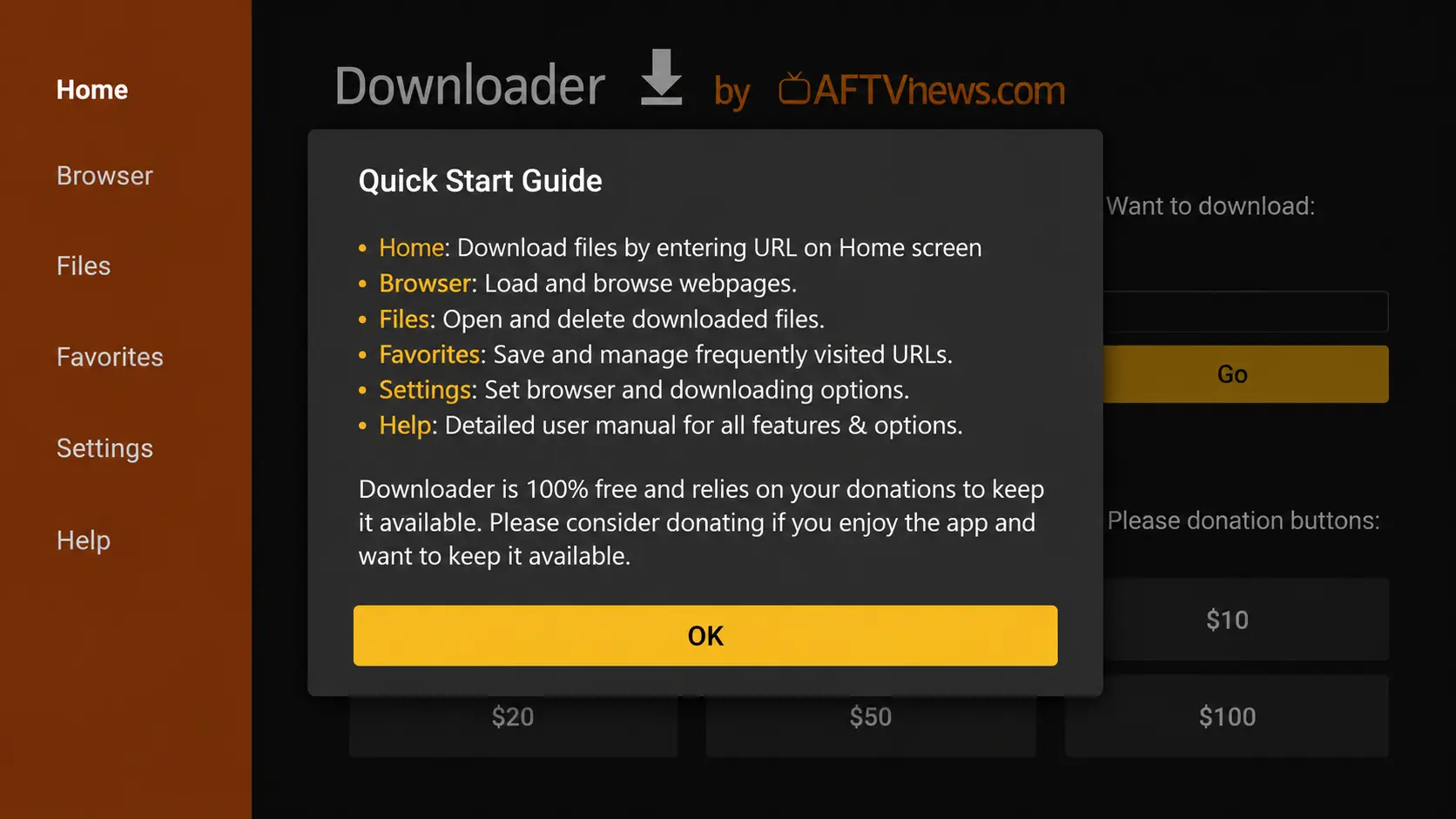
15. Click OK.
16. Type the Downloader code.
IPTV Smarters Pro Downloader code:
17. Wait for the file to download.
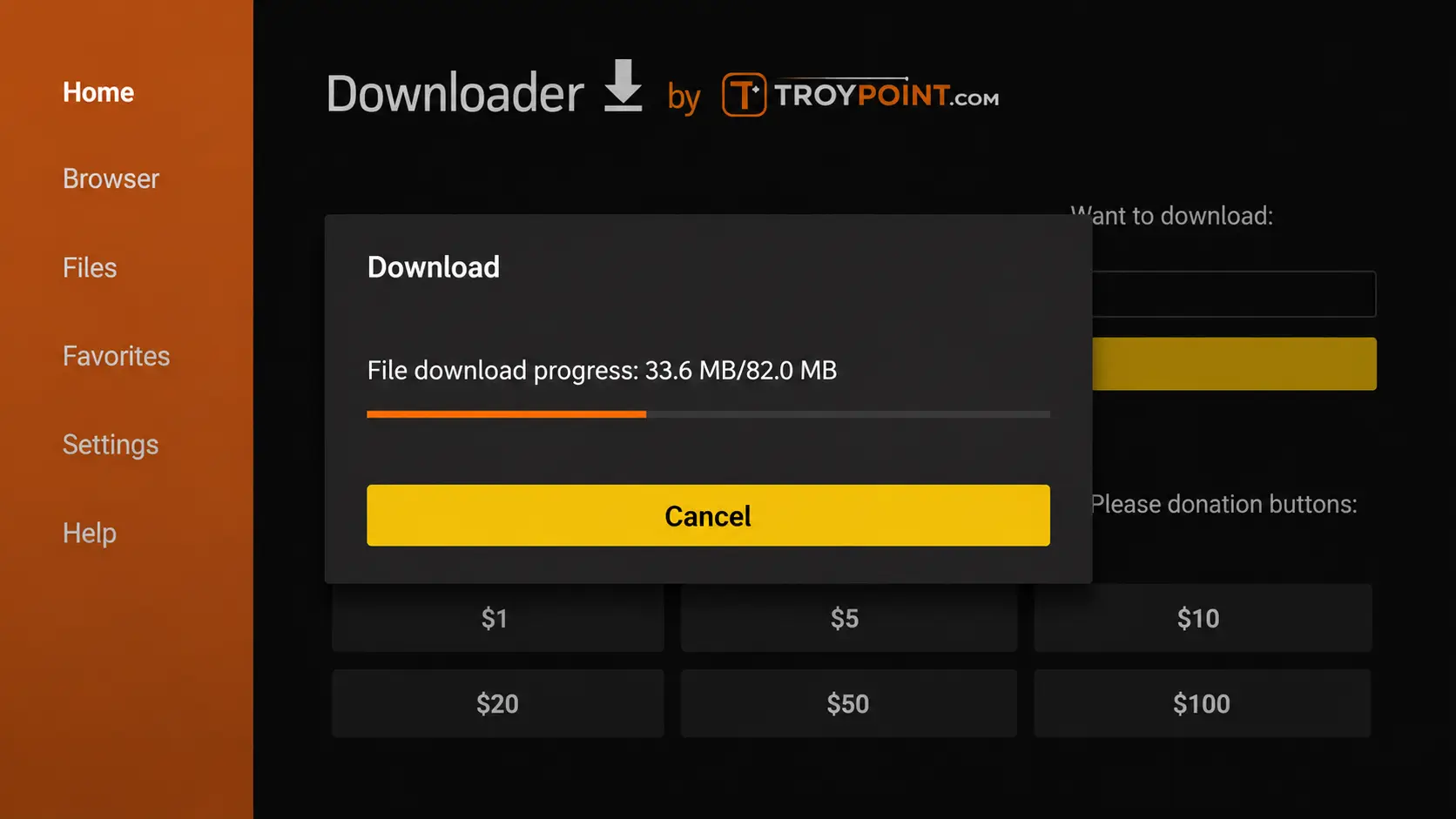
18. Click Install.
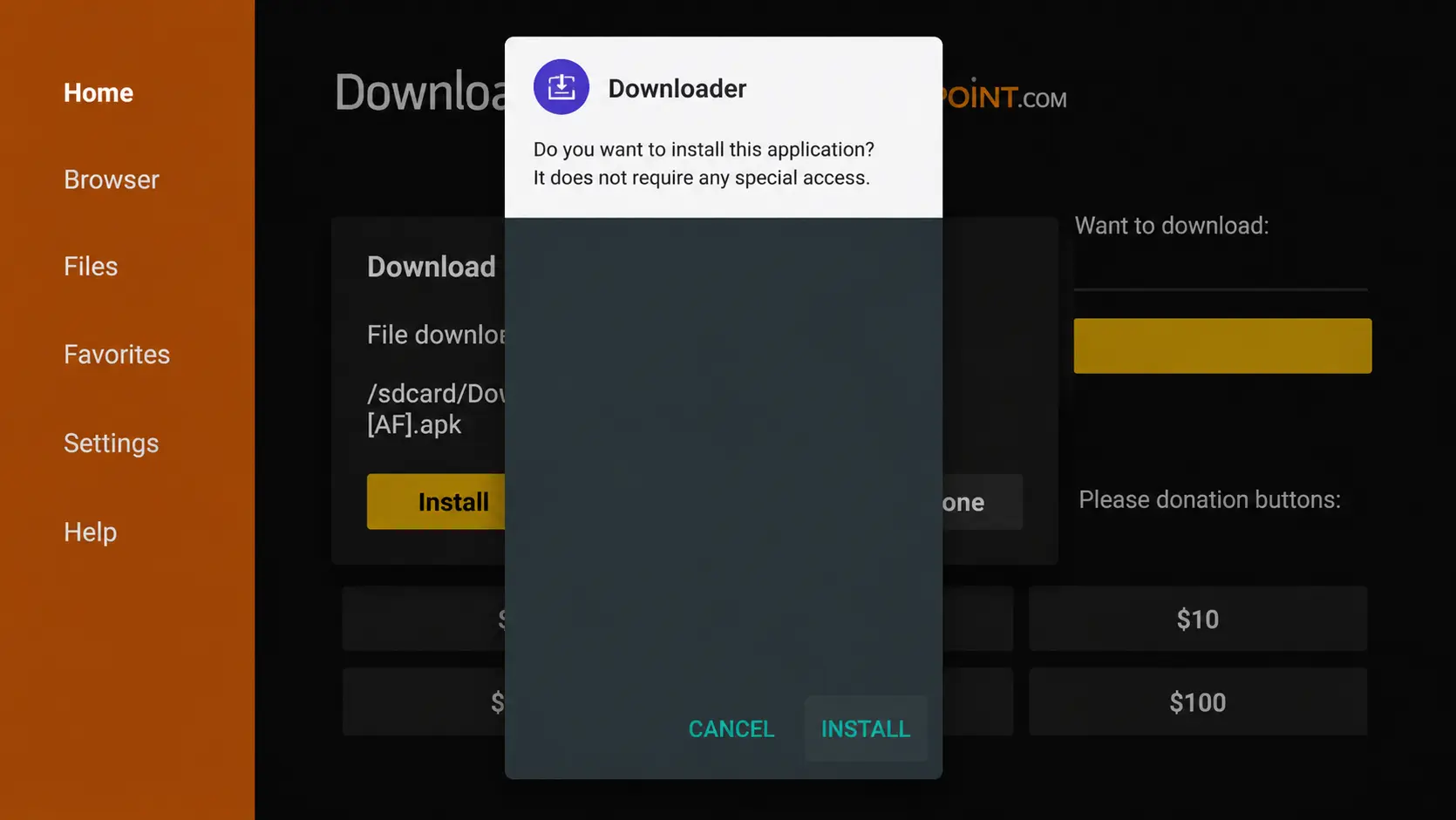
19. Click Done.
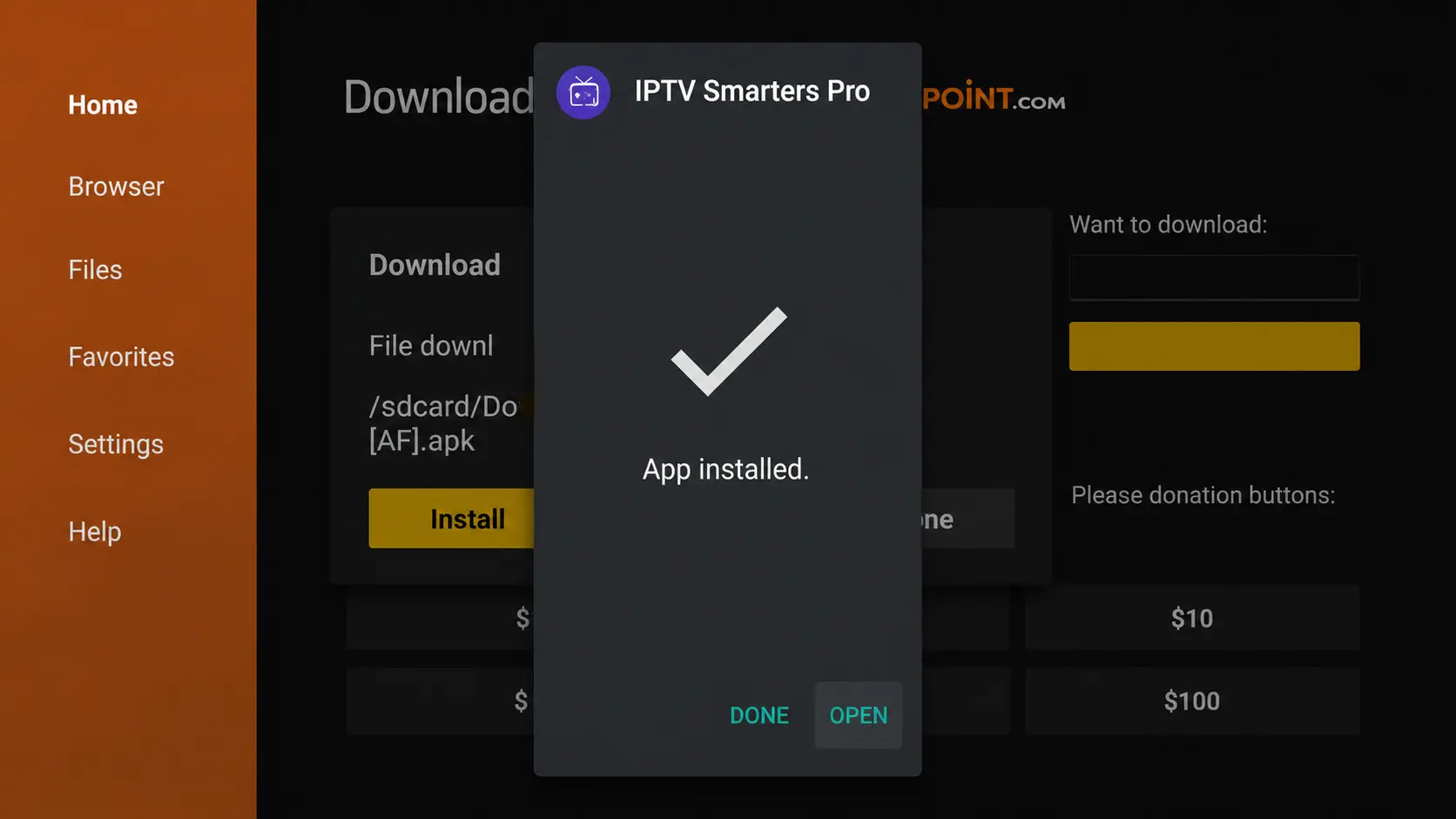
20. Open IPTV Smarters Pro and choose Login with Xtream Codes API.
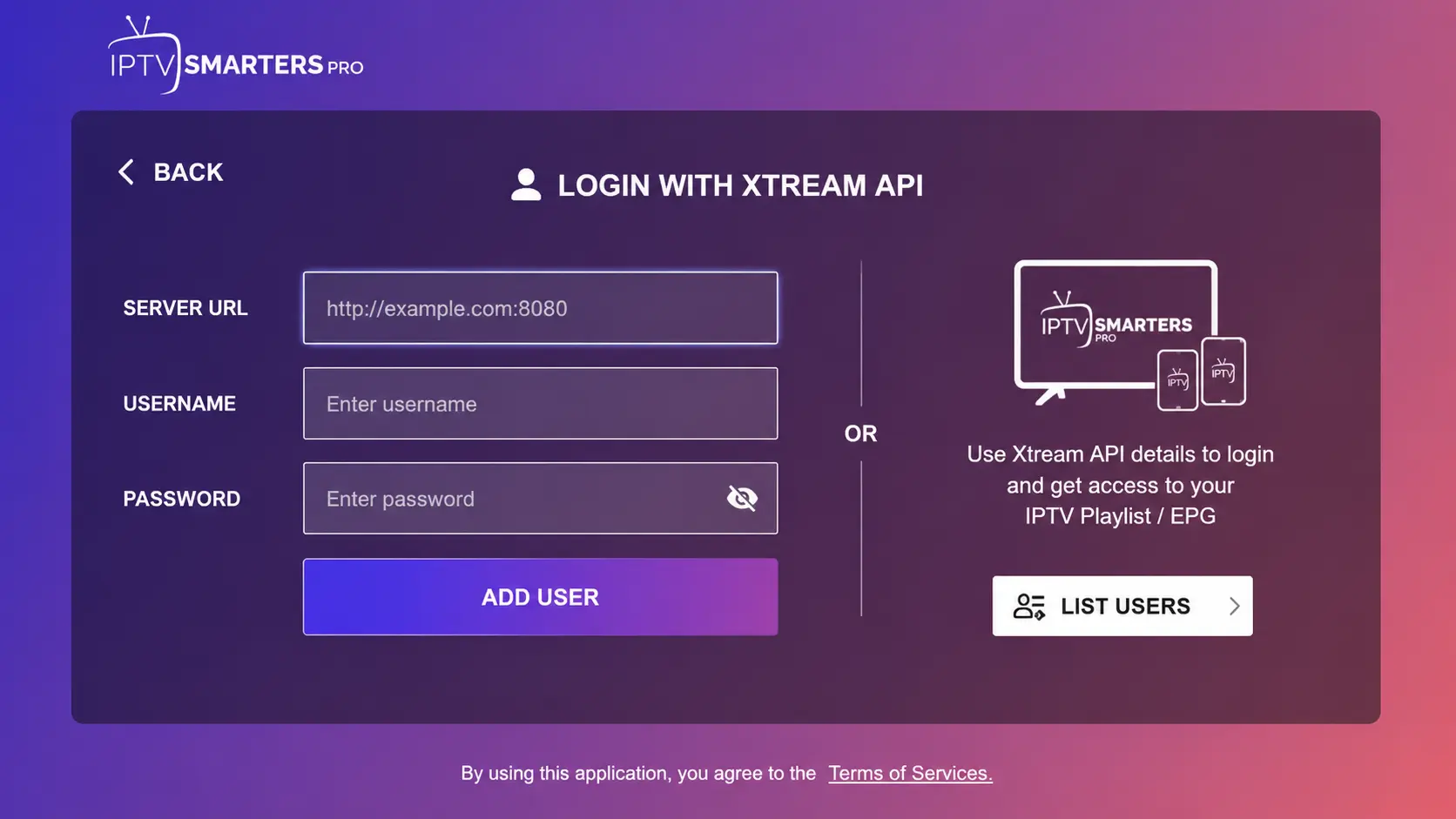
21. Enter your IPTV details.
IPTV login information
- First box: any name you like
- Second box: your username
- Third box: your password
- Fourth box: the server URL, which always starts with http://
22. If you see "Authorization Failed"
Double-check your username, password and server URL. If everything is correct, turn off your VPN and try again. More fixes are in our common setup errors section.
Need Help Setting Up IPTV on Firestick?
Contact BangosPlay support and we will help you install IPTV on Firestick or Fire TV, configure Downloader, add your Xtream Codes login details and fix any streaming or login issue quickly.
Don't have a subscription yet? View our IPTV packages or request a free trial.
Contact Support