Pick your device below and follow the step-by-step guide. Most setups take under 10 minutes: install an IPTV app, enter the login details we send you, and your channels load automatically. Stuck? Our support team is available 24/7.
Downloader, developer options and IPTV Smarters Pro.
Phones, Android TV and Android boxes.
Samsung, LG and other Smart TV apps.
TiviMate or IPTV Smarters Pro on a Windows PC.
IPTV Smarters Pro on MacBook and iMac.
Smarters Player Lite, IPTVX and TiviMax on iOS.
Stalker Portal setup with your MAC address.
PuTTY, the IPTV script and EPG on satellite receivers.
TiviMate, Smarters, Sparkle TV and PVR Live.
When you buy an IPTV subscription you are buying access to a server. Your app can connect to it in two ways.
You enter a server URL, username and password. The app loads channels by category, so it opens faster, the TV guide (EPG) syncs more reliably and movies and series appear in their own sections.
An M3U URL is one long text file containing thousands of stream links. Every time the app opens it downloads the whole list, which can make weaker devices slow or laggy. Use it when your app does not support Xtream Codes — for example VLC, or Smart TV apps that ask you to upload a playlist.
MAG boxes, Formuler and some Smart TV apps are activated with the device's MAC address instead of a username. See the MAG setup guide for how this works.
The device matters as much as the service: a strong processor switches channels faster, decodes 4K streams without stuttering and runs the best apps.
| Device type | Examples | Pros | Cons | Verdict |
|---|---|---|---|---|
| Dedicated streamer | Firestick 4K Max, NVIDIA Shield, Google TV | Fast CPU, HEVC support, every app | Needs an HDMI port | Best choice |
| Smart TV | Samsung, LG | No extra device | Weaker processor, fewer apps | Good for basic use |
| Set-top box | MAG, Formuler, Enigma2 | Built for TV, remote-friendly | Setup takes a few more steps | Great for live TV |
| Computer | Windows, Mac | Powerful and stable | Not ideal for the living room | Great for testing |
| Mobile | iPhone, iPad, Android | Watch anywhere | Small screen, battery drain | Travel use |
H.264 plays on almost every device. H.265 / HEVC halves the bandwidth of 4K streams but needs newer hardware — if 4K channels stutter on an older TV or box, that is usually why. Read more in our guide to HD, Full HD and 4K IPTV.
VLC is a free player for Windows and Mac that can open an M3U playlist in seconds:
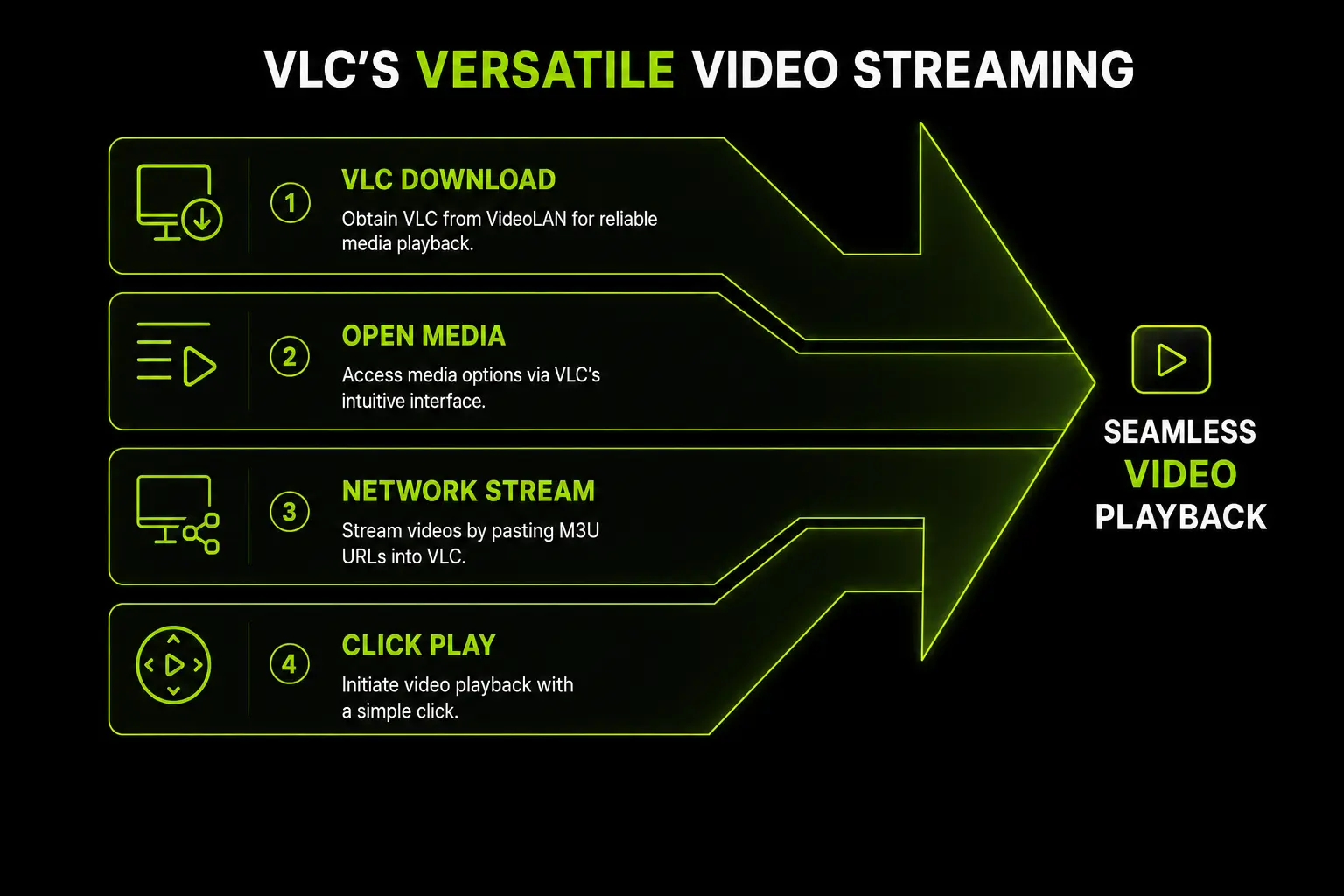
Tip: enable deinterlacing in VLC for sports and fast motion. For a full TV-style interface with a channel guide, use TiviMate or IPTV Smarters Pro on Windows.
Cloudflare DNS: 1.1.1.1 and 1.0.0.1 — Google DNS: 8.8.8.8 and 8.8.4.4
If IPTV buffers even with a good speed test, your internet provider may be slowing down video traffic. A VPN can help — but turn it off if you get login errors, because some servers block VPN addresses.
A Full HD stream needs around 8–10 Mbps; a 4K stream needs 25–40 Mbps.
Check the username, password and server URL character by character, then turn off any VPN and try again.
The M3U link is incomplete or badly formatted. Copy it again, or log in with Xtream Codes instead.
The EPG has not synced yet. Refresh the EPG in the app settings or clear the app cache.
Usually packet loss or unstable Wi-Fi. Restart your router and follow the network tips above.
Still not working? Contact support — we will check your account and walk you through the setup on WhatsApp.