
How to Set Up IPTV on Your Smart TV
Install IPTV on Samsung, LG and other Smart TVs using IPTV Smarters Pro, HOT IPTV, IBO Player Pro and other popular Smart TV apps.
Setting up IPTV on your Smart TV is quick: the whole process usually takes 5 to 10 minutes. This guide shows you the best IPTV apps to use and exactly how to set them up on any Smart TV model.
Samsung (Tizen) and LG (webOS) TVs cannot install Android APK files, so you use the apps in your TV's own app store. If your TV runs Android TV or Google TV, follow the Android guide or the Google TV apps guide instead.
Choosing an IPTV App
Install an IPTV player from your Smart TV's app store. The most reliable options:
- IPTV Smarters Pro — free and easy to use.
- HOT IPTV — smooth interface, free trial then paid activation.
- IBO Player / IBO Player Pro — stable paid Smart TV app.
- Smart One IPTV — available on some older Smart TVs.
- Duplex IPTV / Net IPTV / SS IPTV — alternatives for older models.
1. IPTV Smarters Pro
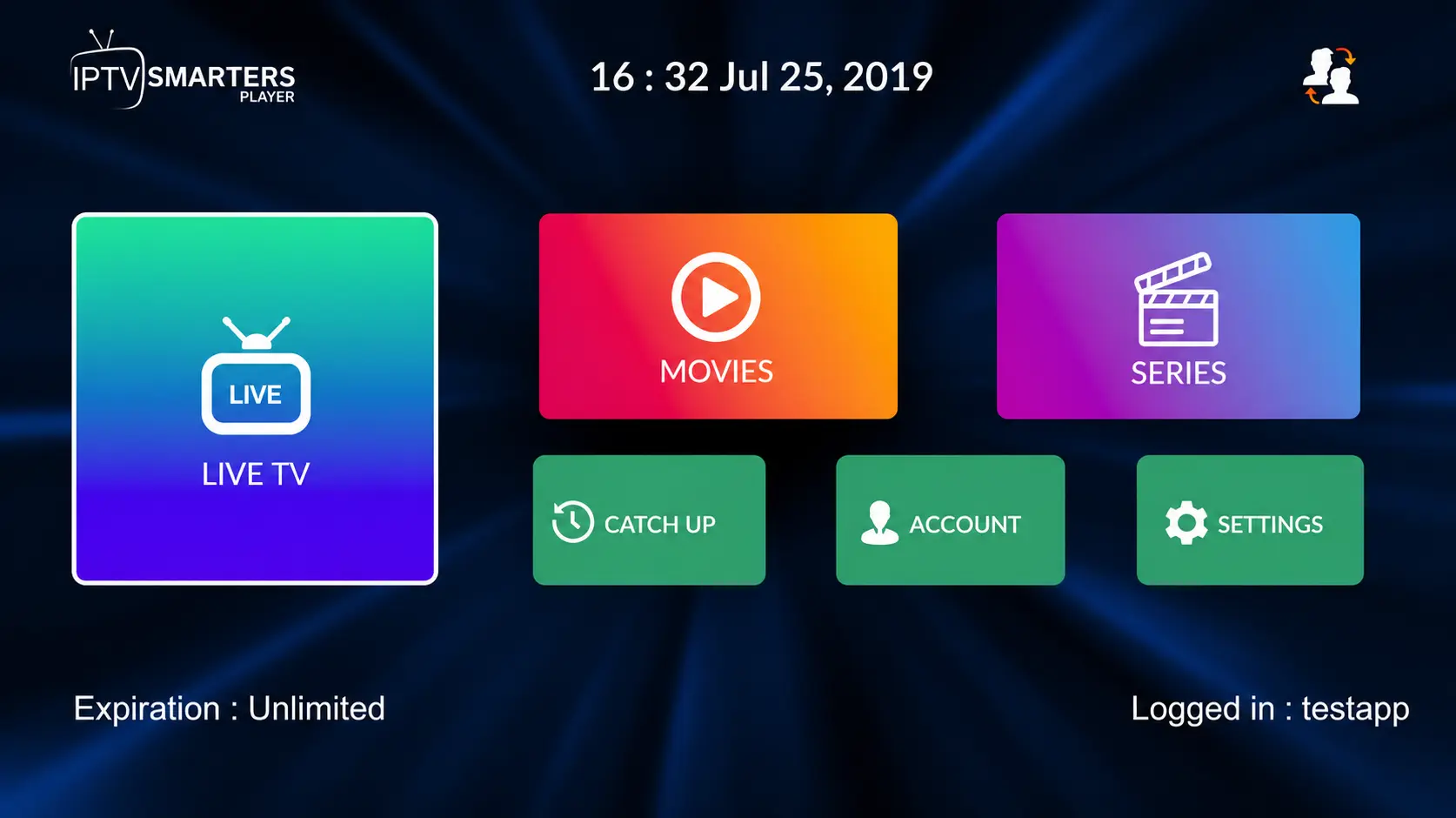
IPTV Smarters Pro has a great interface and is free. It is easy to set up because you enter your IPTV login details directly inside the app.
- Free to use on many Smart TVs.
- Supports Xtream Codes API login.
- Good for live TV, movies and series.
- Can lag on some TV models.
2. HOT IPTV
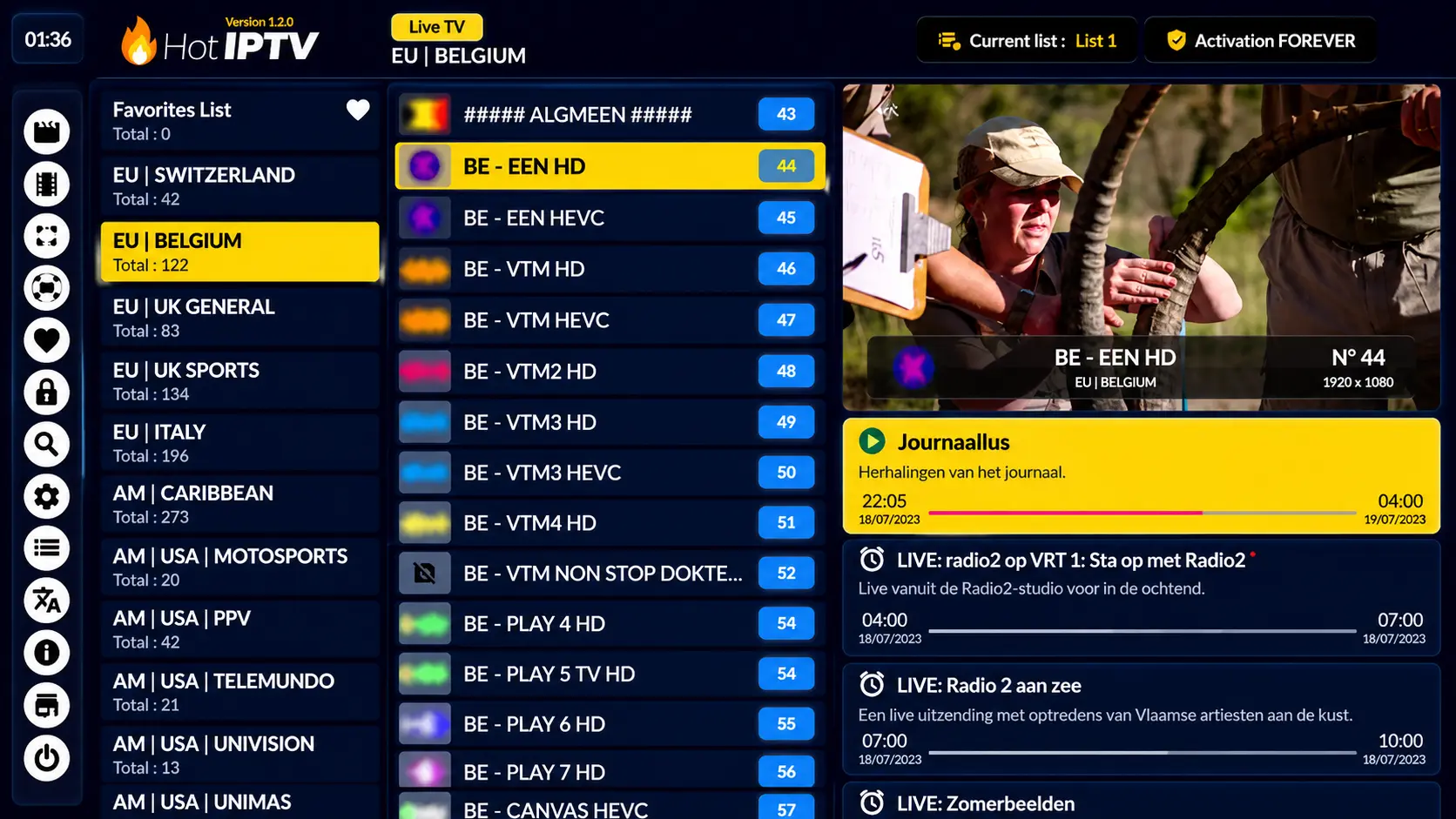
HOT IPTV is a paid IPTV player with a smooth, fast interface and usually a free trial before activation.
- Free trial on many devices.
- Clean and modern interface.
- Good performance for live TV and playlists.
- Requires activation after the trial.
Recommendation: HOT IPTV is a good option if you want a smoother, more stable Smart TV experience.
3. IBO Player / IBO Player Pro
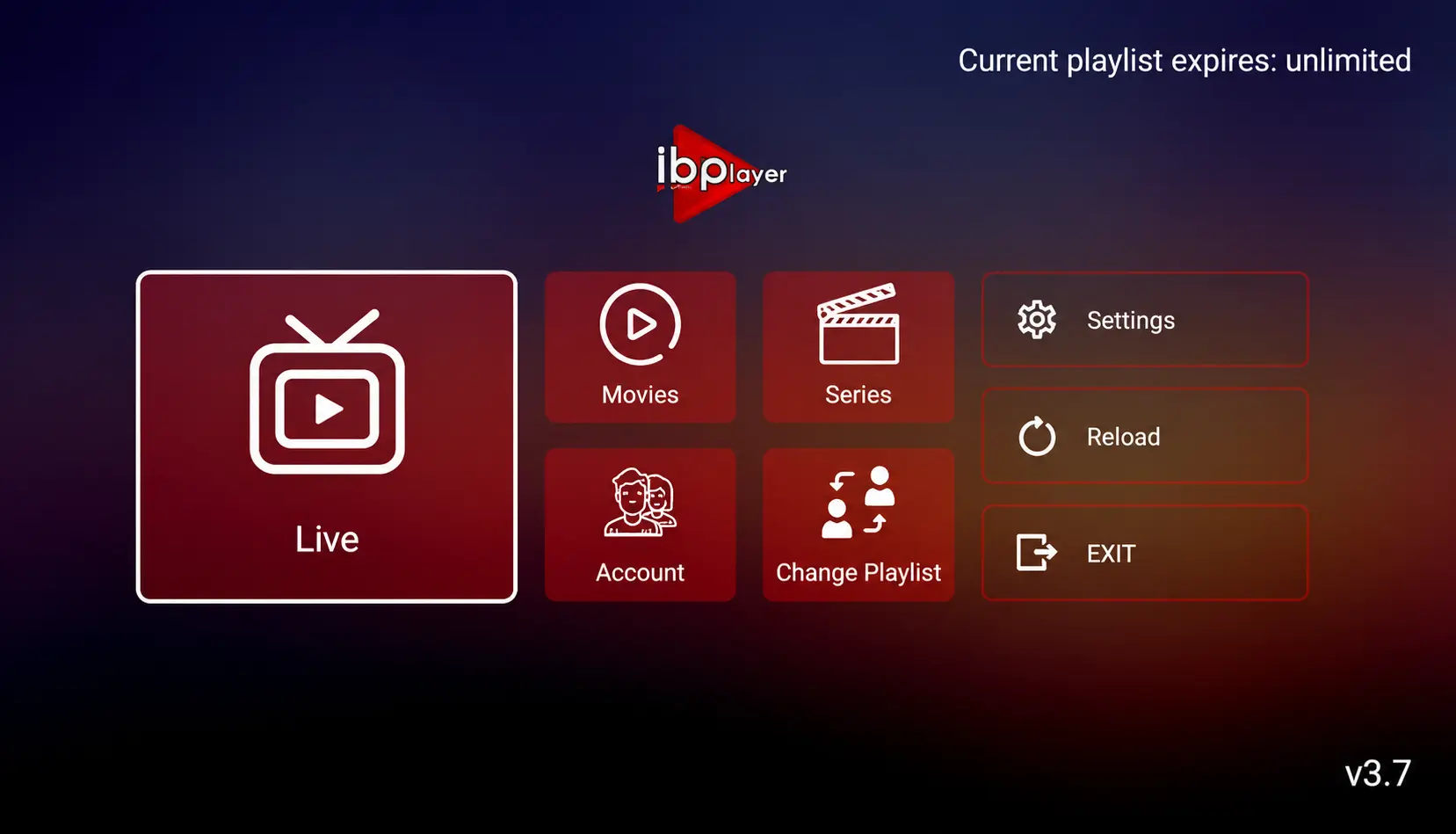
IBO Player Pro is a popular Smart TV IPTV player. It is paid after a short trial, but it is reliable and works well on Samsung, LG and other Smart TVs.
- Stable Smart TV IPTV player.
- Works with M3U playlists.
- Good for users who want a simple paid app.
- Requires MAC address activation.
4. Other Options for Older Smart TVs
Some older Smart TVs do not support the newest apps. Try these instead:
- Smart One IPTV
- Duplex IPTV
- Net IPTV
- SS IPTV
- Smart IPTV
Note: older apps have limited memory and can crash with very large playlists.
Setting Up IPTV Smarters Pro on Smart TV
- Open your TV's app store.
- Search for IPTV Smarters Pro.
- Install the app and open it.
- Select Login with Xtream Codes API.
- Enter the login details you received by email or WhatsApp.
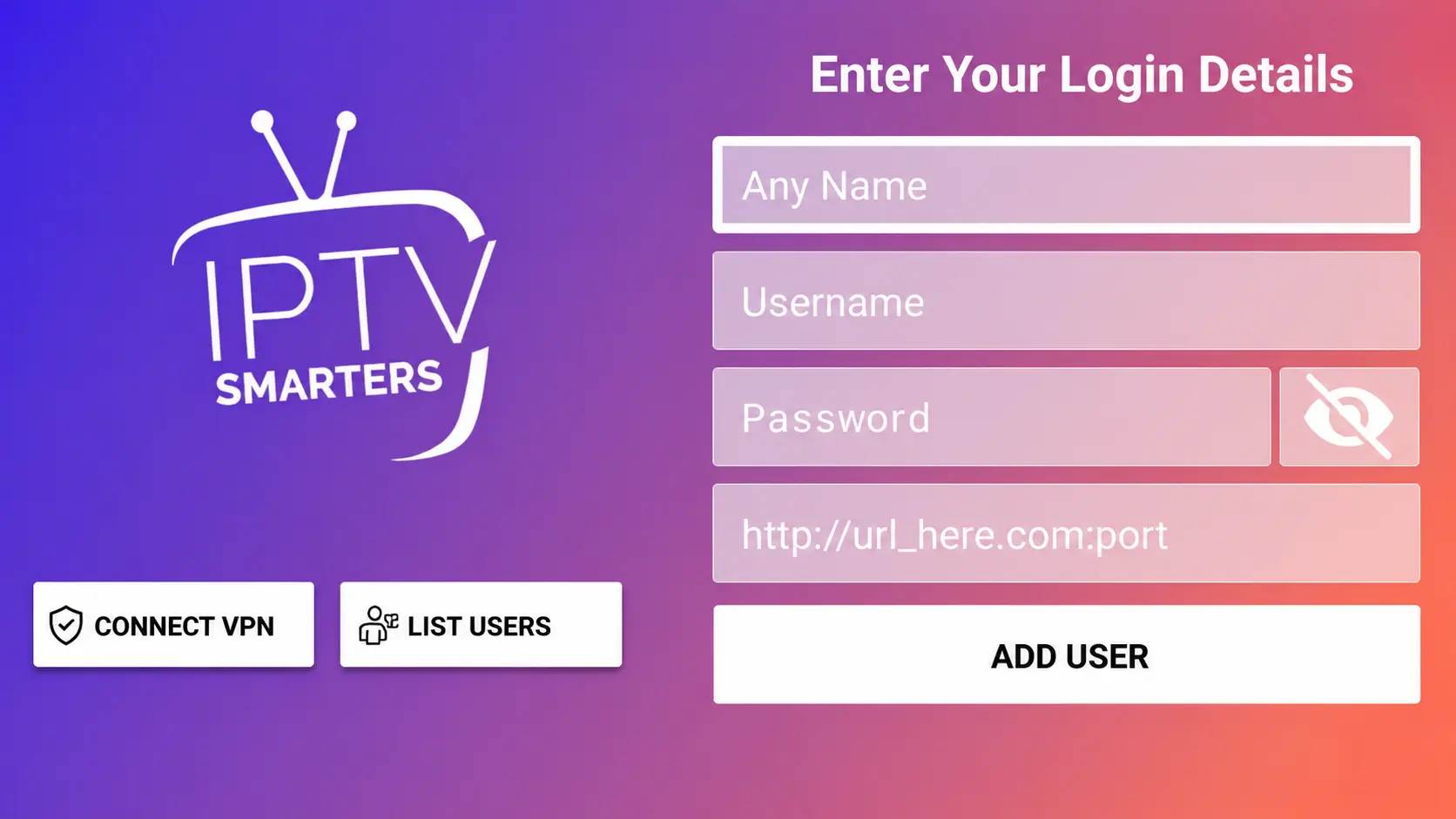
Login details explained
- First box: any profile name.
- Second box: your username.
- Third box: your password.
- Fourth box: server URL, usually starting with http:// or https://
Setting Up a Paid IPTV App with Your MAC Address
Paid apps like HOT IPTV, IBO Player Pro, Smart One IPTV or Net IPTV are activated with your TV app's MAC address rather than a username.
Step 1: Open the IPTV app
Install and open the IPTV player. The app shows a MAC address or device ID.
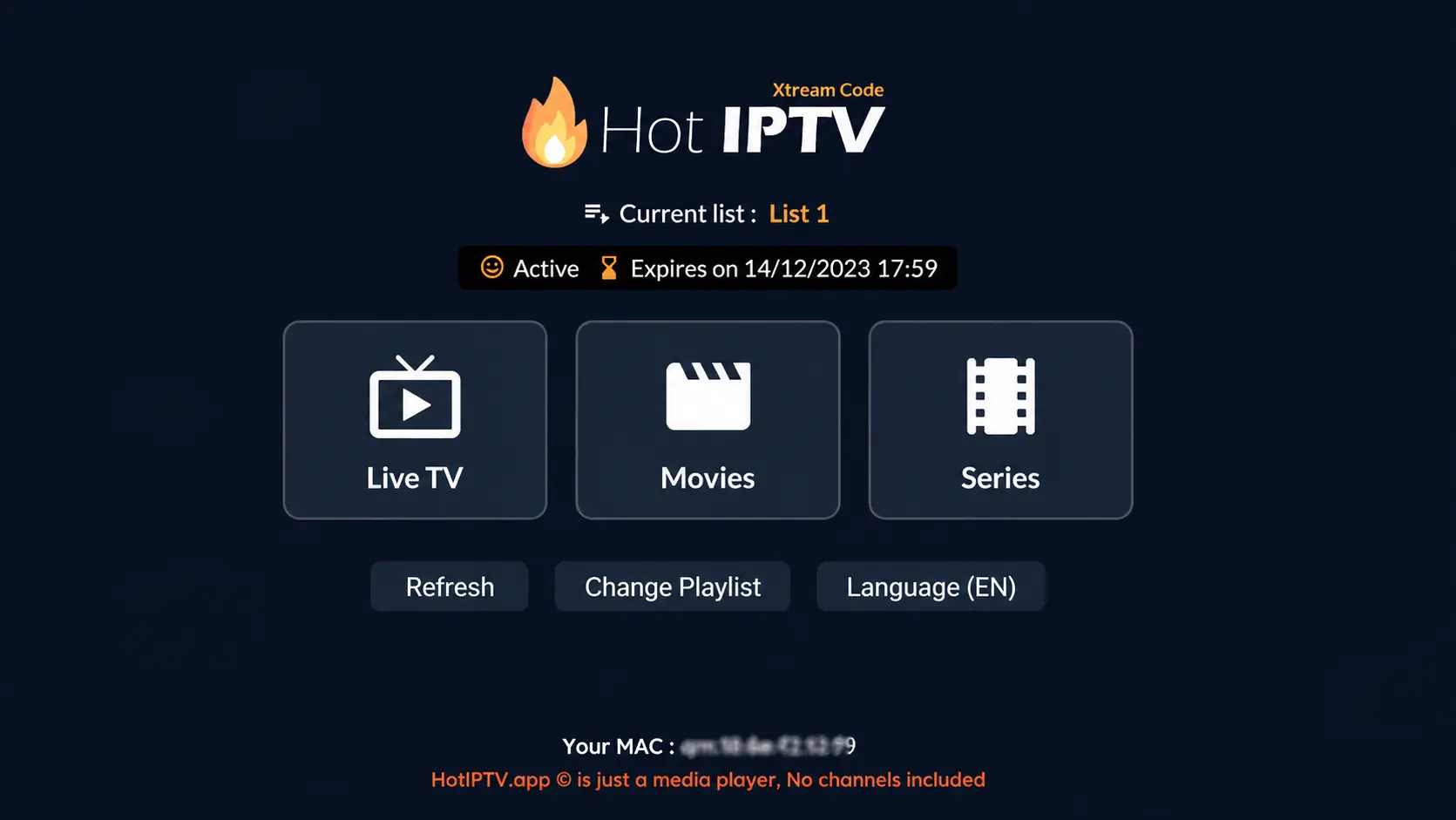
Step 2: Send your MAC address
Send your MAC address, the app name and your order ID to support, or upload your playlist yourself on the app's official website.
Step 3: Upload your playlist
Visit the website shown inside the app, enter your MAC address, then add your M3U link or Xtream Codes details.
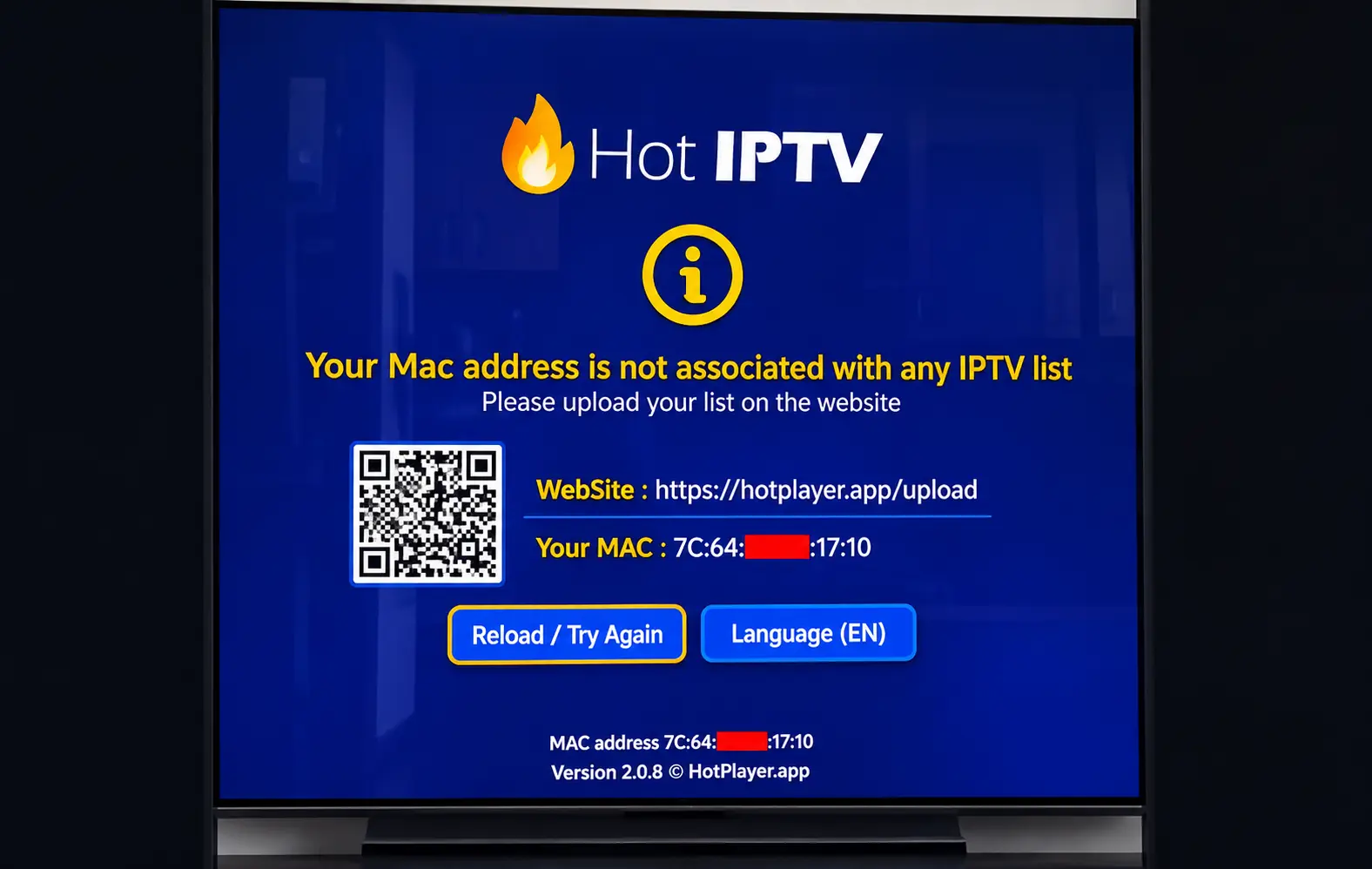
Step 4: Save and restart
- Enter your MAC address.
- Add your M3U link or playlist details.
- Save the settings.
- Restart the IPTV app on your Smart TV.
Troubleshooting
Channels not loading
- Check your internet connection.
- Restart your Smart TV and the IPTV app.
- Make sure your playlist or login details are correct.
- Use a wired Ethernet connection if possible.
Authorization failed
- Check your username and password.
- Make sure the server URL is complete.
- Turn off your VPN and try again.
- Contact support if the problem continues.
Final Notes
IPTV Smarters Pro is a good free option on Smart TVs, while HOT IPTV and IBO Player Pro give smoother, more stable playback. If your TV struggles with large playlists, a Firestick plugged into the HDMI port is the easiest upgrade.
Need Help Setting Up IPTV on Smart TV?
Contact BangosPlay support and we will help you install IPTV on Samsung, LG, Android TV, Google TV and other Smart TVs quickly and easily.
Don't have a subscription yet? View our IPTV packages.
Contact Support