
How to Set Up IPTV on Windows
Watch IPTV on your Windows PC or laptop with TiviMate IPTV Player or IPTV Smarters Pro, using an Xtream Codes API login or an M3U playlist.

To watch IPTV on Windows you have two great options: TiviMate IPTV Player and IPTV Smarters Pro. Both give a stable streaming experience with live channels, sports and VOD directly on your computer. Just want to test a playlist quickly? You can also open an M3U link in VLC.
Option 1: TiviMate IPTV Player for Windows
TiviMate is a popular IPTV player known for its clean interface and reliable playback. Install a Windows-compatible version from the Microsoft Store or from a trusted download link provided by your IPTV provider.
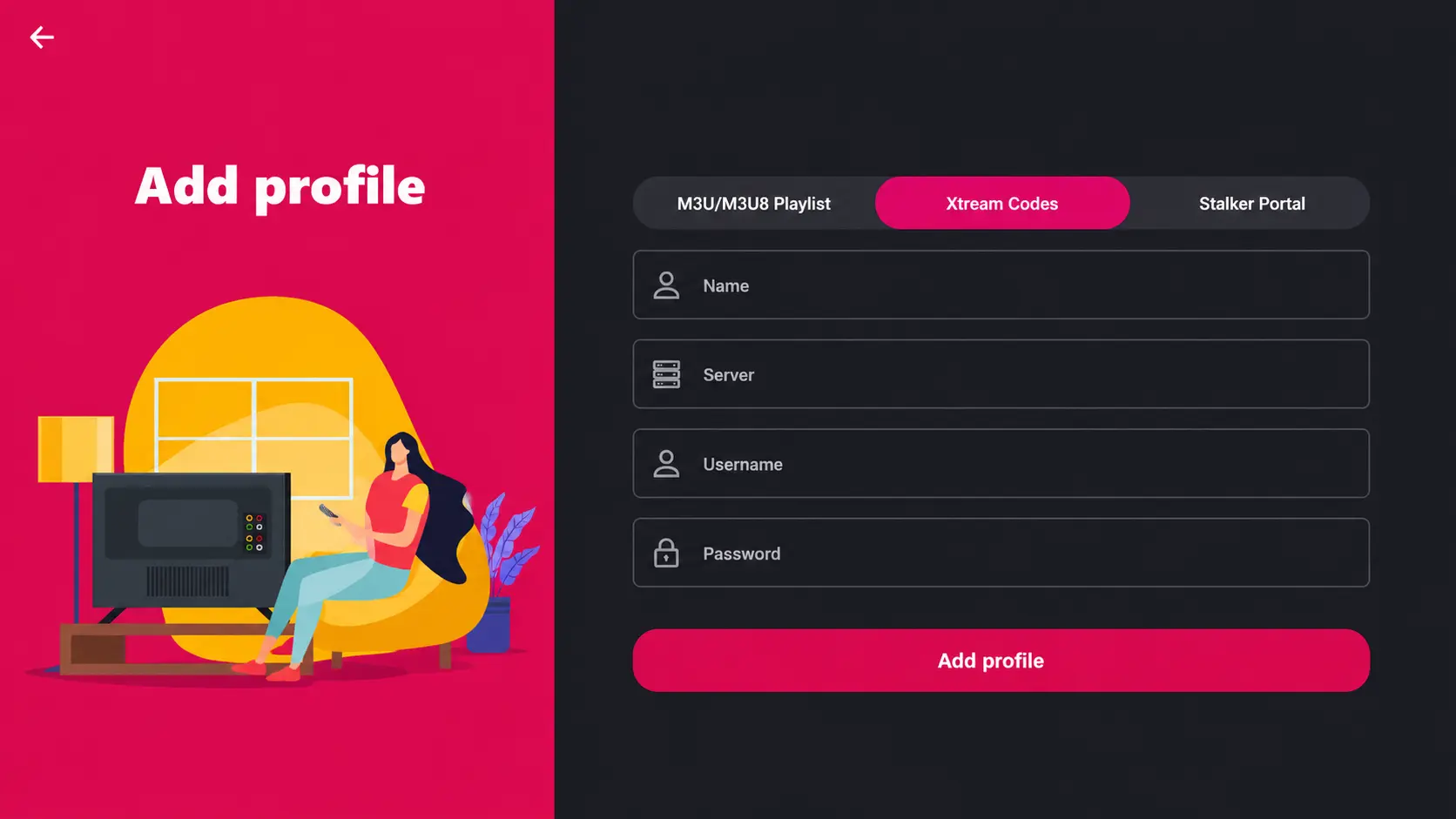
How to set up TiviMate
- Open the Microsoft Store or your provider's download link.
- Search for TiviMate.
- Click Get or Install.
- Launch TiviMate after installation.
- Choose Xtream Codes API or M3U playlist.
- Enter your IPTV login details.
- The channels and EPG load automatically.
Tip: TiviMate works best with a stable connection and a modern PC. For 4K streams, use a wired Ethernet connection.
Option 2: IPTV Smarters Pro for Windows
IPTV Smarters Pro is another excellent choice for both live TV and VOD. Follow these steps to download, install and log in.
Step 1: Download IPTV Smarters Pro
- Open your web browser on Windows.
- Go to the official IPTV Smarters Pro download page or the link from your IPTV provider.
- Download the Windows installer.
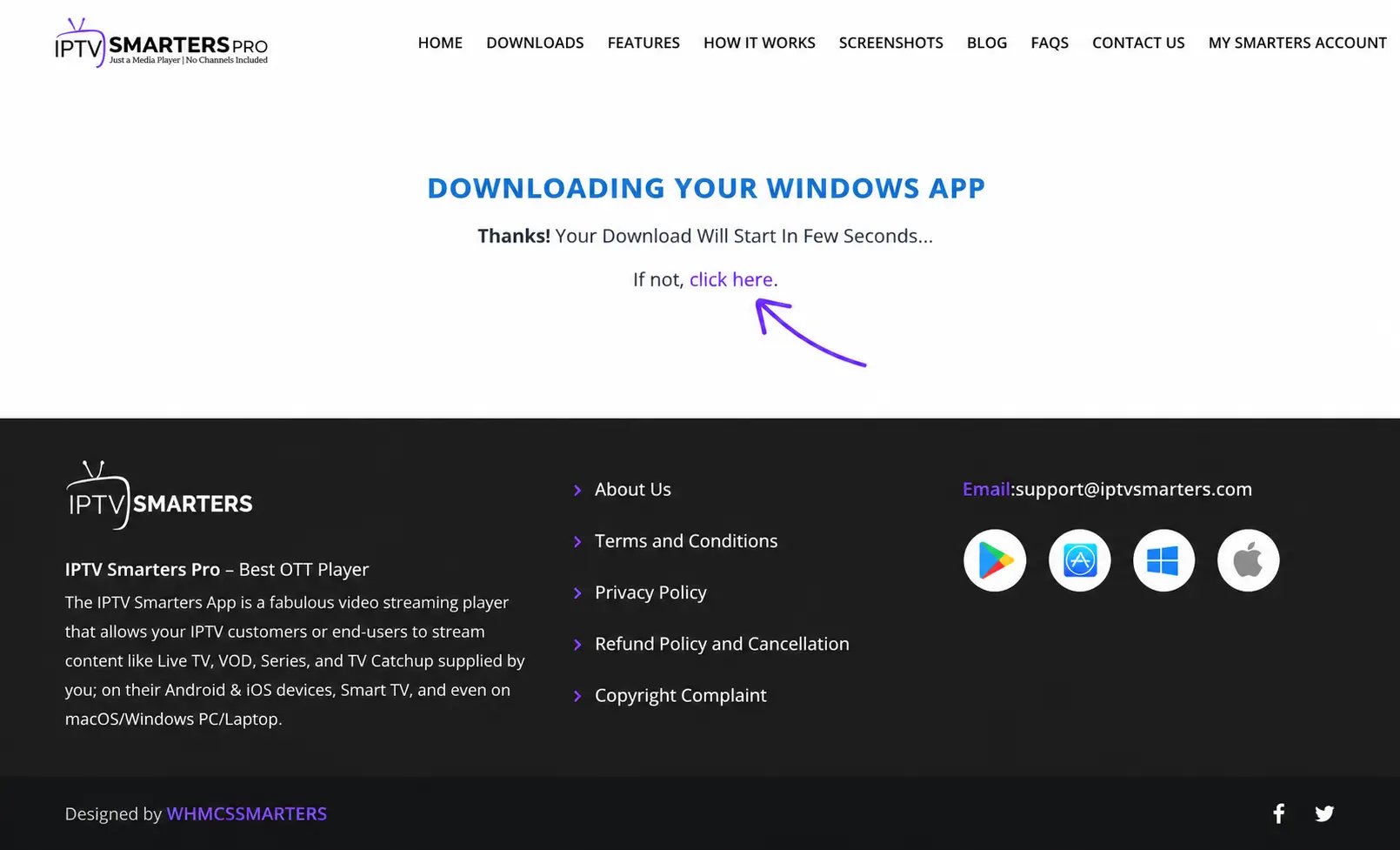
Step 2: Save the file
Choose a download location that is easy to find, such as your Downloads folder.
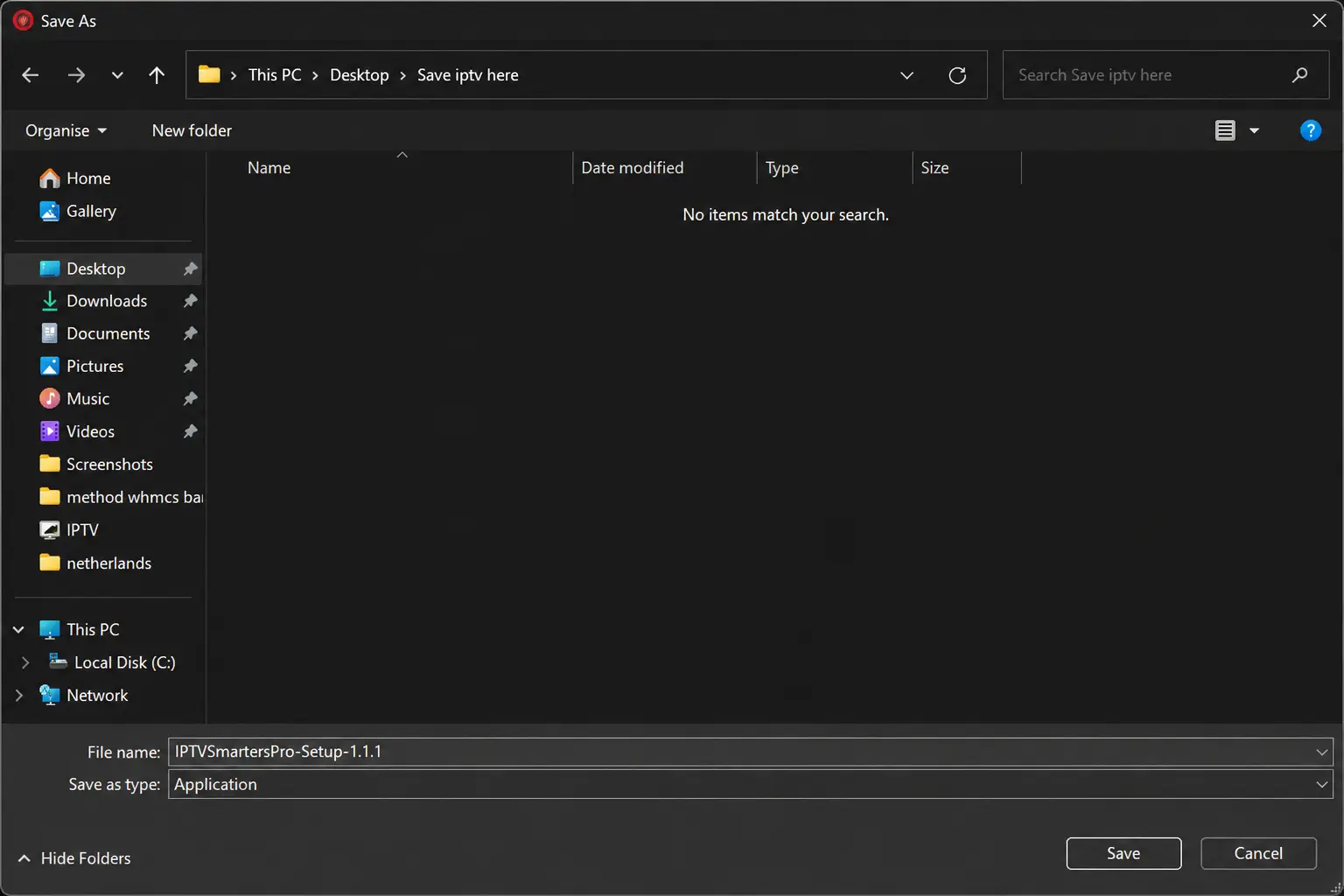
Step 3: Install IPTV Smarters Pro
- Open the folder where you saved the installer.
- Double-click the setup file to start the installation.
- Follow the on-screen instructions.
- Accept the license and complete the installation.
Step 4: Launch IPTV Smarters Pro
Find the IPTV Smarters Pro icon on your desktop or in the Start menu and double-click it.
Step 5: Enter your IPTV login details
Choose Login with Xtream Codes API and enter your subscription details exactly as you received them.
Login fields explained
- First box: profile name — any name you like.
- Second box: username, sent to you by email or WhatsApp.
- Third box: password.
- Fourth box: server URL, usually starting with
http://orhttps://.
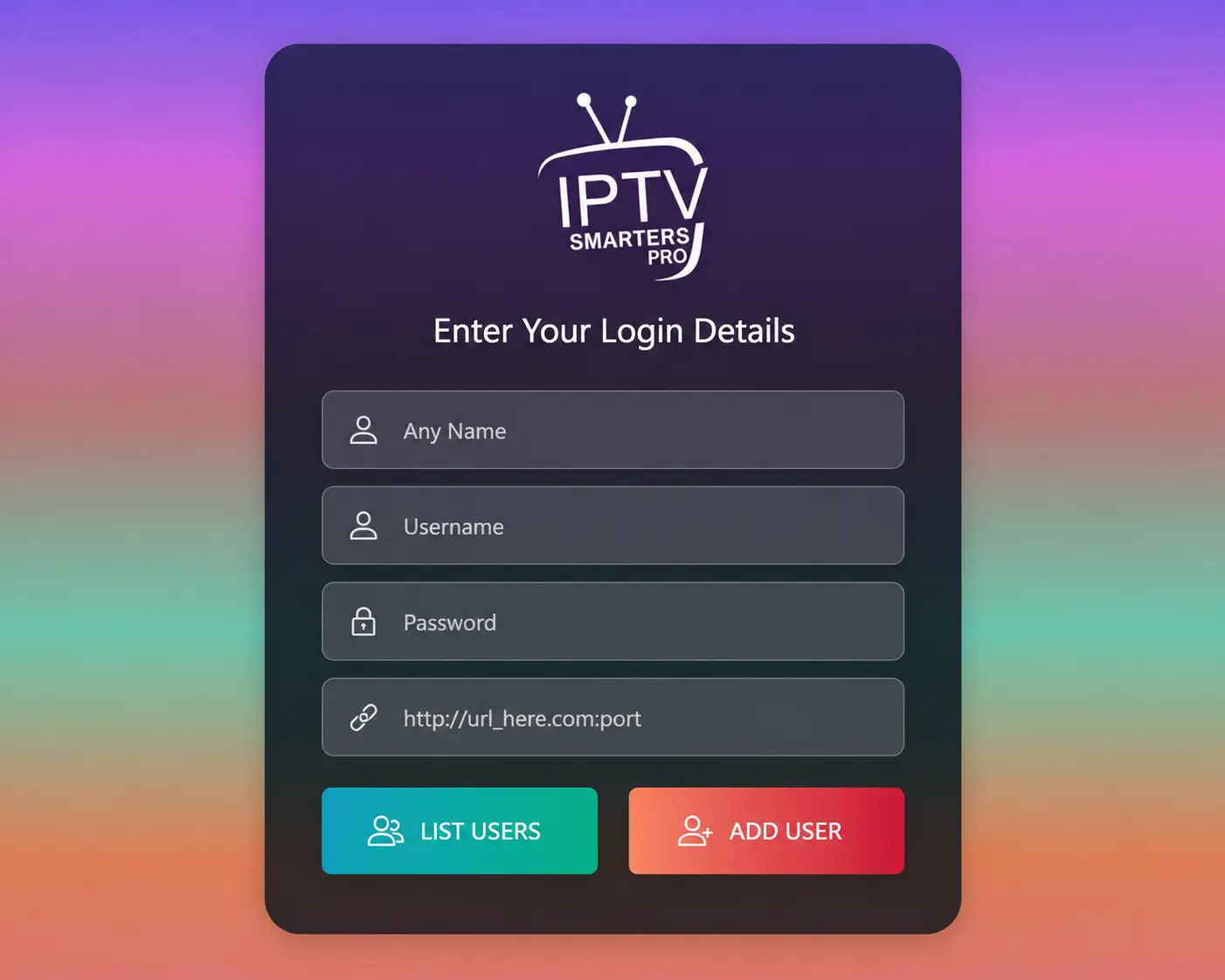
Click Add User or Login. The app loads your channels, movies, series and EPG.
Troubleshooting
Authorization failed
- Make sure the username and password are typed exactly.
- Confirm the server URL is correct and complete.
- Disable any VPN temporarily.
- Contact support if the issue continues.
Account expired
Confirm your subscription status. After a renewal the account can take a few minutes to sync, so wait and try again.
Final Notes
Both TiviMate and IPTV Smarters Pro perform well on Windows. Choose the player you prefer, follow the steps and log in with Xtream Codes API or M3U. On a Mac instead? Follow our macOS setup guide.
Need Help Setting Up IPTV on Windows?
Contact BangosPlay support and we will help you install IPTV on your Windows PC, configure IPTV Smarters Pro or TiviMate, add your Xtream Codes login and fix any streaming or login issue quickly.
Don't have a subscription yet? View our IPTV packages.
Contact Support