
IPTV Smarters "Failed to Authorize": How to Fix It
The message means the app reached the server, but the server refused the login. Eight things cause it. Check them in this order — the first three solve most cases.
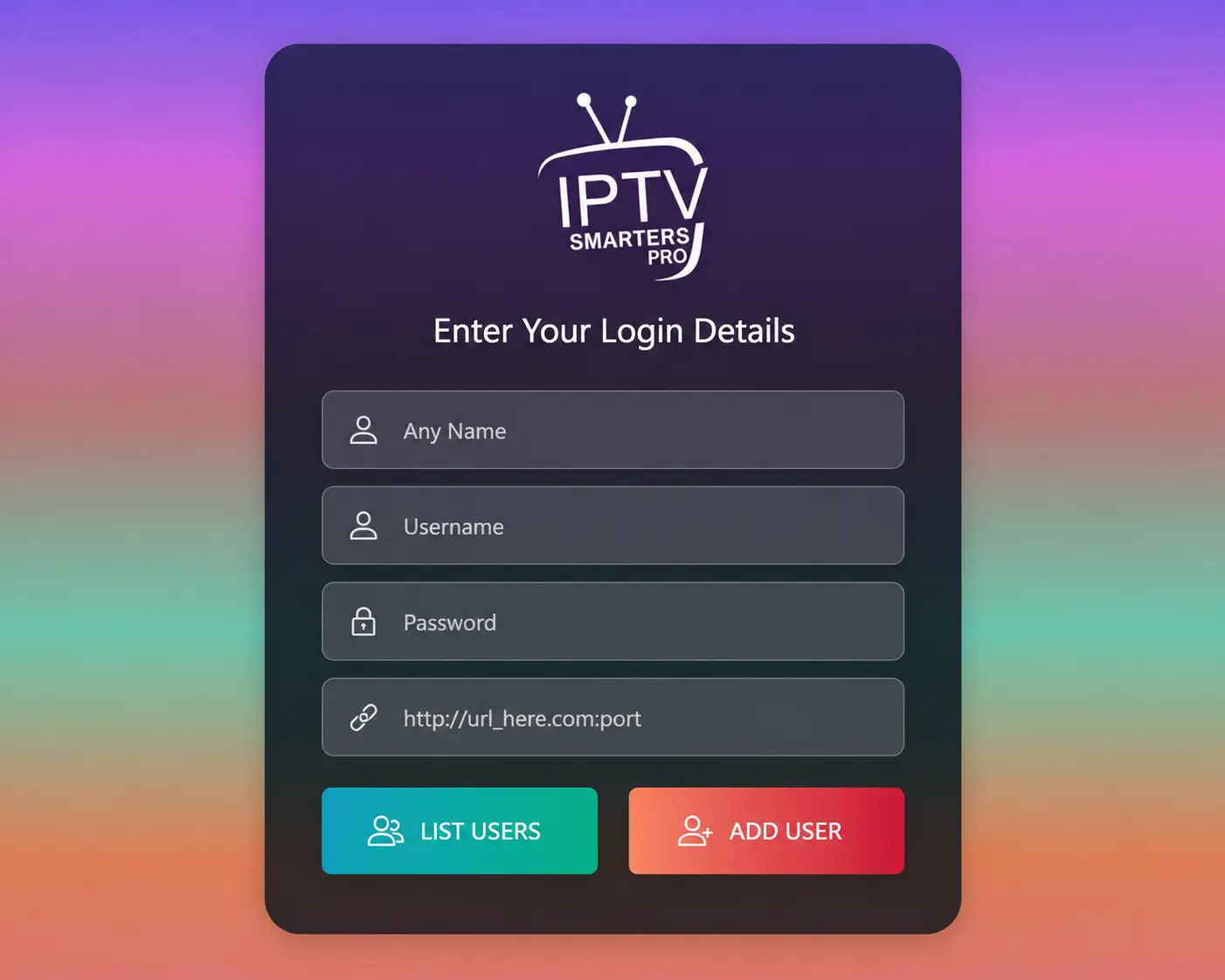
Quick Answer
"Failed to authorize" or "Authorization failed" in IPTV Smarters is almost always one of three things: a typo in the username, password or server URL, an expired or busy account, or a VPN the server does not accept. Re-enter the details by copying them from your activation message, close the app on other devices and turn off your VPN — that fixes the error for most people in under two minutes.
The 8 Causes, in the Order to Check Them
1. A typo in the username or password
Logins are case-sensitive and every character counts. The usual culprits are a capital letter typed in lower case, a 0 (zero) read as an O, an l read as an I, or a space copied at the end.
Fix: copy the details straight from the message we sent you instead of typing them, and check there is no space before or after.
2. The server URL is incomplete
The server URL must be complete: it starts with http:// (or https:// if that is what you received) and keeps the port number if there is one, for example http://example.com:8080. Leaving out the port, adding www, or pasting a full playlist link into this box all cause the error.
Fix: paste only the server address, exactly as sent, with nothing added after the port.
3. The wrong login type
IPTV Smarters has two login types. Login with Xtream Codes API asks for a server URL, username and password. Load your playlist or file/URL takes one long M3U link. Putting an M3U link into the Xtream form (or the other way round) fails.
Fix: use Xtream Codes API with the three separate details — it also loads the TV guide and categories faster. See M3U vs Xtream Codes.
4. The subscription has expired — or is not active yet
An expired account and an account that is still being activated both answer with the same error. After a renewal, the server can take a few minutes to update.
Fix: check the expiry date we sent with your details, wait five minutes after renewing, then try again.
5. The account is already open on another device
A subscription is made for one connection at a time. If the same login is streaming on a second TV or phone — or an old device is still connected in the background — the server can refuse the new login.
Fix: close the app on every other device, wait one or two minutes, then log in again.
6. A VPN or proxy is blocking the login
Many IPTV servers block VPN and data-centre IP addresses. If the error started when you turned on a VPN, that is the cause.
Fix: turn the VPN off and try again. If you need a VPN for streaming, connect it after you have logged in, or choose a server close to your real location.
7. Old app data or an out-of-date version
A saved profile with old details, or a corrupted cache, keeps sending the wrong login even after you corrected it.
Fix: delete the user profile in the app and add it again. On Android and Firestick also clear the cache: Settings > Applications > IPTV Smarters > Clear cache. Then update the app to the latest version.
8. The server address changed, or the server is down
Providers occasionally move to a new server address, and a server can be briefly unavailable. Your internet provider's DNS can also fail to find the server.
Fix: ask support whether your server URL is still current. You can also change your device or router DNS to Cloudflare (1.1.1.1) or Google (8.8.8.8) and try again.
Still Seeing the Error?
Send us these four things on WhatsApp and we will check your account straight away:
- A photo of the login screen with the details you entered — hide the password.
- Your device and the app version (in IPTV Smarters: Settings > About or the app info page).
- Whether a VPN is installed on the device or the router.
- Your order ID, so we can see the account status.
Related problems
- Logged in but no channels appear? See IPTV not working — fixes by symptom.
- Channels load but freeze? See how to stop buffering.
- New to the app? Read our IPTV Smarters Pro guide.
Need Help Logging In?
Our support team checks your account and walks you through the login on WhatsApp, 24/7.
No subscription yet? Request a free trial or view our packages.
Contact Support