
TiviMate IPTV Player: Setup and Best Settings
TiviMate looks and feels like a cable box: a full-screen TV guide, quick channel switching and a remote-friendly layout. Here is how to set it up and get the most from it.
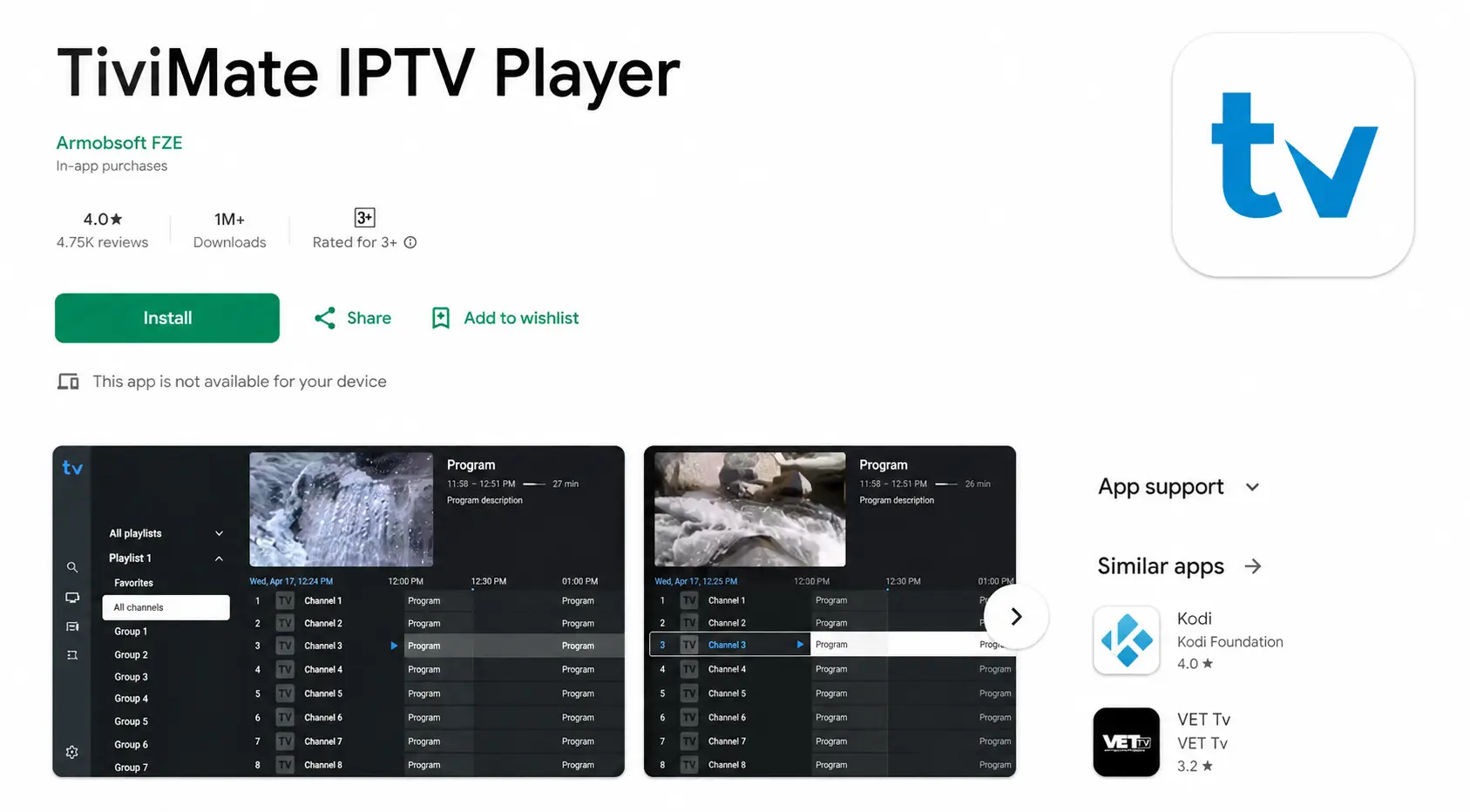
TiviMate is built for TV screens running Android TV: Amazon Firestick and Fire TV, Chromecast with Google TV, NVIDIA Shield and Android TV boxes. It is not designed for phones, and there is no version for iPhone, Samsung or LG TVs. If you watch mostly live TV on one of those Android TV devices, it is the most comfortable player there is.
How to Install TiviMate
Android TV, Google TV, NVIDIA Shield
Open the Google Play Store on the TV, search for TiviMate IPTV Player and install it.
Firestick and Fire TV
- Install the Downloader app and allow it to install apps — the steps are in our Firestick guide.
- Open Downloader and enter the code 185194.
- Install TiviMate when the download finishes, then open it.
Add Your BangosPlay Playlist
- Open TiviMate and choose Add playlist.
- Select Xtream Codes login.
- Enter the server address, username and password from your activation message.
- Give the playlist a name and tap Next — channels and the TV guide load automatically.
- Choose which channel groups to show. Hiding groups you never watch makes the guide much faster to scroll.
You can also add an M3U link instead, but then the guide needs a separate EPG link — see how the TV guide works.
Free vs Premium
TiviMate is free to install and play live channels with the TV guide. The paid Premium subscription unlocks the extras — catch-up, recording, multiple playlists, managing favorites, and the movie and series sections. Your channels do not change either way: they come from your subscription, not the app.
Tip: try the free version with a BangosPlay free trial first. If you mostly watch live TV, you may not need Premium at all.
Best Settings
Buffer size — if channels stutter
Settings > Playback > Buffer size. Raise it one step if live channels pause to load. A bigger buffer adds a second or two before a channel starts but smooths out short drops in speed. More fixes in the buffering guide.
EPG time shift — if the guide is at the wrong time
Settings > EPG. Shift the guide by the number of hours it is off — common when watching channels from another country.
Update the EPG — if the guide is empty
In Settings > EPG, update the EPG source, then reopen the guide.
Favorites
Long-press a channel to add it to Favorites, then open the Favorites group to see only those channels in the guide.
TiviMate or IPTV Smarters?
Choose TiviMate if you watch on an Android TV device and care most about live TV and the guide. Choose IPTV Smarters Pro if you want one free app that also runs on your phone, laptop and Smart TV. The full comparison is on the IPTV apps page.
Need Help With TiviMate?
Our support team helps you add your playlist and get the guide working on WhatsApp, 24/7.
No subscription yet? View our IPTV packages.
Contact Support